

Overview
WhatsApp message templates are pre-approved messages required by Meta to contact customers outside the 24-hour conversation window. When a customer hasn’t messaged you in the last 24 hours, you must use an approved template to re-initiate the conversation. Chatbase supports Utility, Authentication, and Marketing templates. All template categories can be sent from both the Helpdesk and Outbound Campaigns.What you can do:
Reach a customer after their 24-hour reply window has closed, with a template Meta has already approved and variables filled in from the ticket.
Before you start
- A connected WhatsApp integration in Chatbase. If you haven’t connected one, follow the WhatsApp integration setup guide first.
- Access to WhatsApp Manager
- An approved WhatsApp Business Account
Creating a template in WhatsApp Manager
1
Open Message Templates
Navigate to WhatsApp Manager and open Message Templates.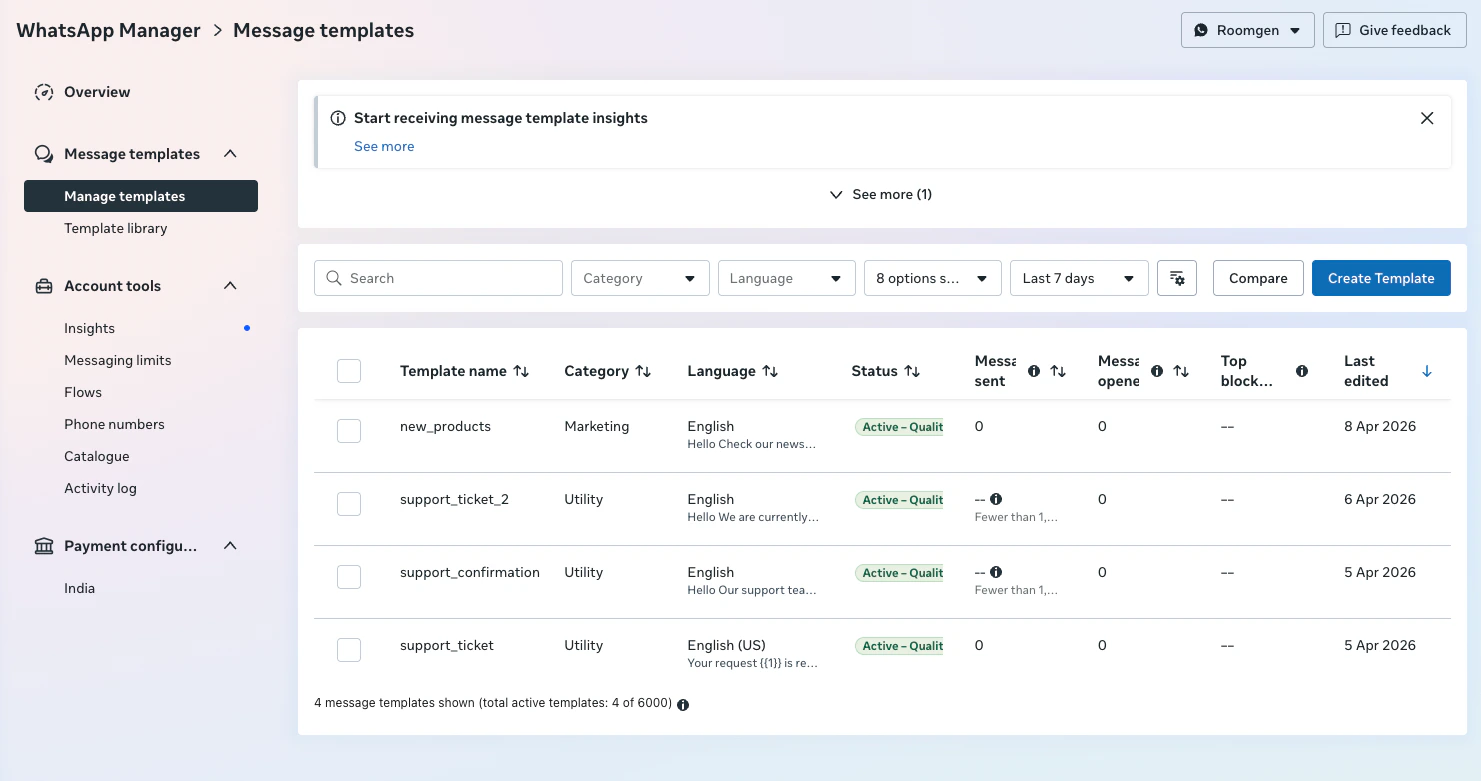
2
Create the template
Click Create Template.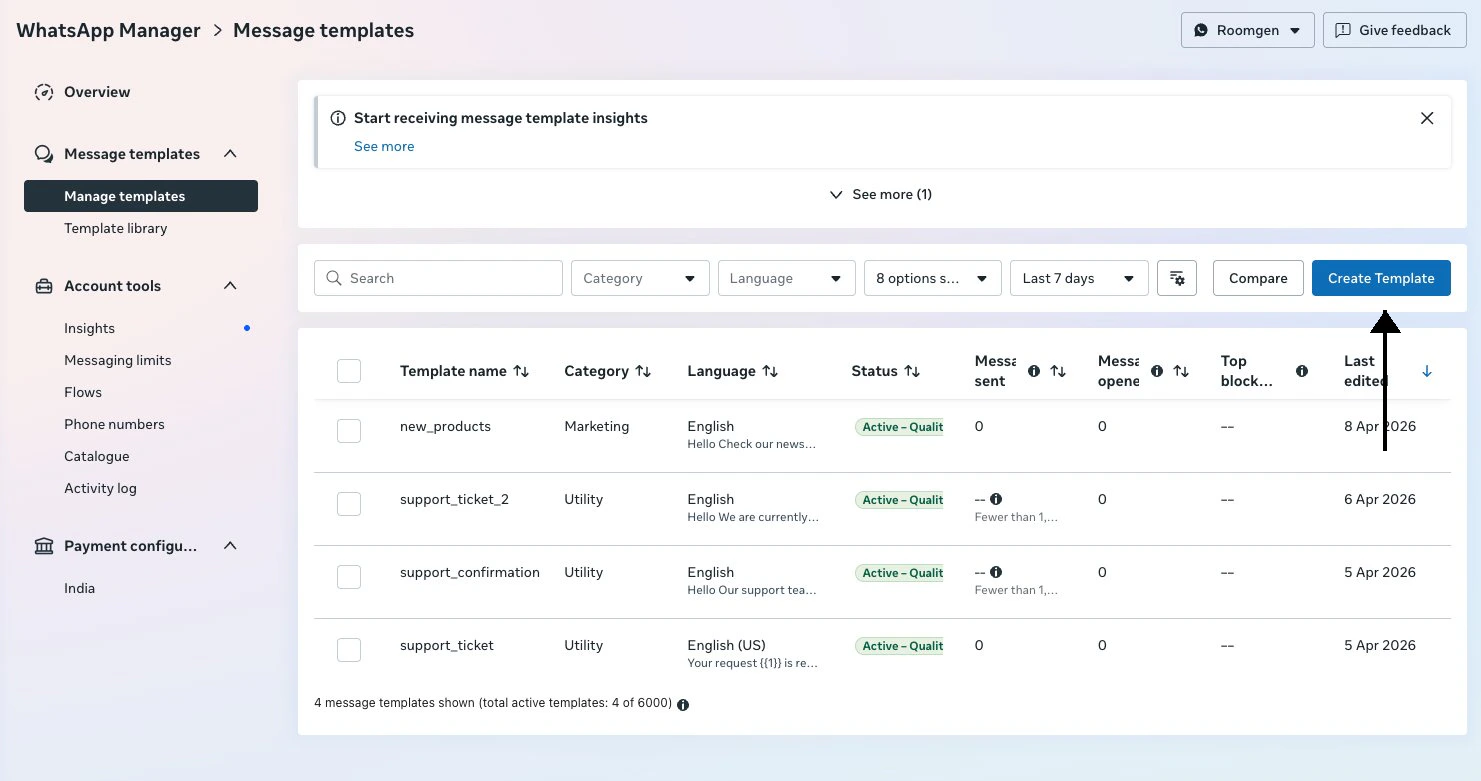
3
Choose a category
Choose a template category: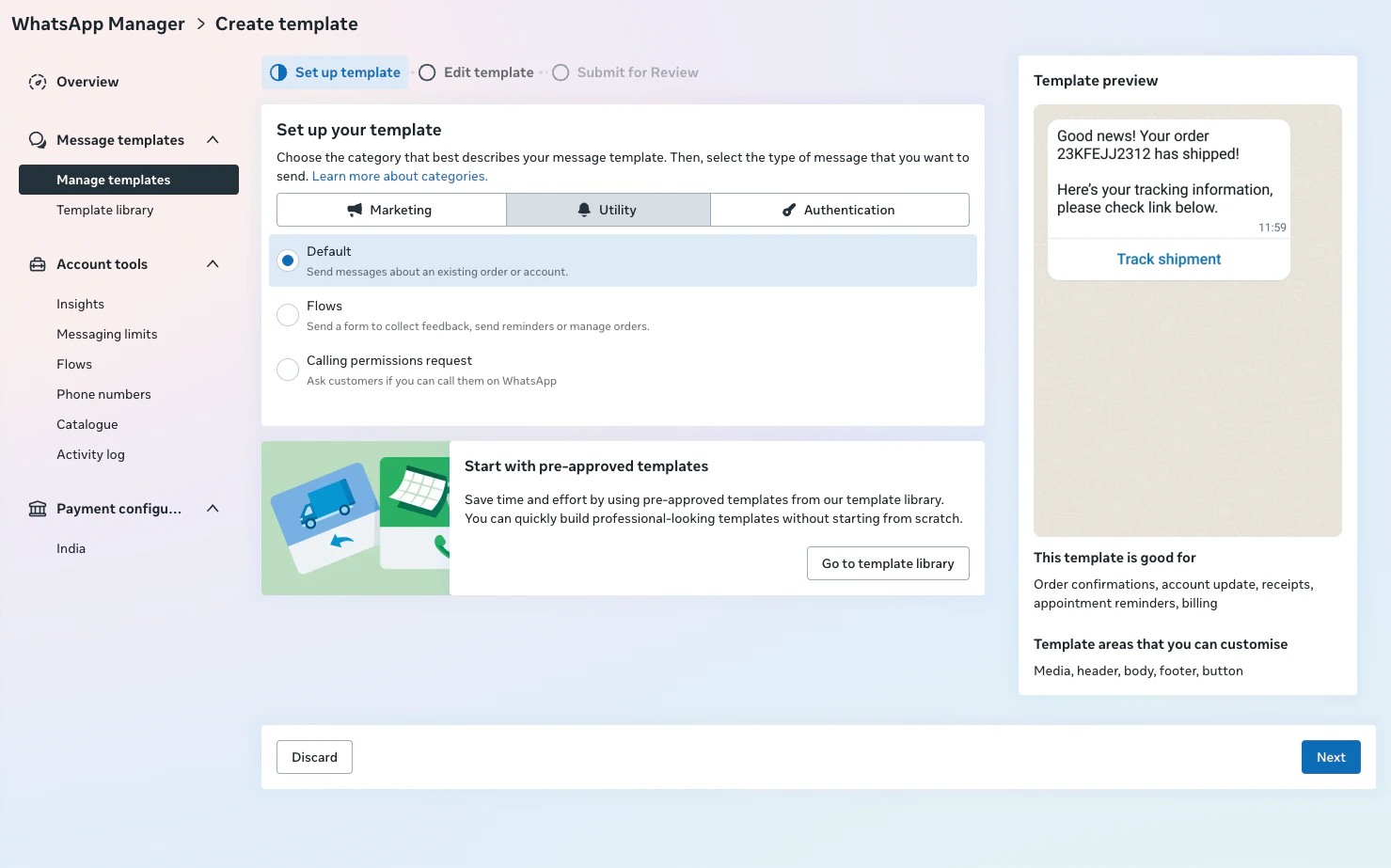
- Utility: for order updates, account notifications, and transaction confirmations
- Authentication: for verification codes and login confirmations
All template categories (Utility, Authentication, and Marketing) can be used in both the Helpdesk and Outbound Campaigns.
4
Name the template and pick a language
Enter a name for your template and select the language.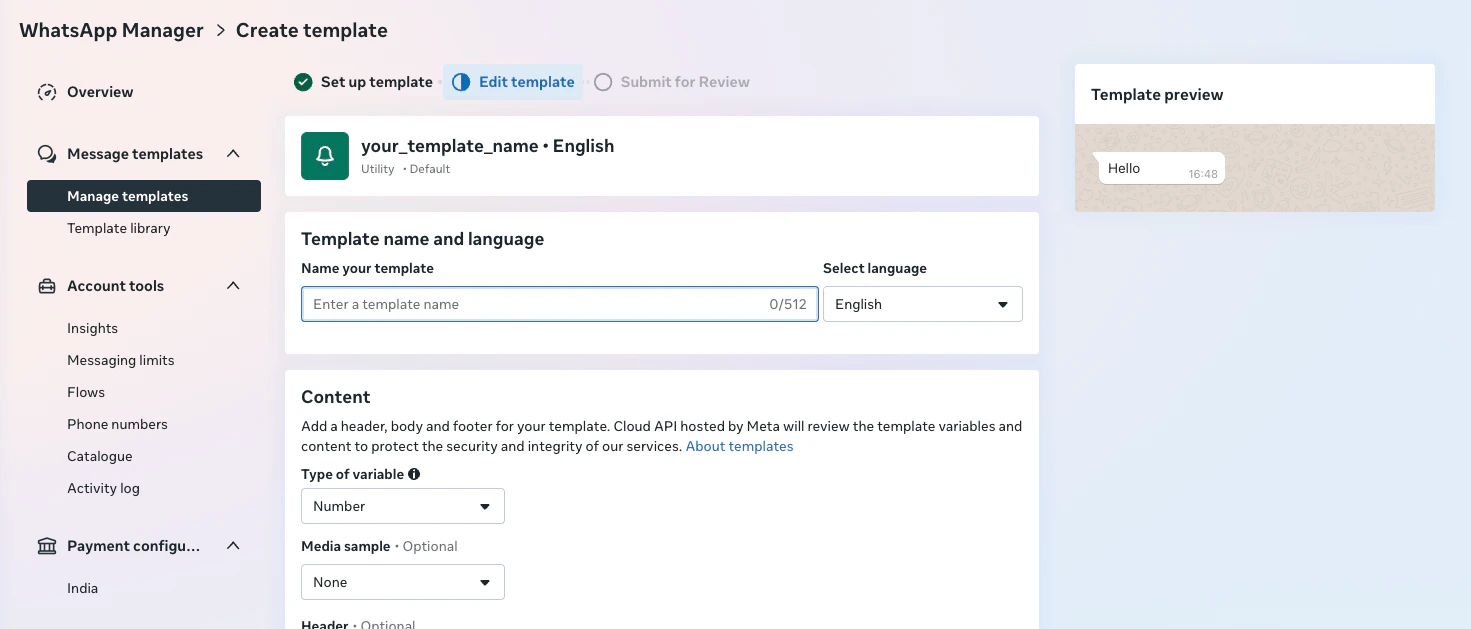
5
Write the body text
Write your template body text. You can include variables such as 
{{1}} and {{2}}, which are filled in when sending the template from Chatbase.6
Submit for review
Click Submit for Review.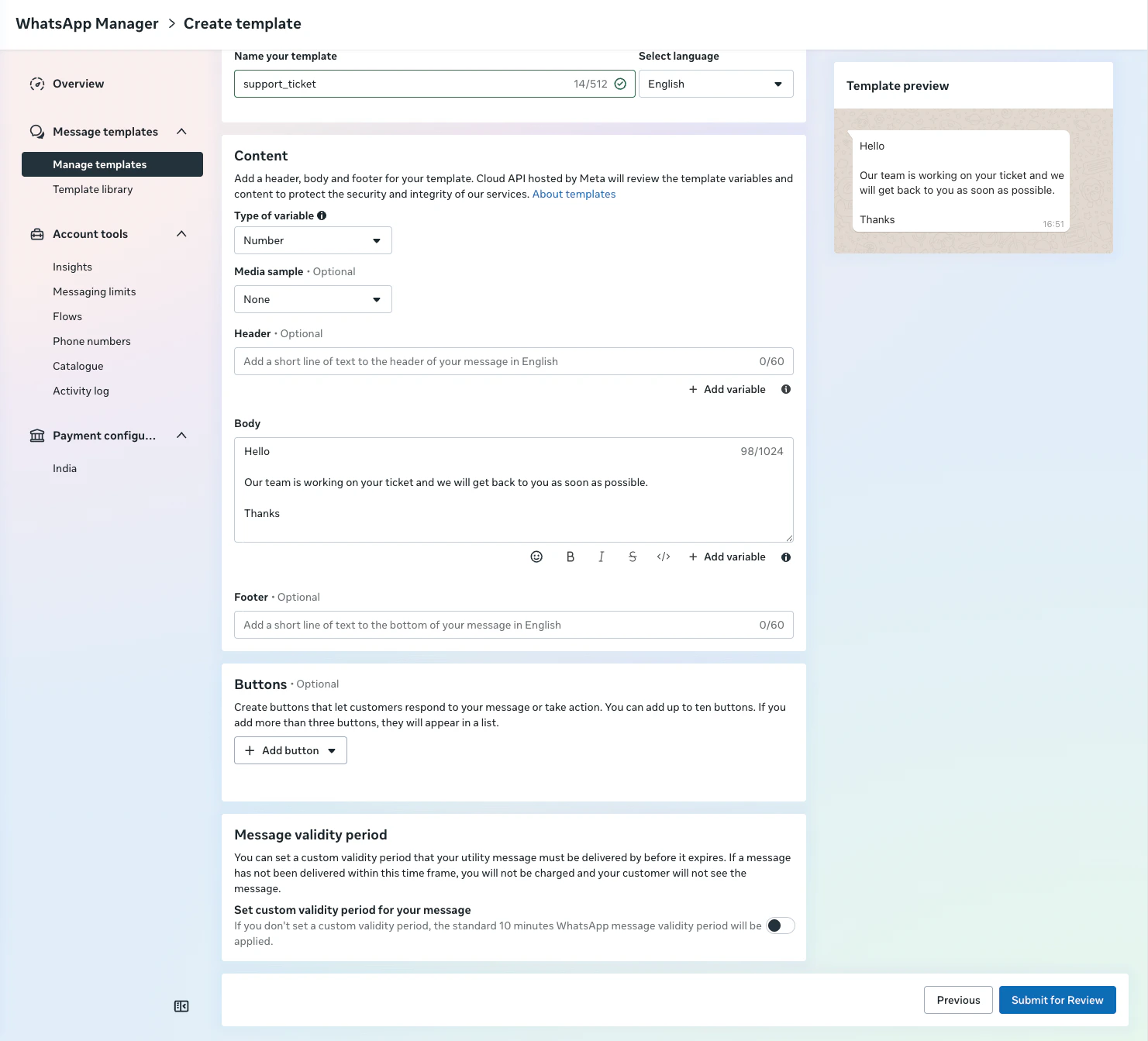
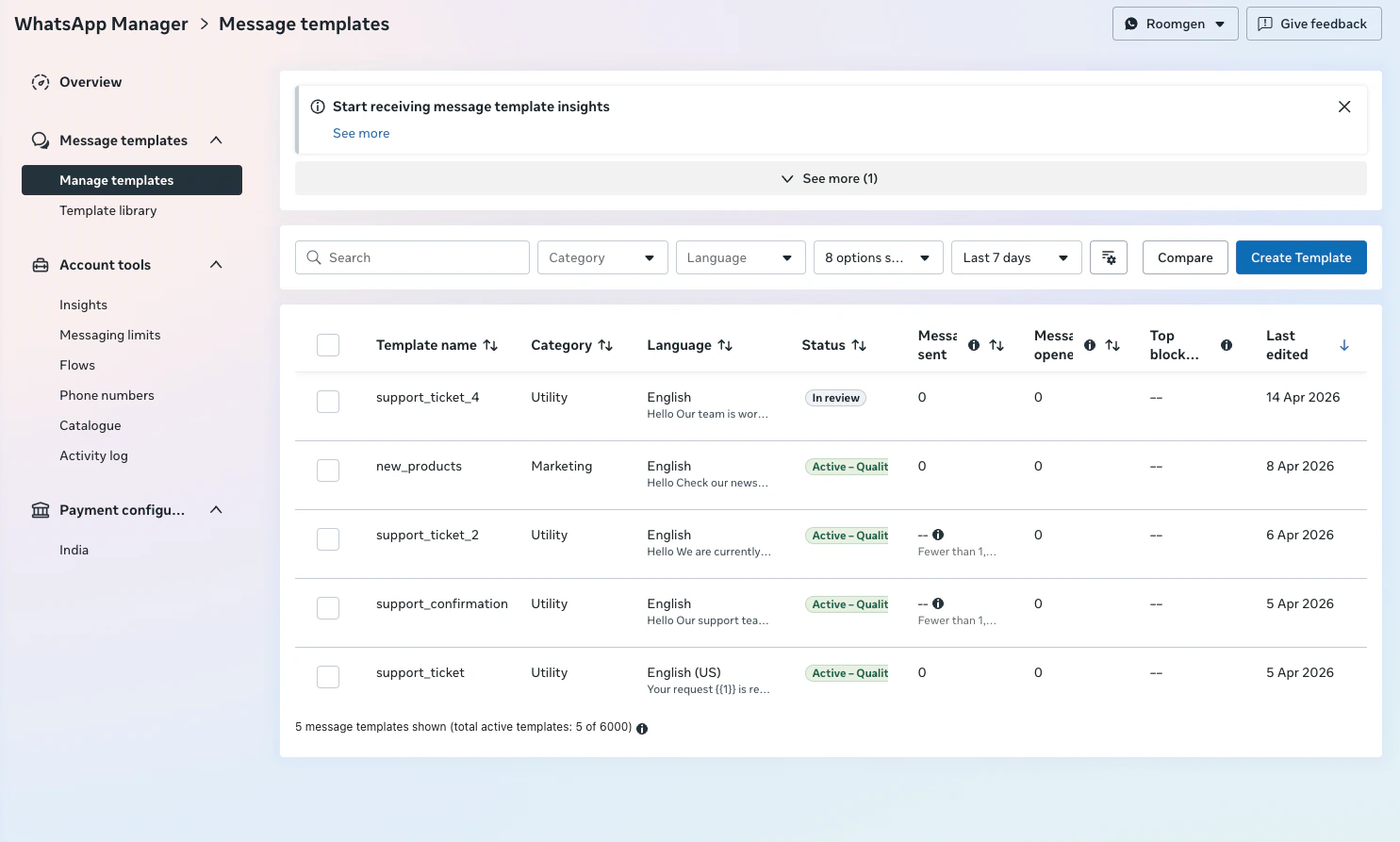
Meta reviews templates before they can be used. The review usually takes a few minutes, but can take longer. Your template must be approved before it appears in Chatbase.
Sending a template from the Helpdesk
Once your template is approved in Meta, you can use it to message customers from the Chatbase Helpdesk.1
Open the Helpdesk inbox

2
Open a WhatsApp ticket
Navigate to or open a WhatsApp ticket with the contact you want to message.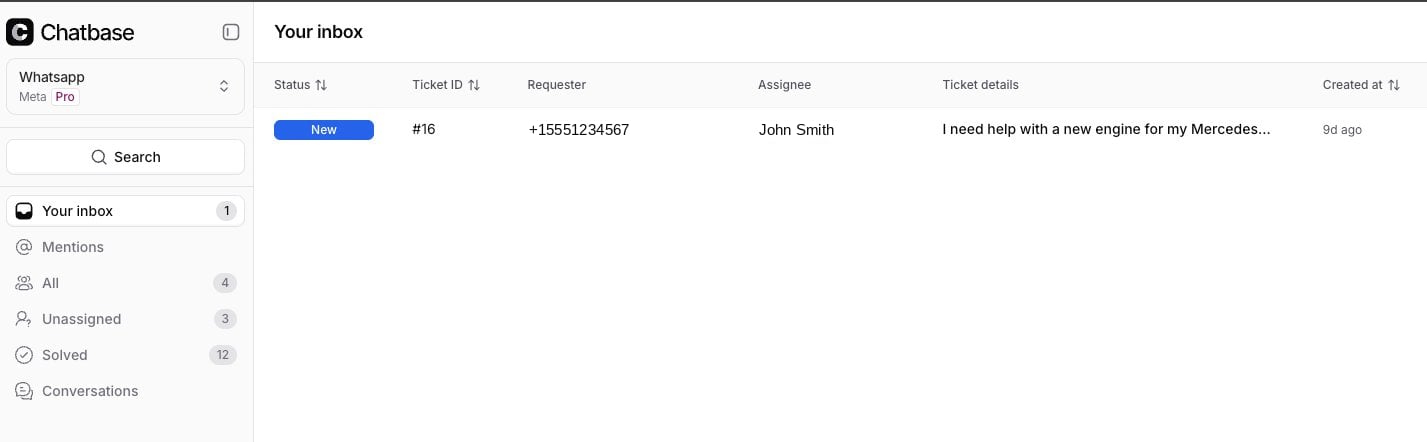
3
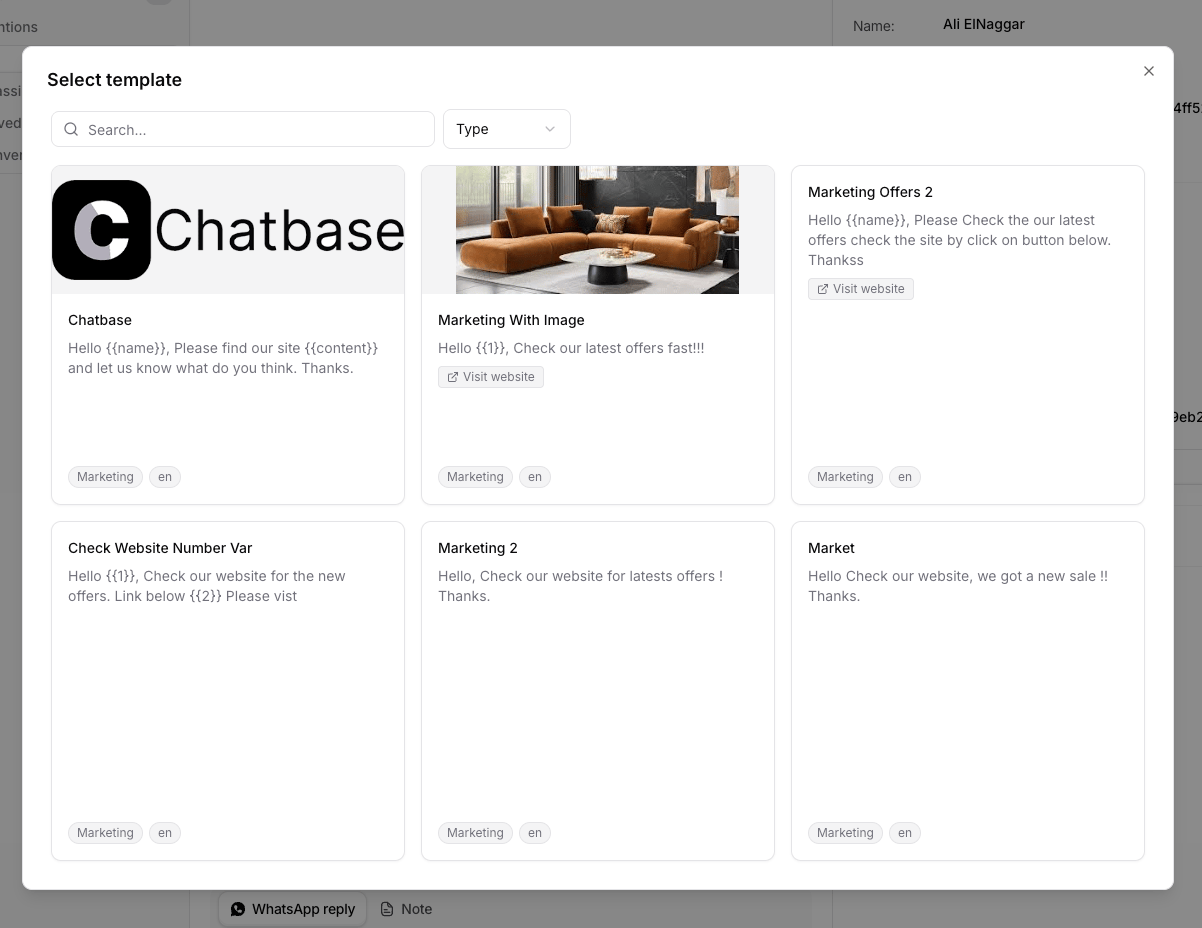
Choose a template
When the 24-hour reply window has closed, you’ll see a notice that sending messages is no longer allowed. Click Choose template.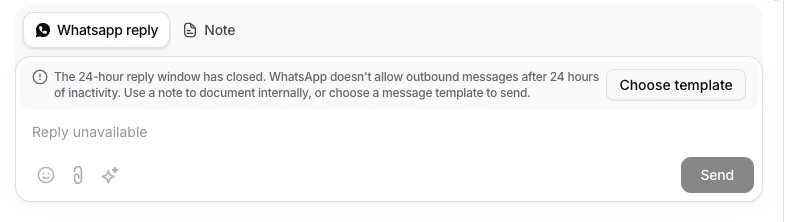
4
Map the variables
Select a template. If it includes variables such as 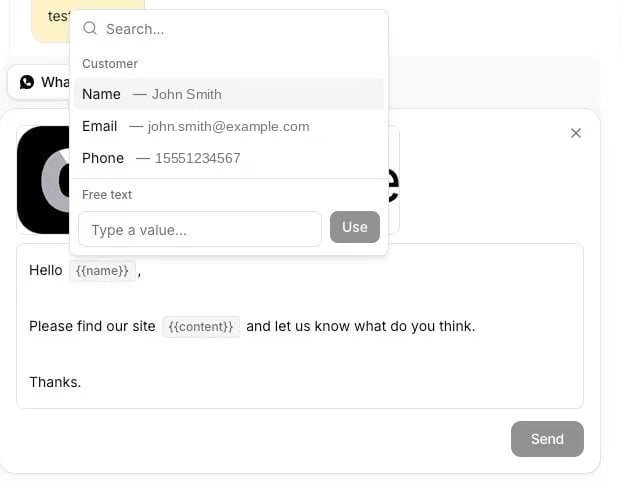
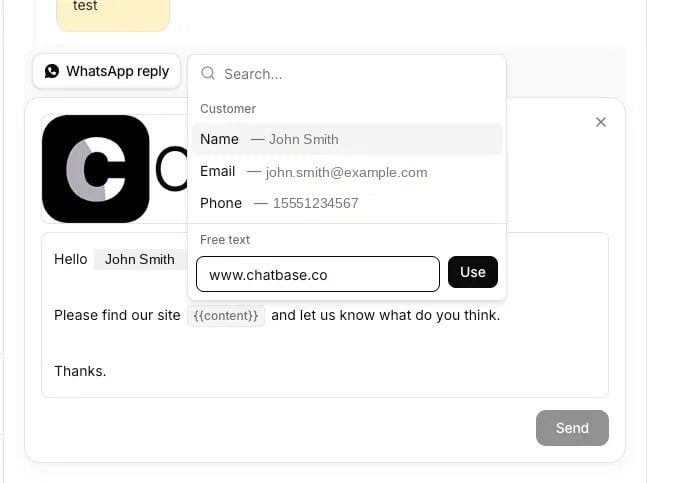
{{name}}, an inline editor appears where you map each variable to a value. Click a variable token to open the mapping popover:- Customer field: pulls from the ticket customer’s data (name, email, or phone number).
- Free text: enter a static value manually.
5
Preview and send
Once all variables are filled in, preview the final message and click Send.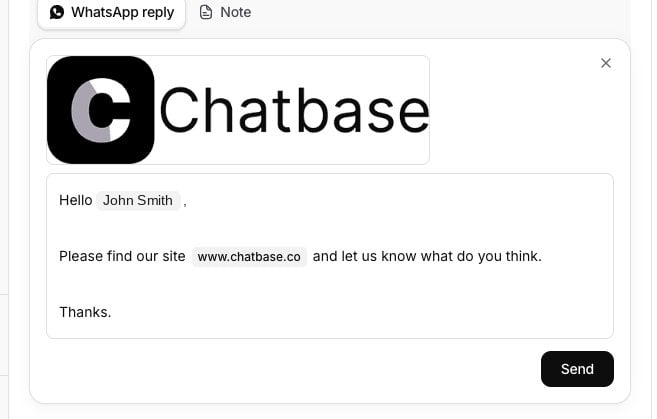
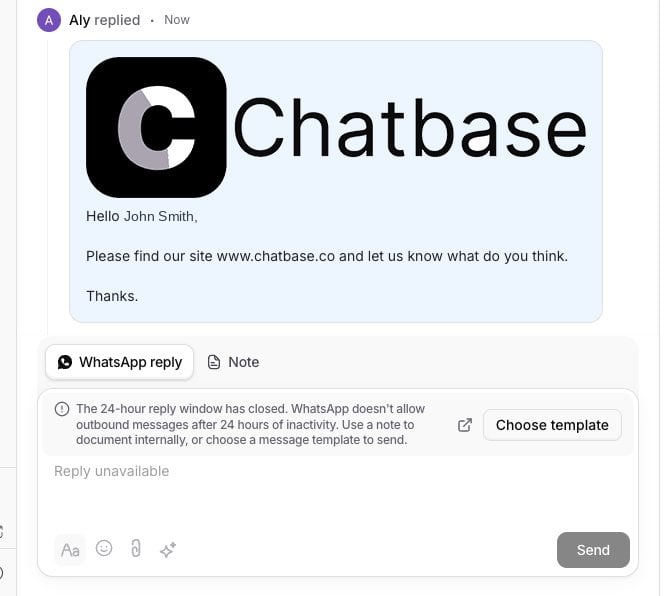
Understanding the 24-hour window: WhatsApp allows free-form messaging only within 24 hours of the customer’s last message. After that window expires, you must use an approved template to re-initiate the conversation. Once the customer replies, the 24-hour window resets and you can send free-form messages again.
Limitations
- Templates must be approved by Meta before they appear in Chatbase.
- Meta charges per template message sent, with fees varying by country and category.
- Free-form messaging only works inside the 24-hour window. Outside it, a template is the only way to reach the customer.
Troubleshooting
Template not appearing in Chatbase
Template not appearing in Chatbase
Possible cause: the template hasn’t been fully approved in Meta.Solution: check the approval status in WhatsApp Manager. All template categories (Utility, Authentication, and Marketing) are available in both the Helpdesk and Outbound Campaigns once approved.
Message failed to send
Message failed to send
Possible causes:
- The contact doesn’t have a valid WhatsApp phone number
- No payment method is configured in Meta billing
- Confirm the contact’s WhatsApp phone number is valid
- Add a payment method in your Meta billing settings
Next steps
Outbound Campaigns
Send approved templates to many contacts at once, rather than one ticket at a time.