

What you can do:
See your AI agent the way a visitor will, change its style and capabilities in place, and share a preview link of your live AI agent with your team.
- Preview your AI agent’s behavior in real time
- Test conversations and responses
- Edit channel-specific settings, such as your AI agent’s style and capabilities, and immediately see how those changes affect the experience
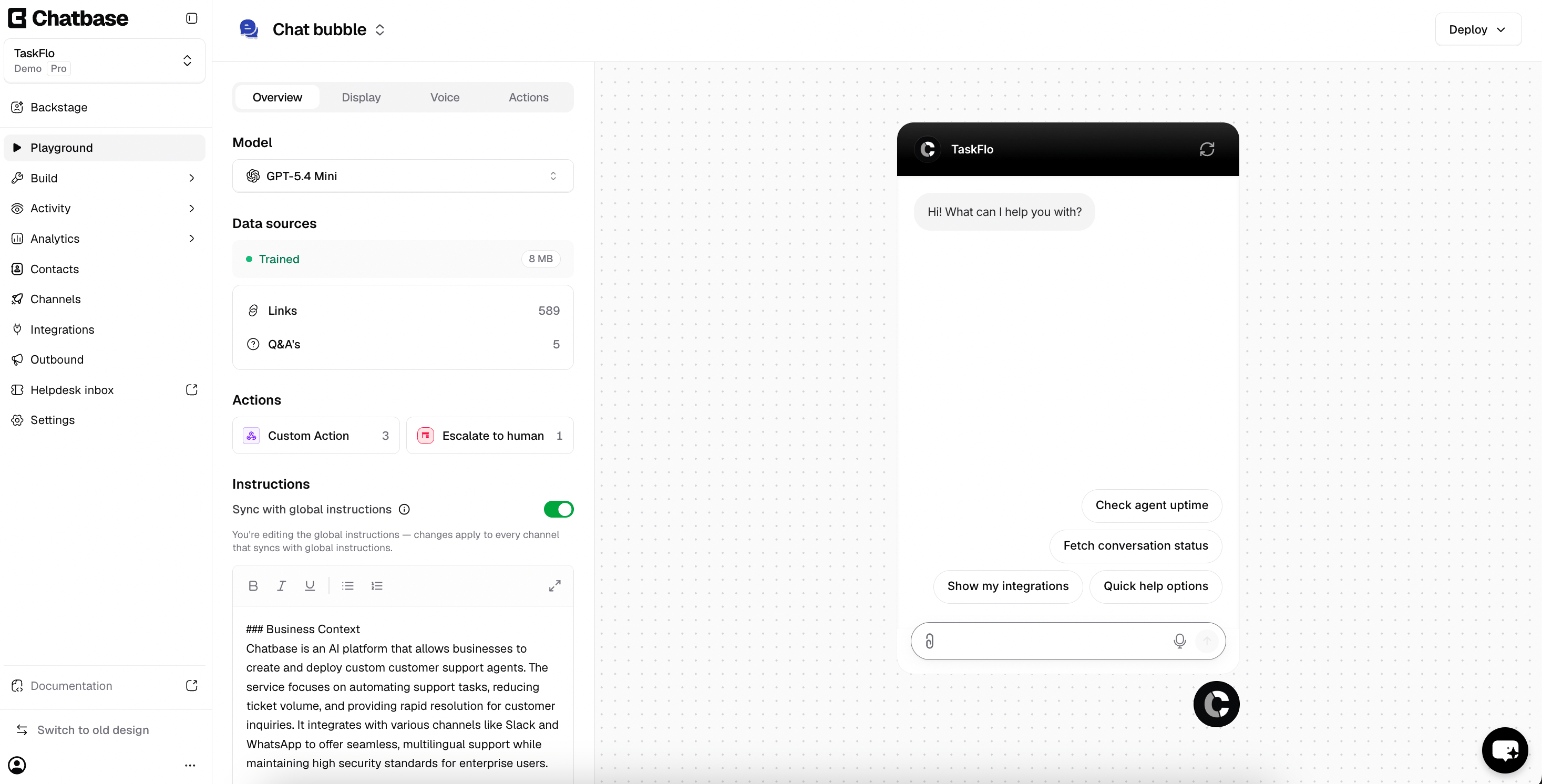
Tabs
The tabs available depend on which channel you are previewing. A web channel such as Chat Bubble shows:
Other channels expose a different set. Messenger, for example, replaces Voice with Leads, and the Slack channel uses Overview, Connections, Actions, and Extra Settings.
Instructions and global instructions
On the Overview tab, Sync with global instructions controls whether this channel uses your AI agent’s global instructions or its own. Leave it on to keep every channel consistent; turn it off to write instructions that apply only to this channel.Chat as user
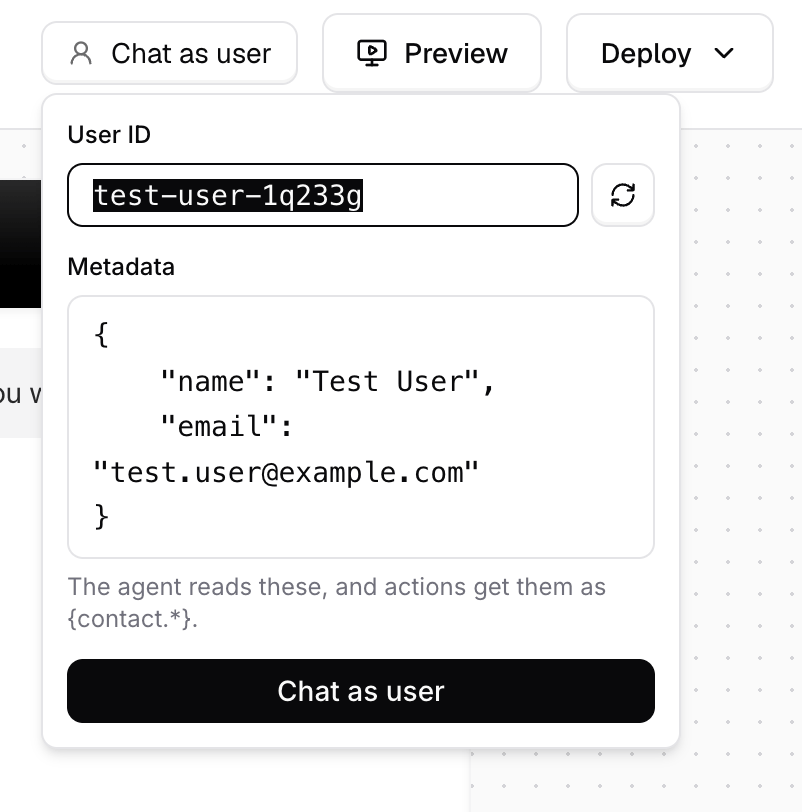
Chat as user starts a Playground conversation as an identified user of your choice, so you can see what a signed-in customer would see and test Actions that only run for an identified user. Click Chat as user in the top right, then:- User ID: the identifier the conversation runs under. A test ID is generated for you, and the refresh button beside the field generates a new one. Replace it with a real user ID to chat as that user.
- Metadata: a JSON object of details for that user. Edit the name and email, or add your own fields, then chat to see how your AI agent handles that user. Your AI agent reads these values, and Actions receive them as
{contact.*}variables.
Preview
Click Preview in the top-right to open your AI agent on a page of its own. The preview opens in a new tab and renders the AI agent on an otherwise empty page, so you can see and use it the way a visitor would instead of inside the Playground’s editing layout. The preview shows your live AI agent, the version your visitors get, not your draft. Changes you haven’t published yet only show in the Playground, so publish them to see them in the preview. A toolbar at the top of the preview page controls how the page around your AI agent looks:- Light and dark: switch the page background between light and dark to check your AI agent’s colors against both.
- Upload background: upload an image, such as a screenshot of your own website, to sit behind the AI agent. This shows how your AI agent will look in place on your site before you deploy it anywhere.
Share a preview link
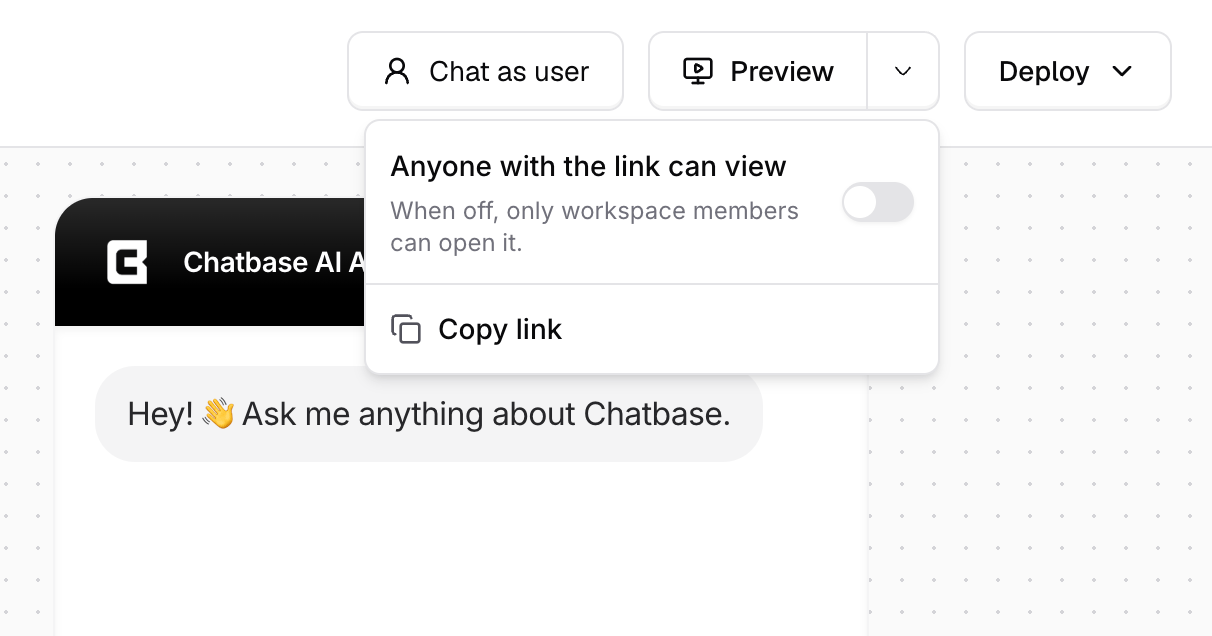
At first, only members of your workspace can open the preview link. To share the preview with someone outside your workspace, such as a client, your manager, or a teammate:1
Open the Preview menu
In the Playground, click the arrow next to Preview.
2
Turn on public access
Turn on Anyone with the link can view.
3
Copy and send the link
Choose Copy link and send it. Anyone with the link can open the preview without signing in, which makes it a convenient way to collect feedback before you deploy.
Deploying
Click Deploy in the top-right to get the code or connection details for the current channel. For the Chat Bubble, the dropdown offers:Open Preview, send your AI agent a few questions a real visitor would ask, and confirm the answers and the styling both hold up before you deploy.
Pre-deploy checklist
Before you click Deploy, use the Playground to confirm that:- Your AI agent answers your most common customer questions correctly, worded the way customers write them.
- It gives a clear fallback reply, instead of a guess, for a question your Data Sources don’t cover.
- It stays on topic when you ask about something unrelated to your business.
- Escalation works: ask for a person and check that the AI agent offers a ticket or live chat.
- Actions that need a signed-in customer work when you start the conversation with Chat as user.
- The Display tab settings, such as colors, initial messages, and suggested messages, look right in Preview on both light and dark backgrounds.
- The Chat Bubble’s Visibility toggle on the Overview tab is on.
- You’ve clicked Publish, so your live channels and the preview link use the setup you tested.
Limitations
- The Playground isn’t a real store or site session. Some Actions behave differently there: cart updates don’t work, and payment completion isn’t reported back. Actions that need an identified customer, such as the Stripe Actions, run only when you start the conversation with Chat as user. See Shopify Actions and Stripe Actions.
Frequently asked questions
Why does my AI agent answer differently in the Playground than on my website?
Why does my AI agent answer differently in the Playground than on my website?
The Playground uses your draft, while your website, other channels, and the preview link use the published version. If you’ve saved changes without publishing, the two give different answers until you click Publish. Other reasons answers can differ:
- Channel instructions: a channel with Sync with global instructions turned off uses its own instructions. Check you’re previewing the same channel your customers use.
- Signed-in customers: your website may pass customer details through identity verification. Use Chat as user to test with the same details.
- Actions: some Actions behave differently in the Playground. See Limitations.
- Temperature: above 0, the same question can be worded differently each time. See Temperature.
How do I see which source an answer came from?
How do I see which source an answer came from?
Ask the question in the Playground, then click Show sources below the chat. It lists the Data Sources the AI agent used for that reply, so you can update or remove the one behind a wrong answer.
Do Playground and Compare replies use message credits?
Do Playground and Compare replies use message credits?
Yes. Each reply uses the message credits of the model that wrote it, the same as a reply in a real conversation. In Compare, each chat box’s reply uses the credits of its own model. See Models comparison.
Do Playground conversations show up in Activity and Analytics?
Do Playground conversations show up in Activity and Analytics?
Can I test my AI agent as a signed-in customer?
Can I test my AI agent as a signed-in customer?
Yes. Click Chat as user, set a User ID, and edit the Metadata with the customer’s details. Your AI agent reads these values, and Actions receive them as
{contact.*} variables. See Chat as user.Why don't cart or payment Actions work in the Playground?
Why don't cart or payment Actions work in the Playground?
The Playground isn’t a real store or site session, so cart updates don’t work and payment completion isn’t reported back. Test those Actions from a live channel. See Shopify Actions.
Next steps
Channels
Configure each channel your AI agent runs on, and its display settings.
Build
Edit the instructions, model, and temperature behind every channel.
Actions
Give your AI agent things to do beyond answering questions.
Best Practices
Proven ways to improve the answers you’re seeing in the preview.