

Overview
Chatbase provides a quick way to add an AI agent to your Slack workspace. In a few minutes, you can make an AI agent available across your company’s Slack channels, where it understands natural language, answers common queries, resolves issues, and looks up information, giving you round-the-clock automated support inside Slack.What you can do:
Give your whole workspace an AI teammate: mention it in any channel and it answers right there, in the thread, without anyone leaving Slack.
Attachments are supported, so your AI agent can process them and respond based on their content. See Attachments.
This page covers deploying your AI agent into Slack so people can talk to it. To have your AI agent notify a Slack channel when a customer mentions a topic, use the Slack notification action instead.
Before you start
- A Chatbase account with an AI agent, on a paid plan. If you haven’t built one yet, create a Chatbase account, subscribe to a plan, and follow Your first AI agent.
- A Slack workspace you can install apps into.
How to connect Slack
1
Open your Chatbase AI agent
Head to your dashboard and click the AI agent you wish to integrate with Slack.
2
Connect Slack
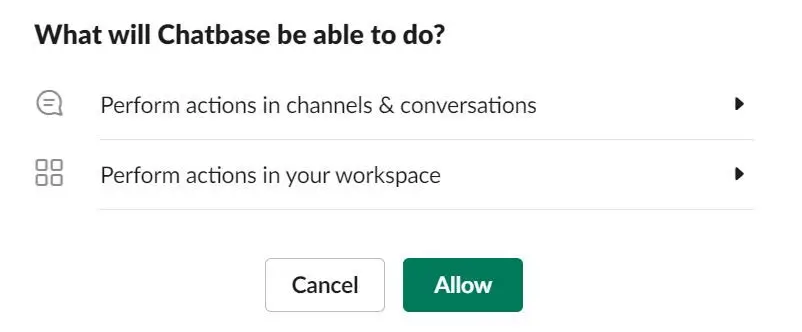
Click Integrations in the left sidebar, then click Connect under the Slack card. You’ll be asked to authorize Chatbase to access your Slack account and workspace.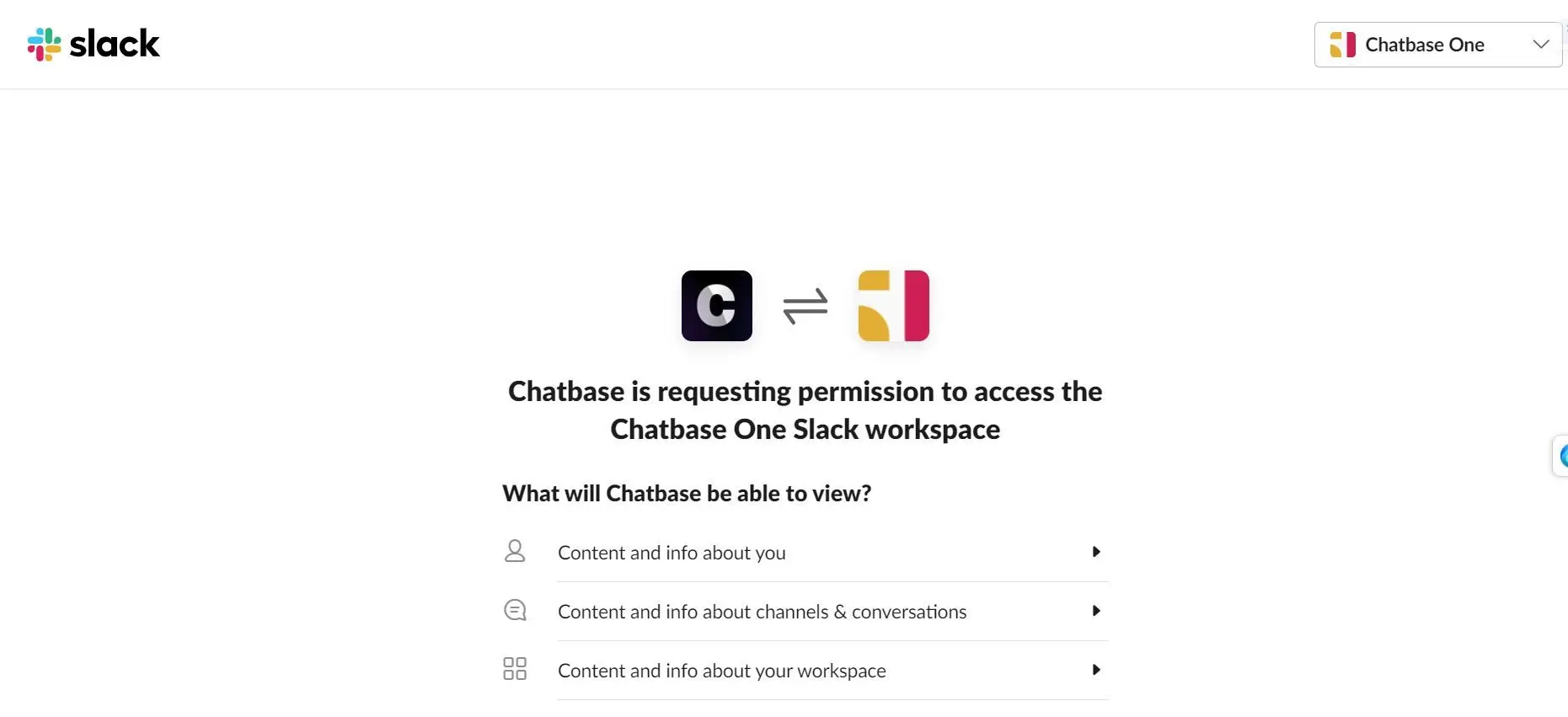
3
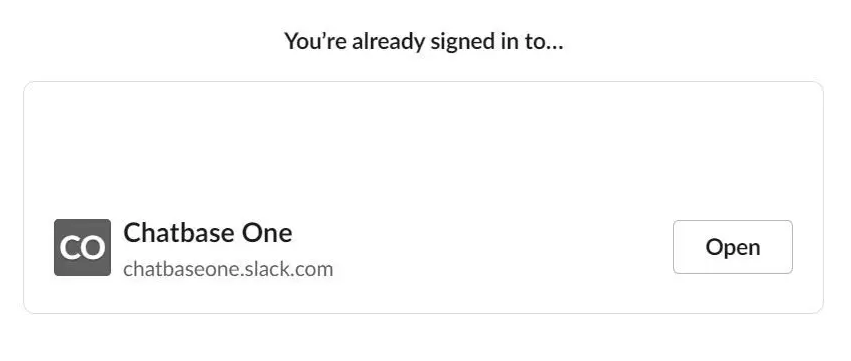
Open your Slack workspace
If all goes well, you’ll see a message saying Chatbase has been successfully added to your workspace.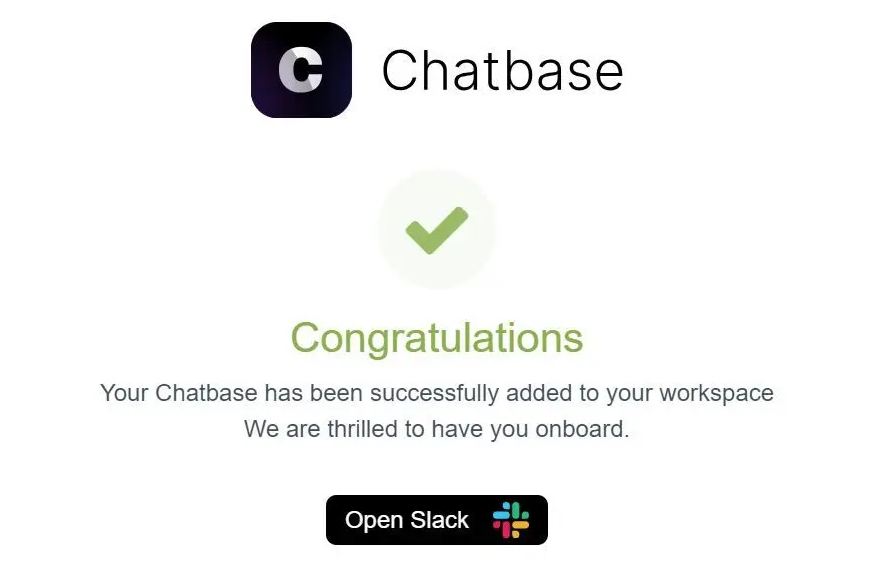
4
Invite the AI agent to a channel
Open any channel in your workspace and type @chatbase followed by a question related to your AI agent’s purpose. Slack will prompt you to invite the AI agent to the channel.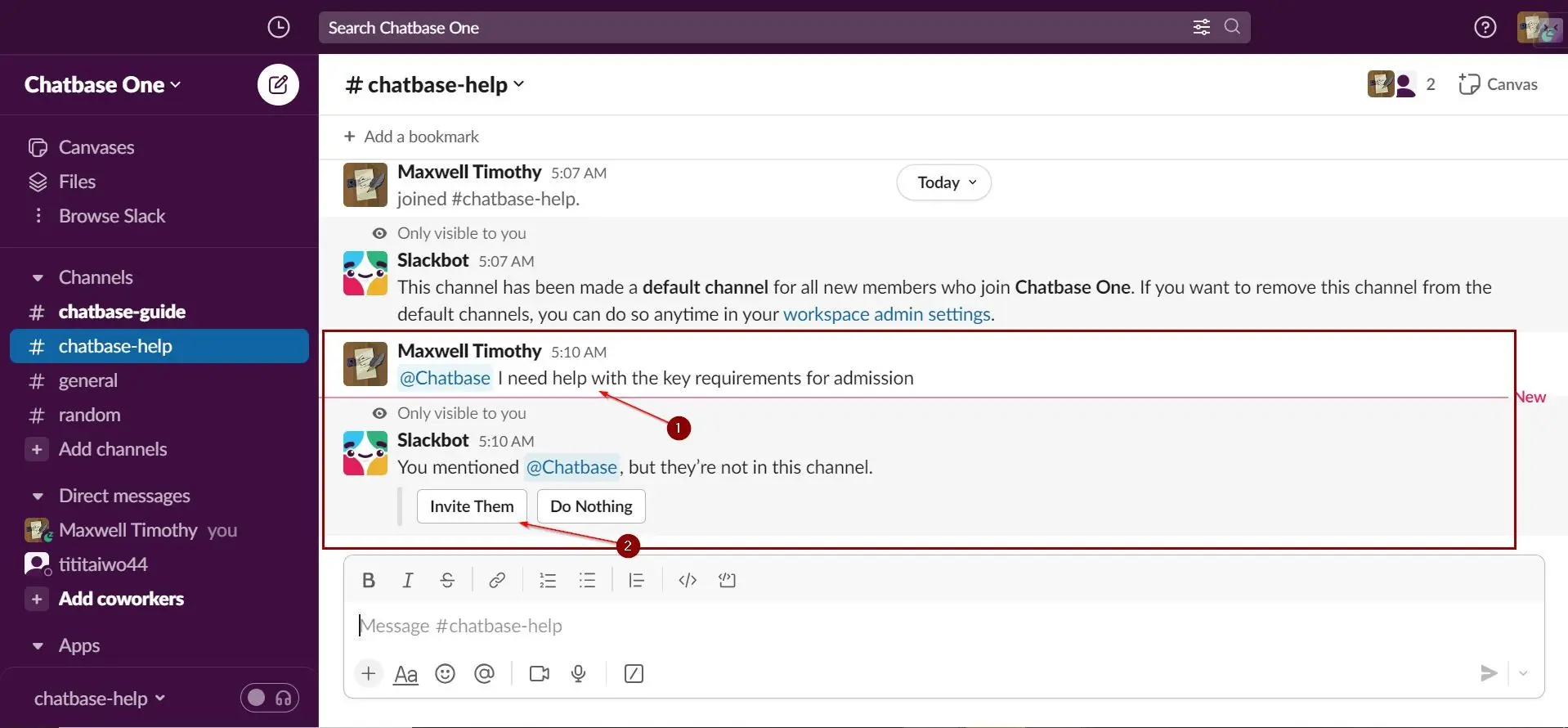
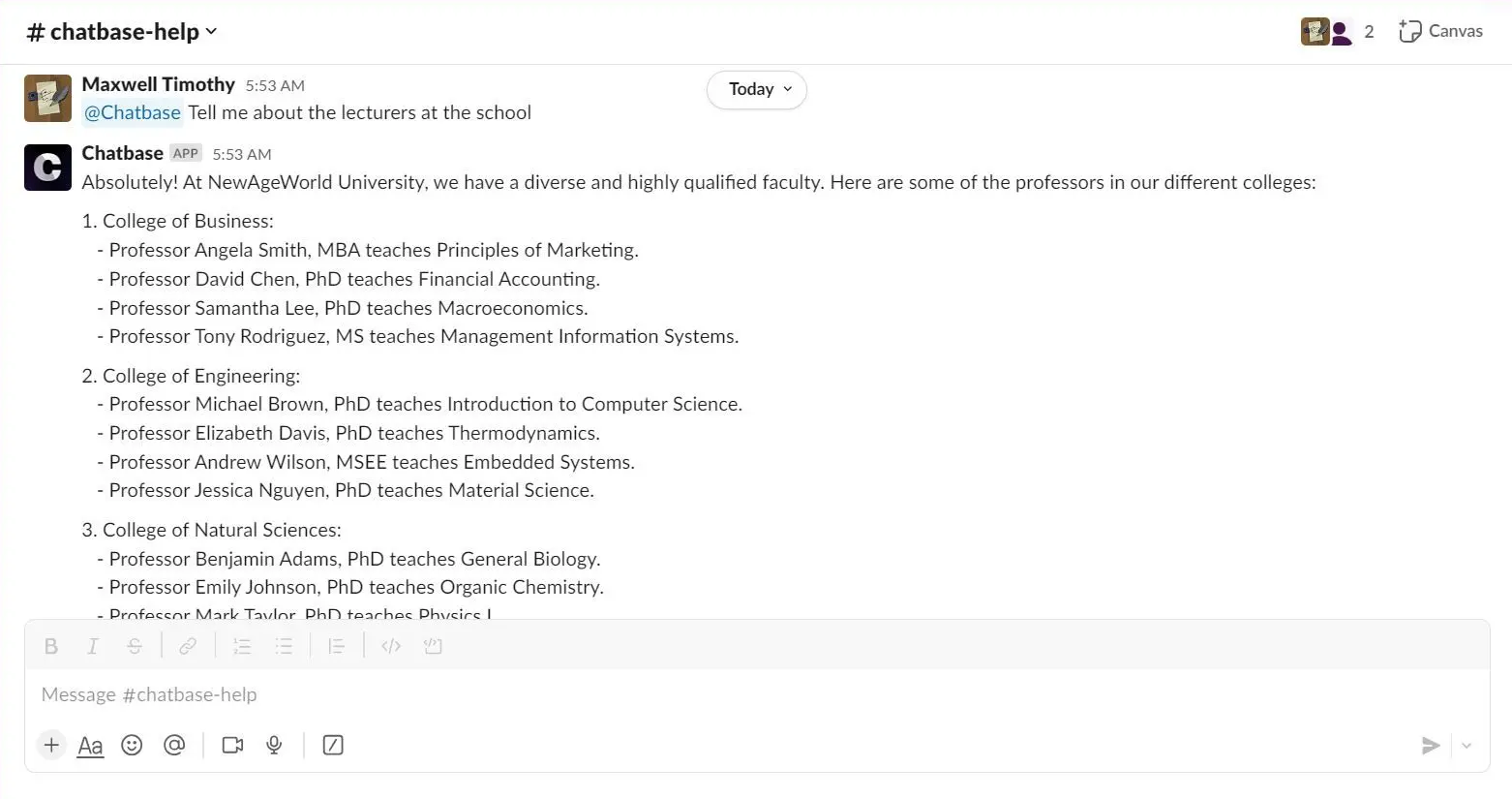
Type @chatbase followed by a question in the channel and confirm your AI agent responds.
Settings
Message appearance
Replies sent by your AI agent in Slack use the AI agent name and avatar configured in your Chat bubble settings. If a custom name and avatar are set there, those are reflected in Slack. If not, the defaults are used:- Name: Chatbase
- Avatar: Chatbase logo

If the AI agent is mentioned inside a thread, it replies within that same thread rather than the main channel. Each Slack thread is treated as a separate conversation, so the AI agent maintains accurate context within each discussion.
Ignore bot messages
Under Channels → Slack → Manage → Extra Settings, tick Ignore bots and click Save. When enabled, your AI agent ignores messages sent by other Slack bots and only responds to human users. This is useful if your workspace contains automation bots or AI agents that post messages, since it prevents bot-to-bot loops and infinite conversations.Backstage
Slack is one of the ways you can interact with Backstage, Chatbase’s AI assistant for managing your AI agent. See the Backstage documentation to learn more.Next steps
Slack notification action
Have your AI agent post to a Slack channel when a customer mentions a topic you care about.
Backstage
Manage your AI agent conversationally, from Slack.