

Overview
Integrating WhatsApp with Chatbase lets your AI agent communicate directly with customers on WhatsApp, handling inquiries and automating responses. This guide walks you through connecting your AI agent to a WhatsApp phone number.What you can do:
Answer customers on the channel they already use, around the clock, with the same AI agent, knowledge, and actions you use on your website.
Attachments are supported, so your AI agent can process them and respond based on their content. See Attachments.
You can connect more than one WhatsApp number to your AI agent. Once connected, all your numbers are managed from Channels → WhatsApp → Manage.
Before you start
The WhatsApp phone number integrated with the AI agent can only be used by the AI agent. It can’t also be used on WhatsApp or WhatsApp Business.The number is already used with WhatsApp
The number is already used with WhatsApp
Delete the account in the app first:
- Open the WhatsApp or WhatsApp Business app.
- Navigate to Settings > Account.
- Select Delete my account. This may take a few minutes, after which the number becomes available.
You previously used WhatsApp through Meta Developer for business
You previously used WhatsApp through Meta Developer for business
You must disable two-step verification:
- Log in to your WhatsApp Business Account.
- Choose the phone number you’d like to integrate.
- Navigate to Settings > Two-step verification and turn it off.
How to connect WhatsApp
1
Open the WhatsApp channel
Navigate to the AI agent you’d like to integrate with WhatsApp. Click Channels in the sidebar, then click Setup on the WhatsApp card.
2
Log in with Facebook
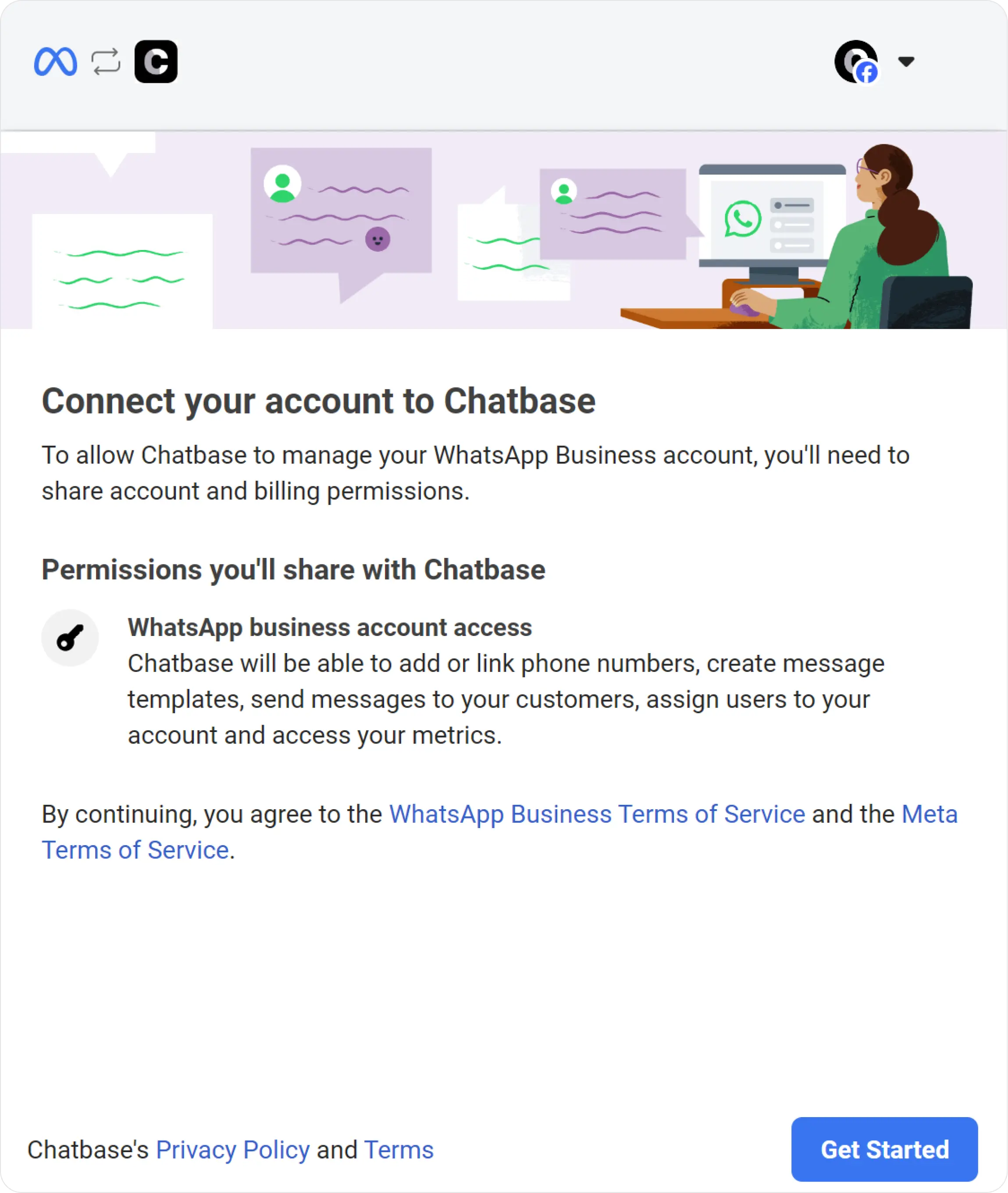
Log in with your personal Facebook account, then click Get started.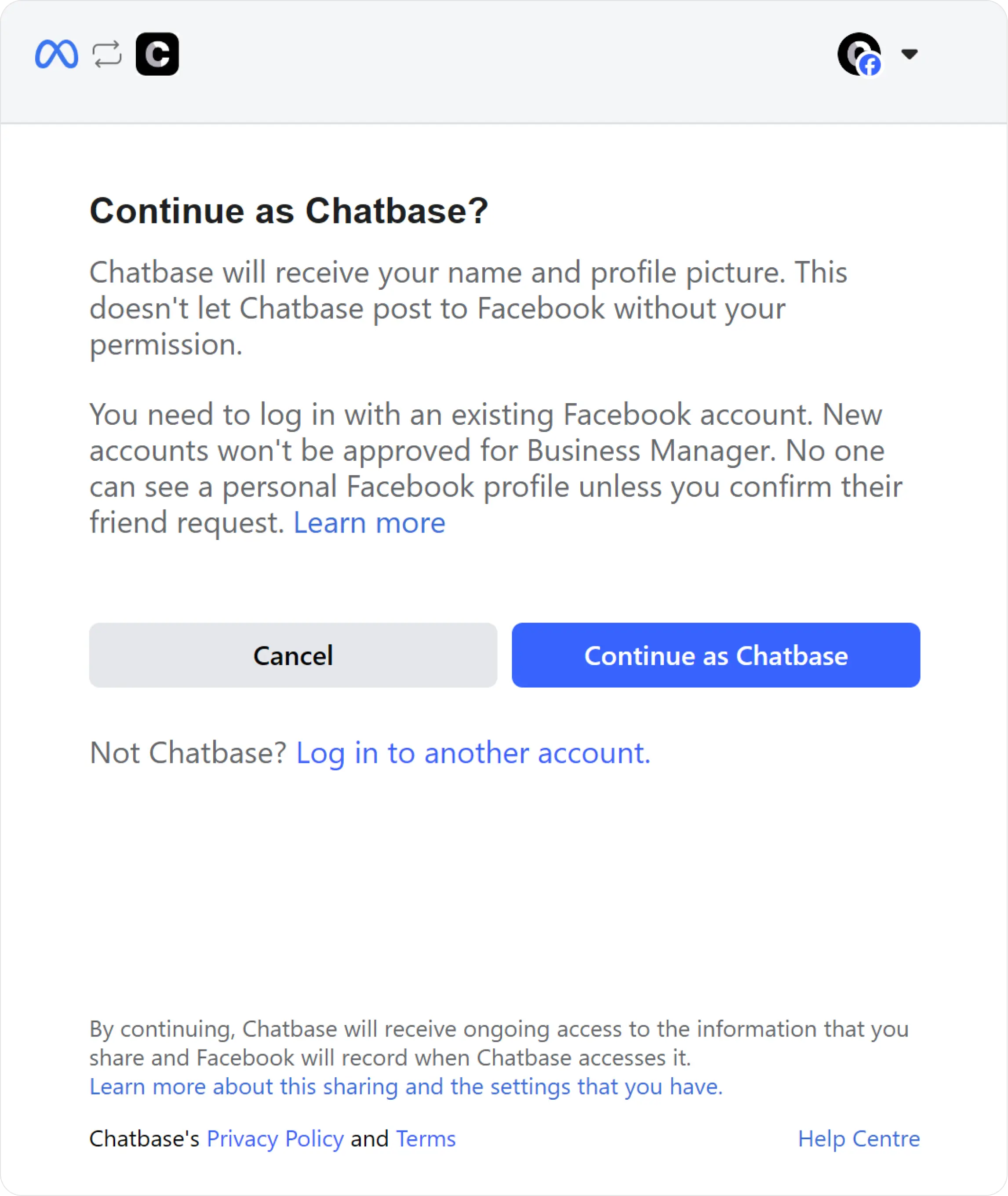
3
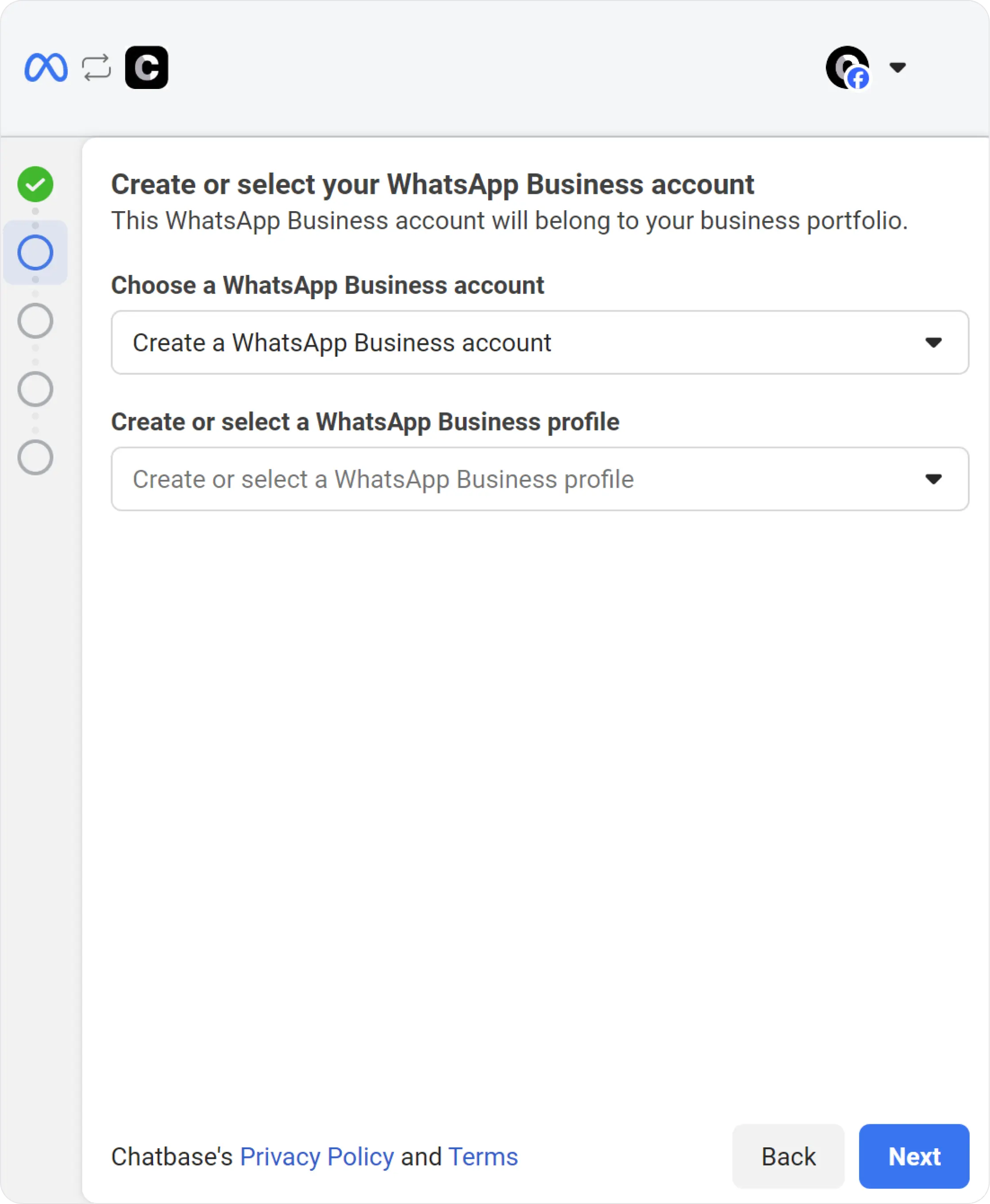
Choose or create a business profile
Select an existing business profile or create a new one, then create or select a WhatsApp business profile.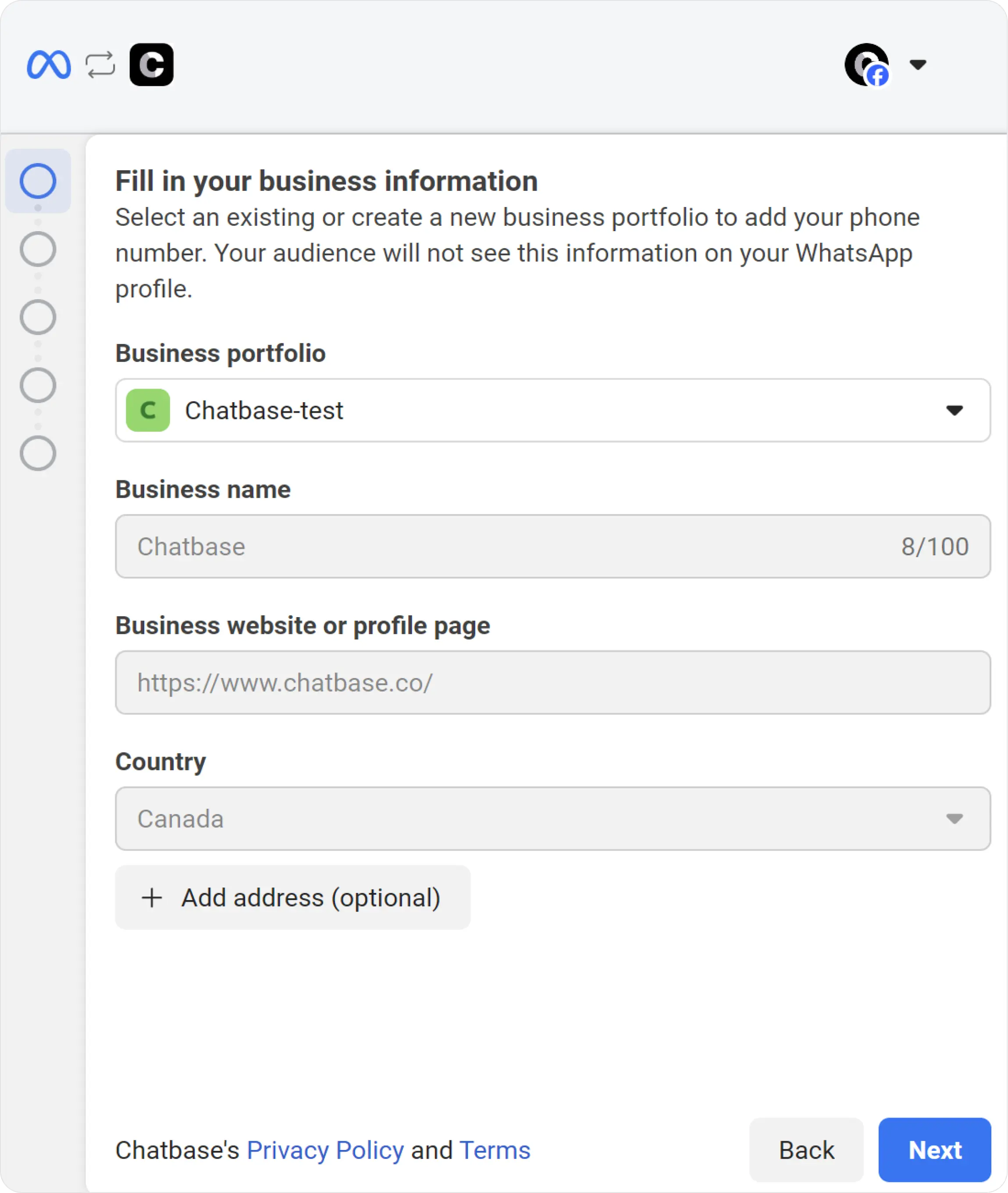
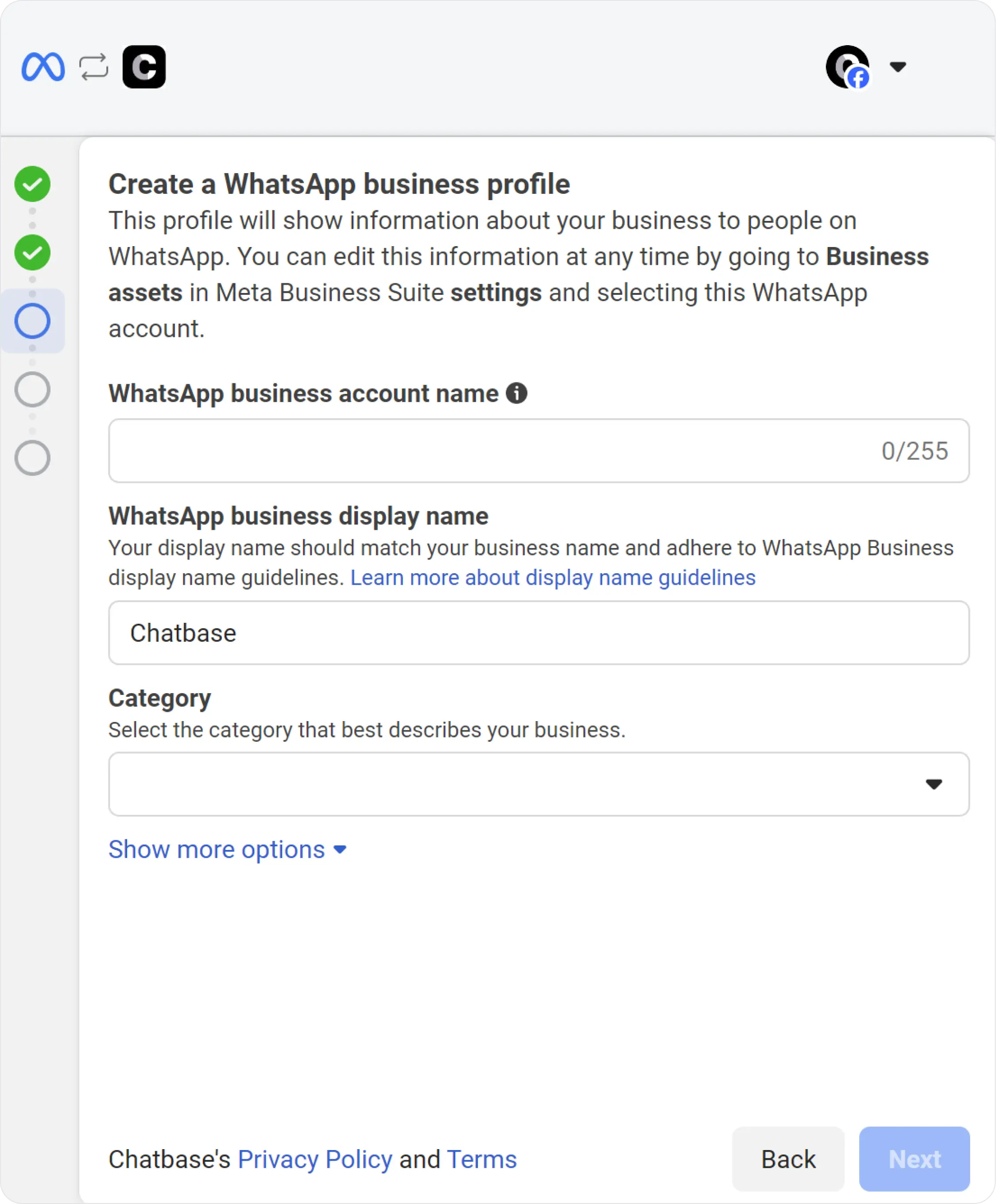
4
Add a phone number
Add a phone number. It’s recommended to have only one associated number in this profile, then click Continue.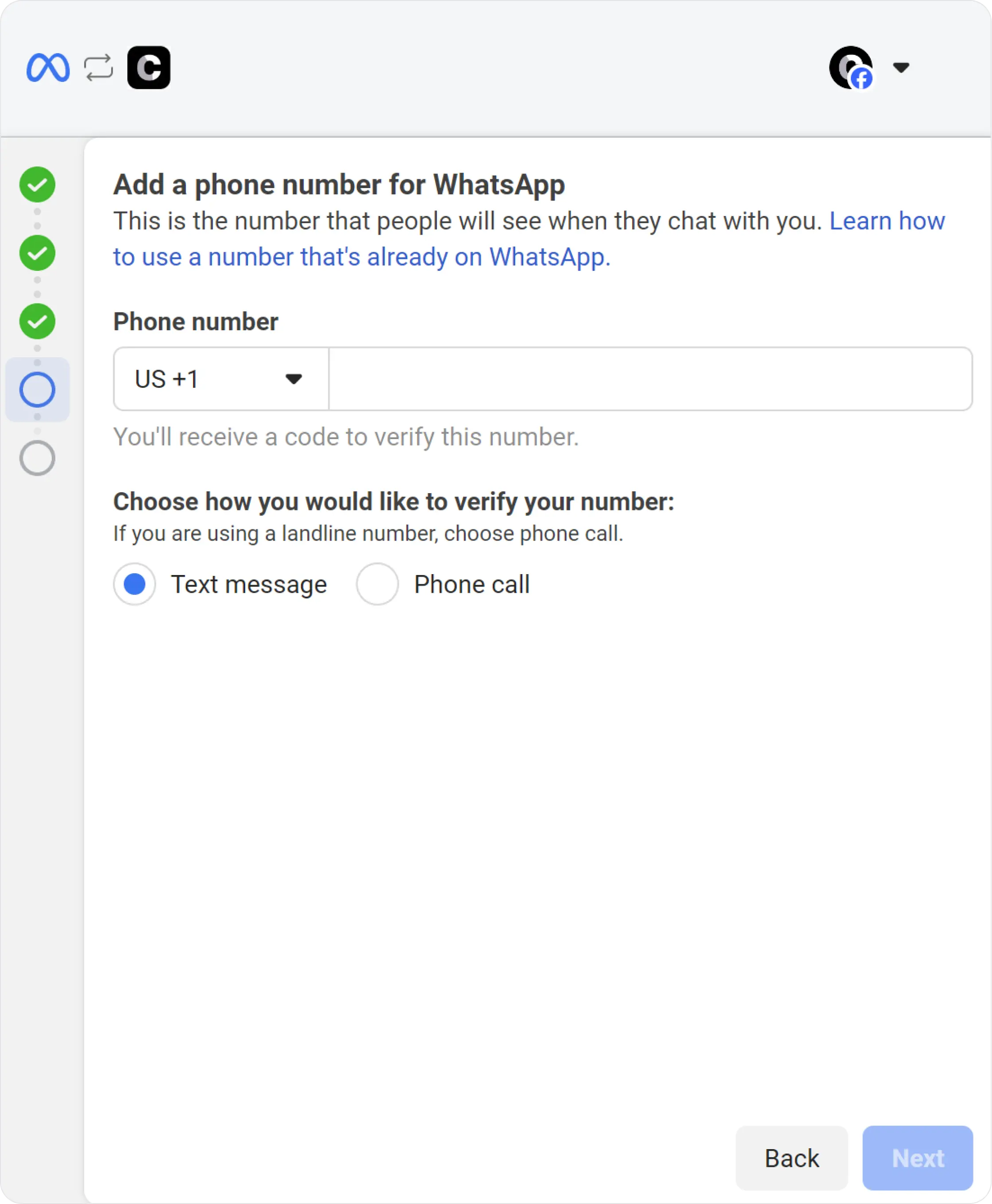
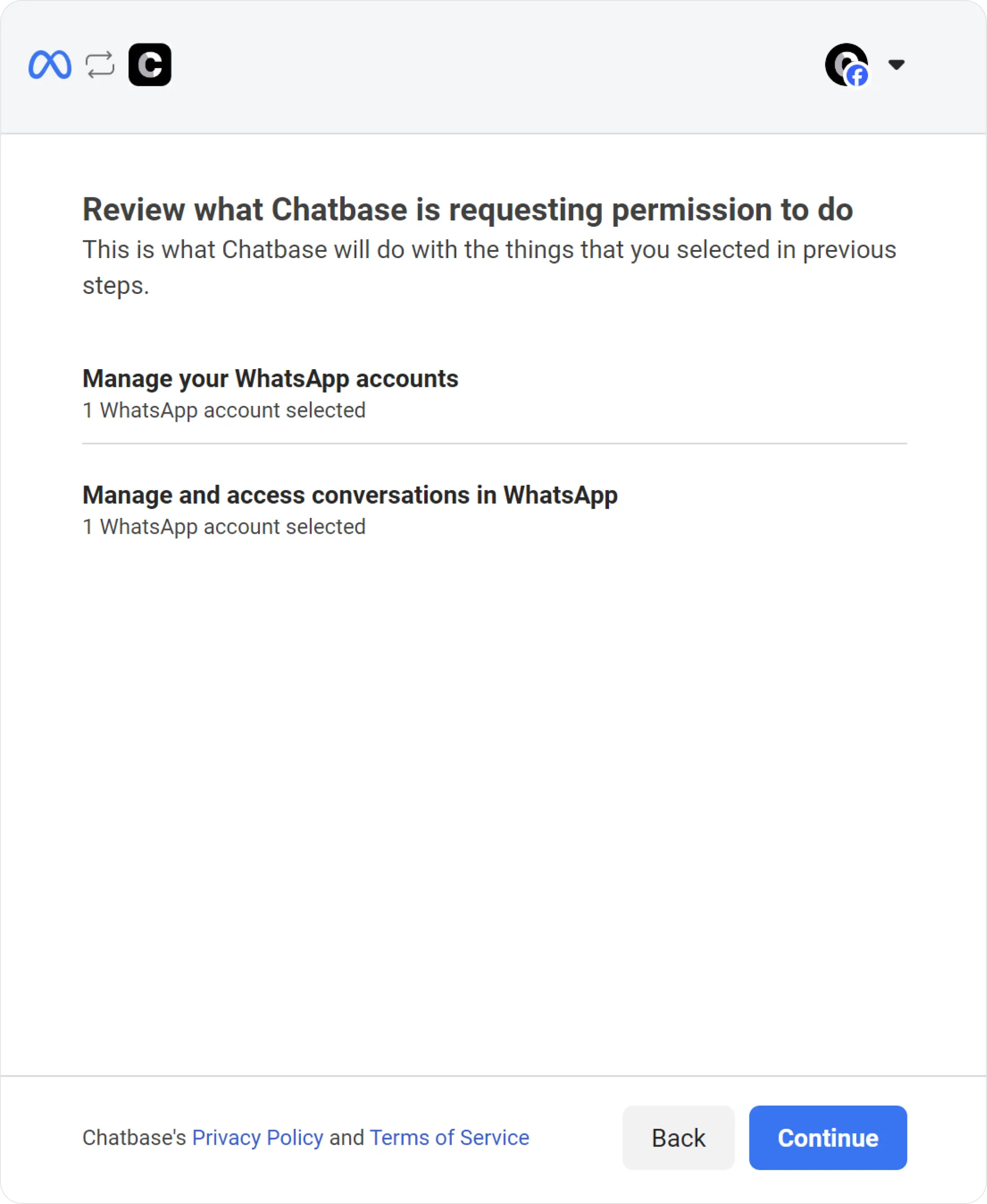
5
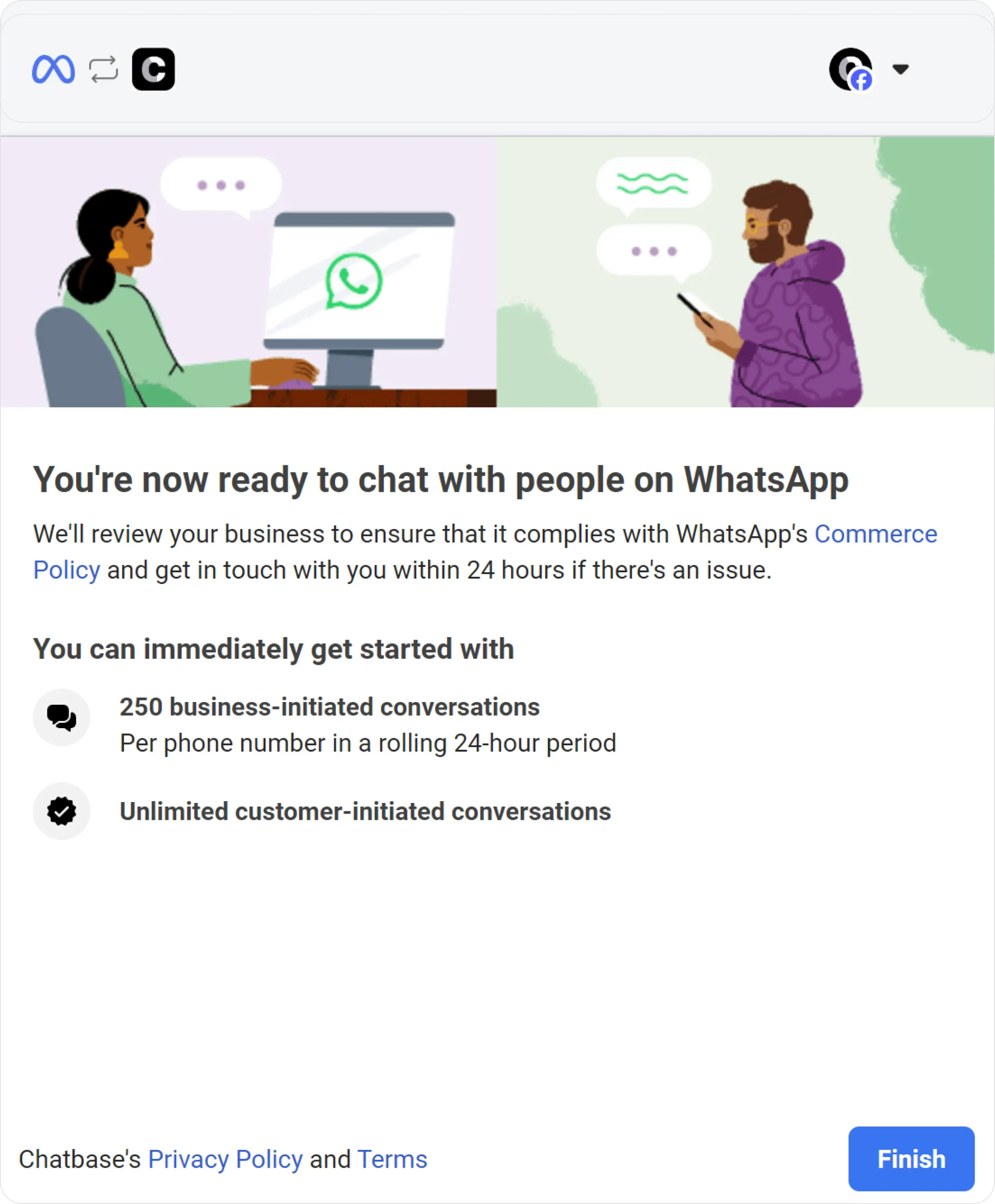
Finish the connection
Wait a few seconds for information verification, then click Finish.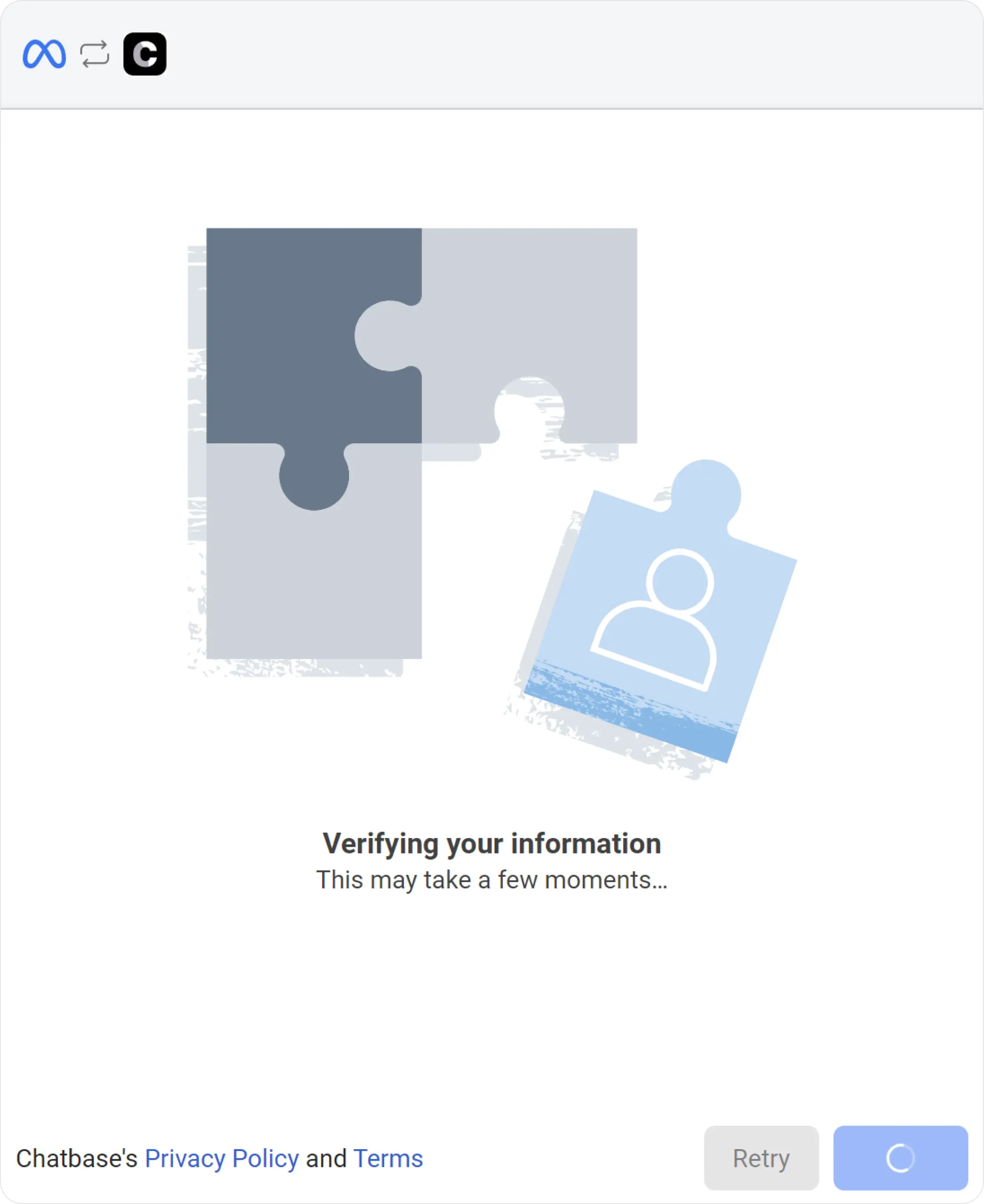
6
Update your WhatsApp settings (optional)
Navigate to Profile, update your WhatsApp settings, then click Save.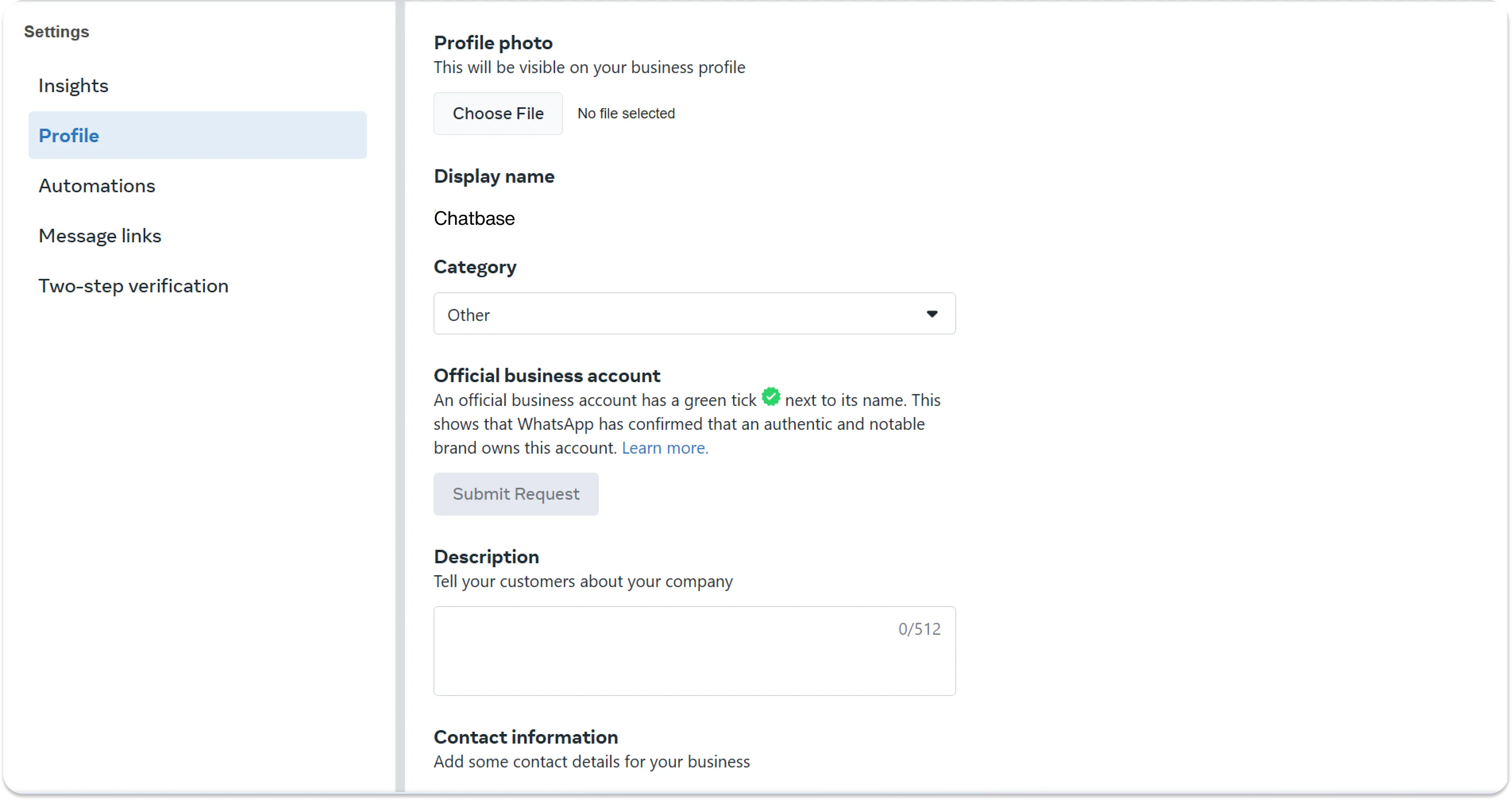
Send a message to your connected WhatsApp number and confirm your AI agent replies.
Automatic lead collection
Chatbase can automatically collect basic customer information from WhatsApp conversations, including the phone number and name when available. To enable it:- Go to Channels → WhatsApp → Manage → Leads.
- Toggle Enable Automatic Collection of Leads.
- Select the WhatsApp number or numbers you want to apply this to.
For more advanced lead capture and customization, use the Collect Leads action in your AI agent.
Messaging limits and billing
Once your integration is active you can send 1000 free messages monthly. To send more, add a payment method in your Meta billing settings.You can enable or disable the WhatsApp integration without disconnecting it. Disabling pauses messages while keeping your setup intact, and you can re-enable at any time. New chats still appear in your Chatbase dashboard chat logs.
Limitations
- The number is exclusive to the AI agent. A number connected to Chatbase can’t also be used in the WhatsApp or WhatsApp Business app.
- 1000 free messages per month. Beyond that, a payment method is required in Meta billing.
- Free-form replies are limited to a 24-hour window. After that you must use an approved template. See WhatsApp Templates.
Next steps
WhatsApp Templates
Create approved message templates so you can reach customers after the 24-hour window closes.