

How the Helpdesk works with your AI agent
A conversation reaches the Helpdesk in one of four ways:
While a ticket is open on the Chat Bubble, Help Page, Center Stage, Email, WhatsApp, Messenger, or Instagram, the AI agent stops replying and your team answers. Closing the ticket hands the conversation back to the AI agent. See Ticket lifecycle.
For example, a customer tells the Chat Bubble their order arrived damaged and asks for a person. The Escalations Action creates a ticket, and the team’s Balanced assignment gives it to the available teammate with the fewest open tickets. The teammate’s reply reaches the customer in the chat and by email. Once the teammate closes the ticket, the AI agent answers the customer’s next message.
Set up the Helpdesk
Work through this checklist the first time you set up the Chatbase Helpdesk. Most of these settings are on your AI agent under Settings → Helpdesk.1
Enable the Helpdesk
Click Helpdesk inbox in the sidebar and enable it. A default team called General is created, with every account member in it.
2
Create teams
Group your agents into teams, such as Billing and Technical, from Settings → Helpdesk → Teams & assignment.
3
Choose how tickets are assigned
Pick Manual, Balanced, or Round Robin assignment for each team, and set agents to Available on Settings → Helpdesk → Members. To set availability from working hours instead, add shifts.
4
Connect your support email
Choose your Helpdesk email addresses, display names, and signatures in Email settings. Each address needs forwarding, DKIM, and SPF set up.
5
Connect your AI agent
Create an Escalations Action with Chatbase as the ticket platform, or a Chatbase Live Chat Action, so the AI agent can hand conversations to your team. Add custom fields for details the AI agent should collect when it creates a ticket.
6
7
Save common replies as macros
Save the replies your team writes every day as macros on Settings → Helpdesk → Macros.
8
Measure satisfaction
Turn on CSAT surveys on Settings → Helpdesk → CSAT Surveys, and track the results on the Helpdesk page of Analytics.
The Helpdesk dashboard
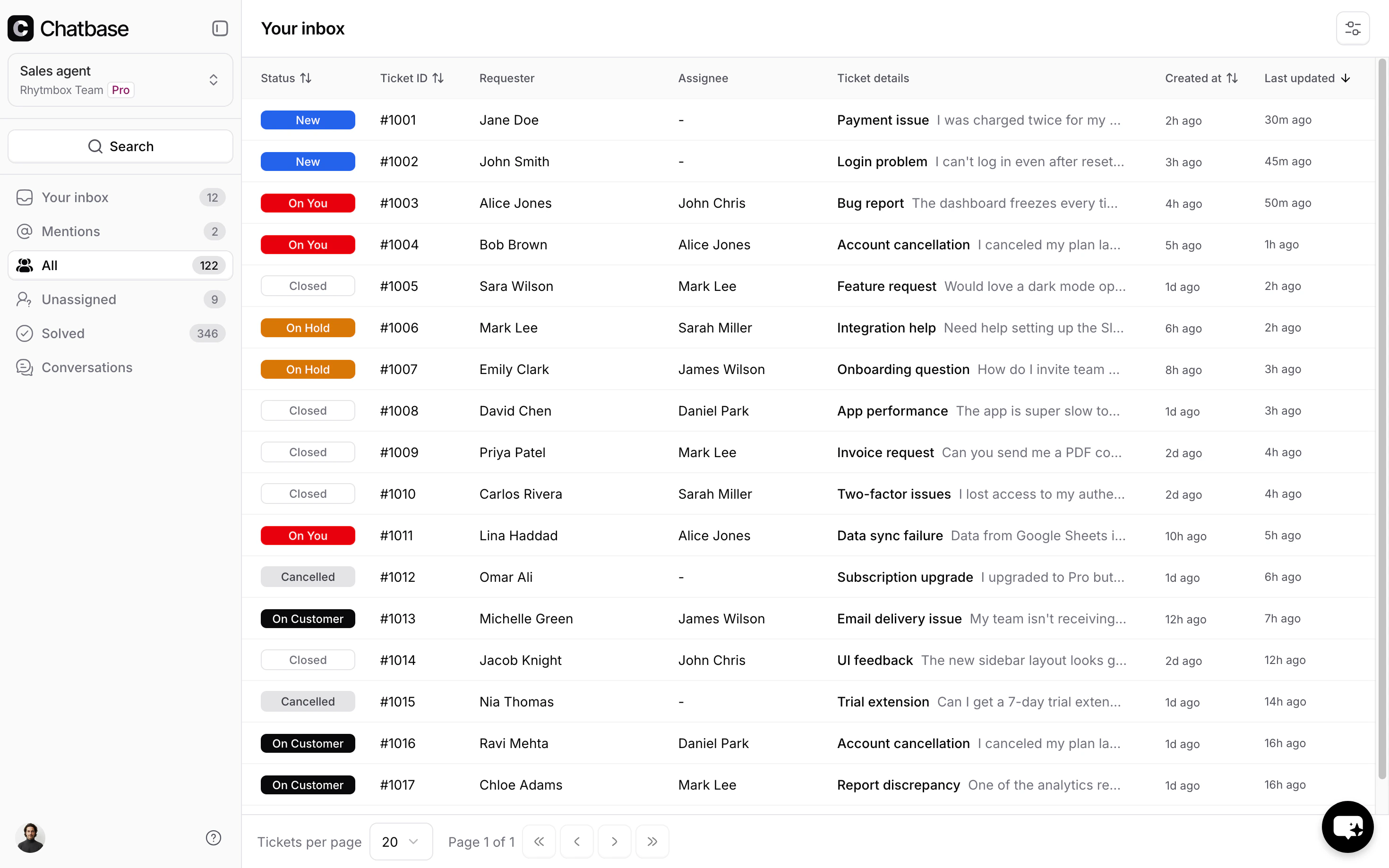
Sidebar
The sidebar is your primary navigation. It can be collapsed into icon-only mode for more screen space.- My inbox - tickets assigned to you
- Mentions - tickets where you have been @mentioned in an internal note. The badge count shows how many unread mentions you have.
- All - every ticket across agents that is not Closed or Cancelled
- Unassigned - tickets with no agent assigned
- Solved - tickets that are Closed or Cancelled
- Conversations - all AI agent conversations, including those that have not been escalated to tickets
User Profile
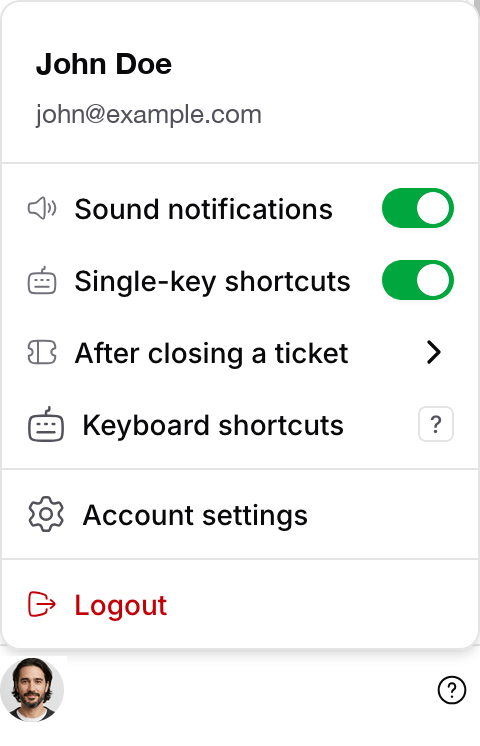
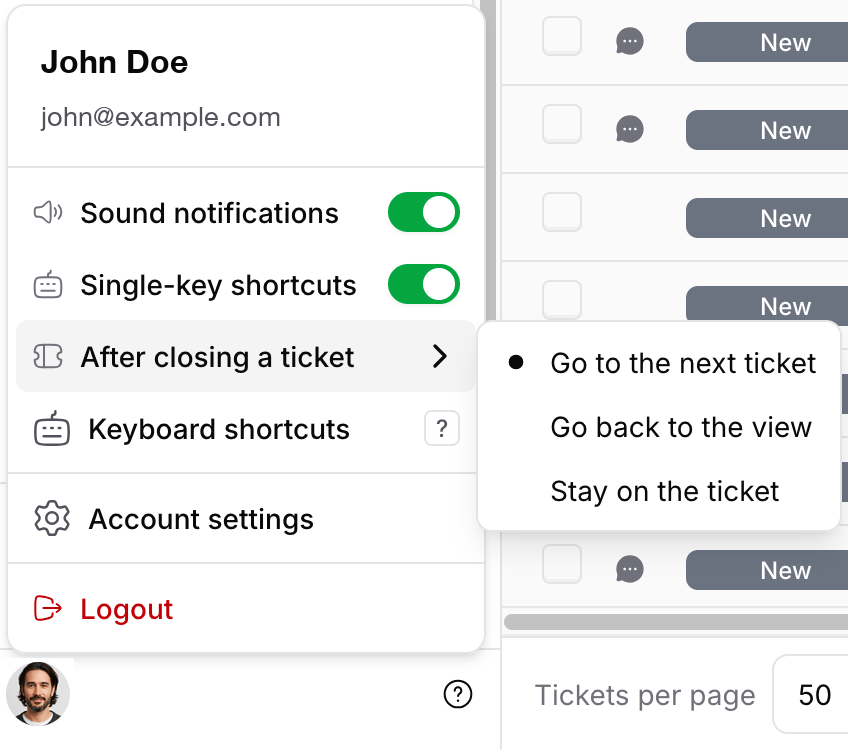
Click your avatar at the bottom of the sidebar to open the profile menu:- Away mode - toggle to mark yourself as unavailable for auto-assignment. This only appears if an admin has turned on “Allow teammates to be able to change their availability status” on the Members page. Agents on a shift schedule don’t see it, since their shift sets their availability
- Sound notifications - toggle notification sounds on or off
- Single-key shortcuts - toggle the Helpdesk keyboard shortcuts on or off
- After closing a ticket - choose where the Helpdesk takes you after you close a ticket. See After closing a ticket
- Keyboard shortcuts - open the list of shortcuts
- Account settings - manage your account
- Logout - sign out of the Helpdesk
Notifications
New activity on any ticket assigned to you triggers two notifications, wherever you are in the Helpdesk:- Sound - a notification sound plays (if sound notifications are enabled in your profile menu)
- Tab badge - the browser tab title updates to show the unread count, e.g.
(2) Helpdesk
Search
Click the search button to open a search modal with two tabs: Tickets and Customers. Results update in real time as you type, and you can click through to the full search results page.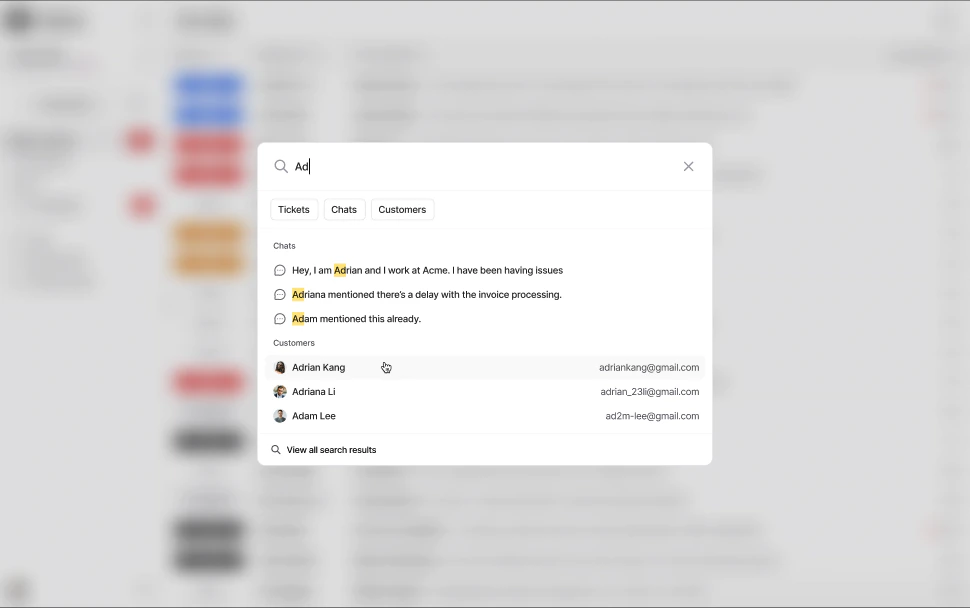
Keyboard Shortcuts
Press ? anywhere in the Helpdesk to see every shortcut. J and K move between tickets, R opens a reply, N opens a note, and Cmd + Enter sends. See Keyboard shortcuts for the full list and how to turn them off.Tickets Inbox
Table Columns
The ticket list displays the following columns:
Click any row to open the ticket.
Filters
Click the Filter button in the top right, above the ticket list, to narrow the results within the current view without changing it. Add one or more conditions, each made of a field, an operator, and a value. A badge next to the button shows how many conditions are active; Clear all resets them and Apply confirms your selection. Filters here are temporary, scoped to your session, and do not modify the underlying view. To make a filter combination permanent, save it as a saved view, which persists conditions alongside a sort order, columns, and visibility. The full list of fields, operators, and values is documented in the Filters reference. To download the tickets in the list as a CSV file, see Exporting tickets.Ticket statuses
Every status belongs to one of six categories: New, On you, On hold, On customer, Closed and Cancelled. The first four are open. See Ticket statuses for what each one does and how to add your own. Moving a ticket to a closed status from the ticket page opens the next ticket in the list you came from, or returns you to that list when there is none left. This applies to Closed, Cancelled, and any custom status in those categories. You can switch this to always returning to the list, or to staying on the closed ticket, under After closing a ticket in your profile menu.Requester and Assignee
- Requester - the end user who submitted the ticket. Their profile can include a name, email, external ID, and phone number.
- Assignee - the agent responsible for handling the ticket. Tickets can be assigned manually or through auto-assignment.
Viewing a Ticket
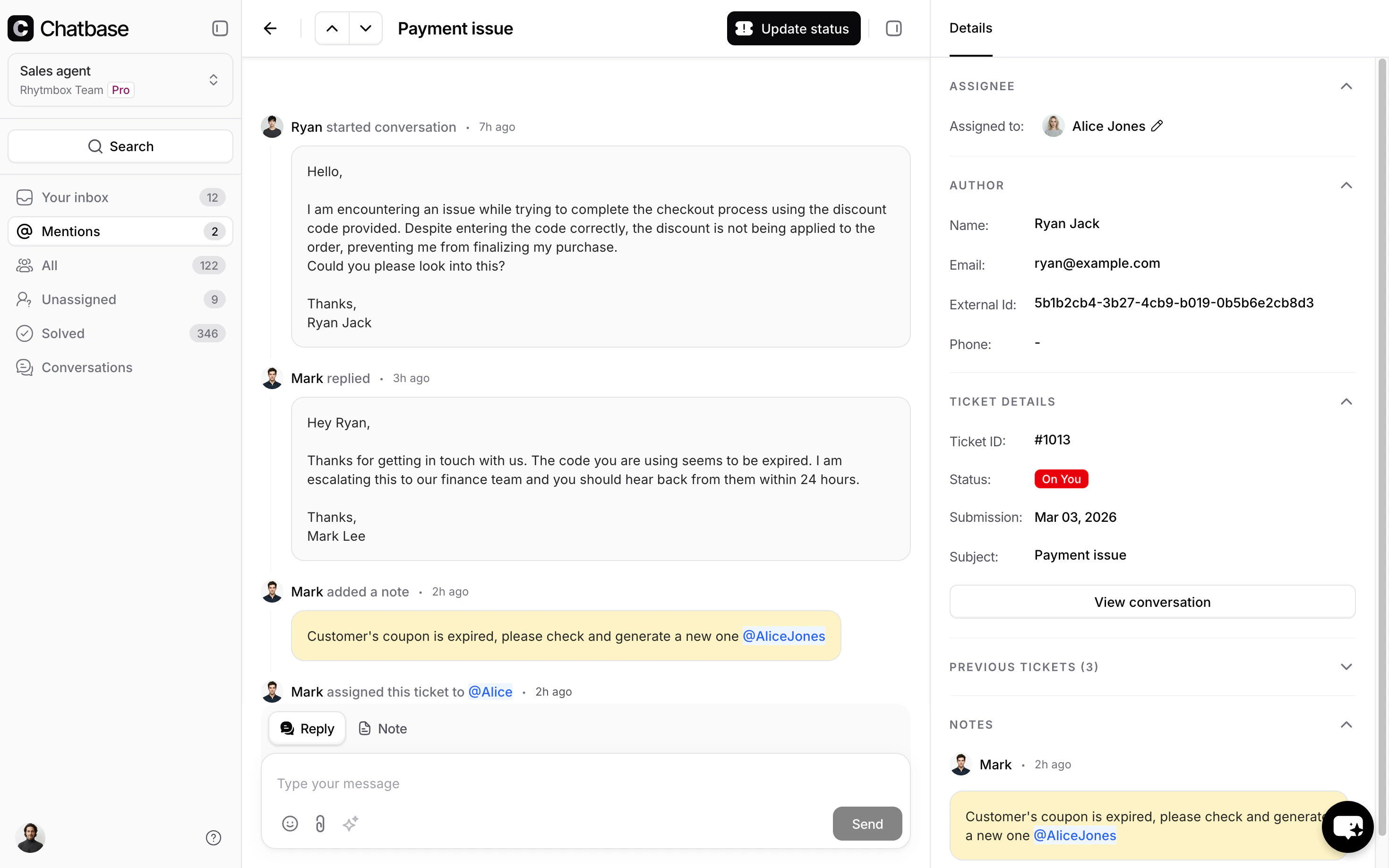
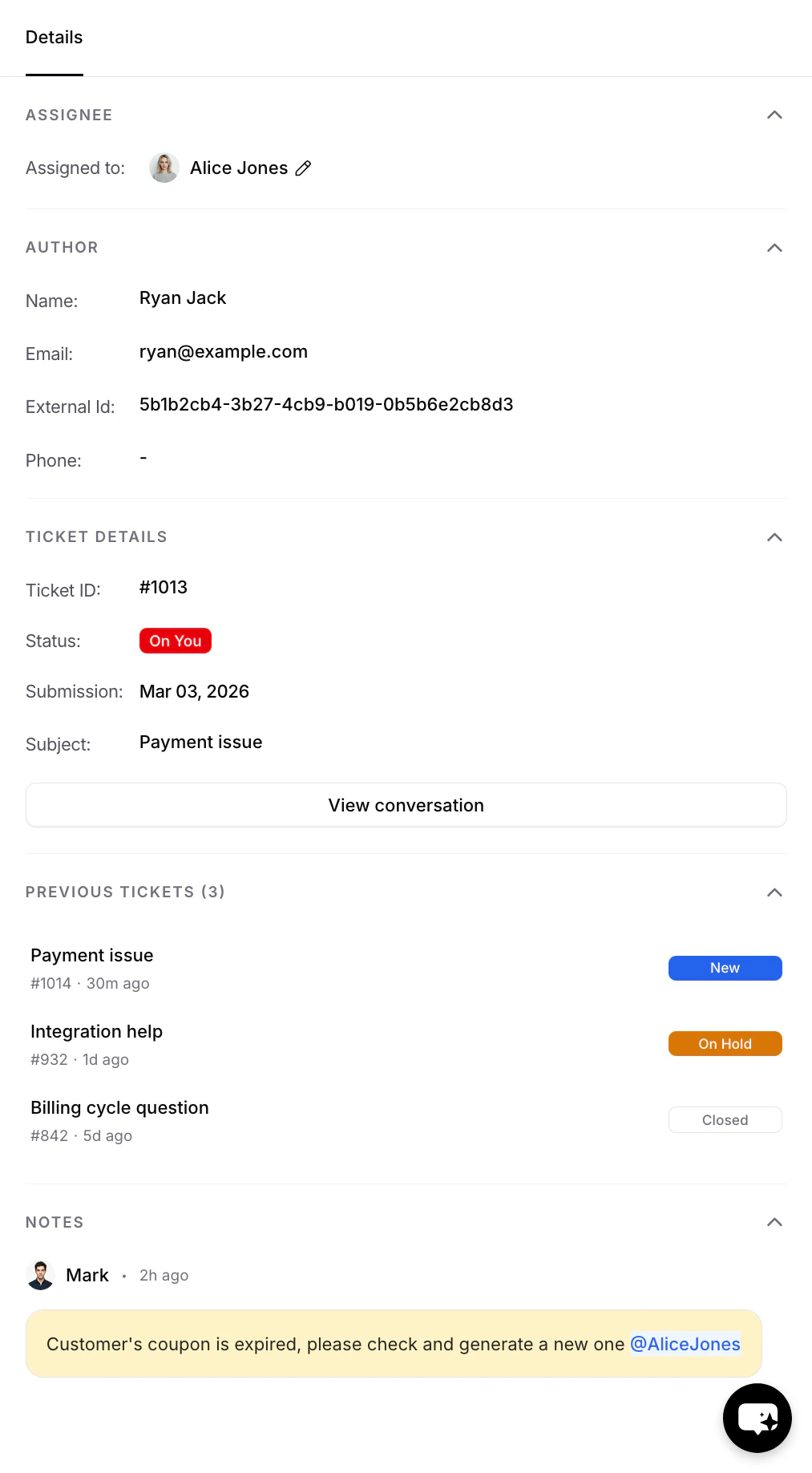
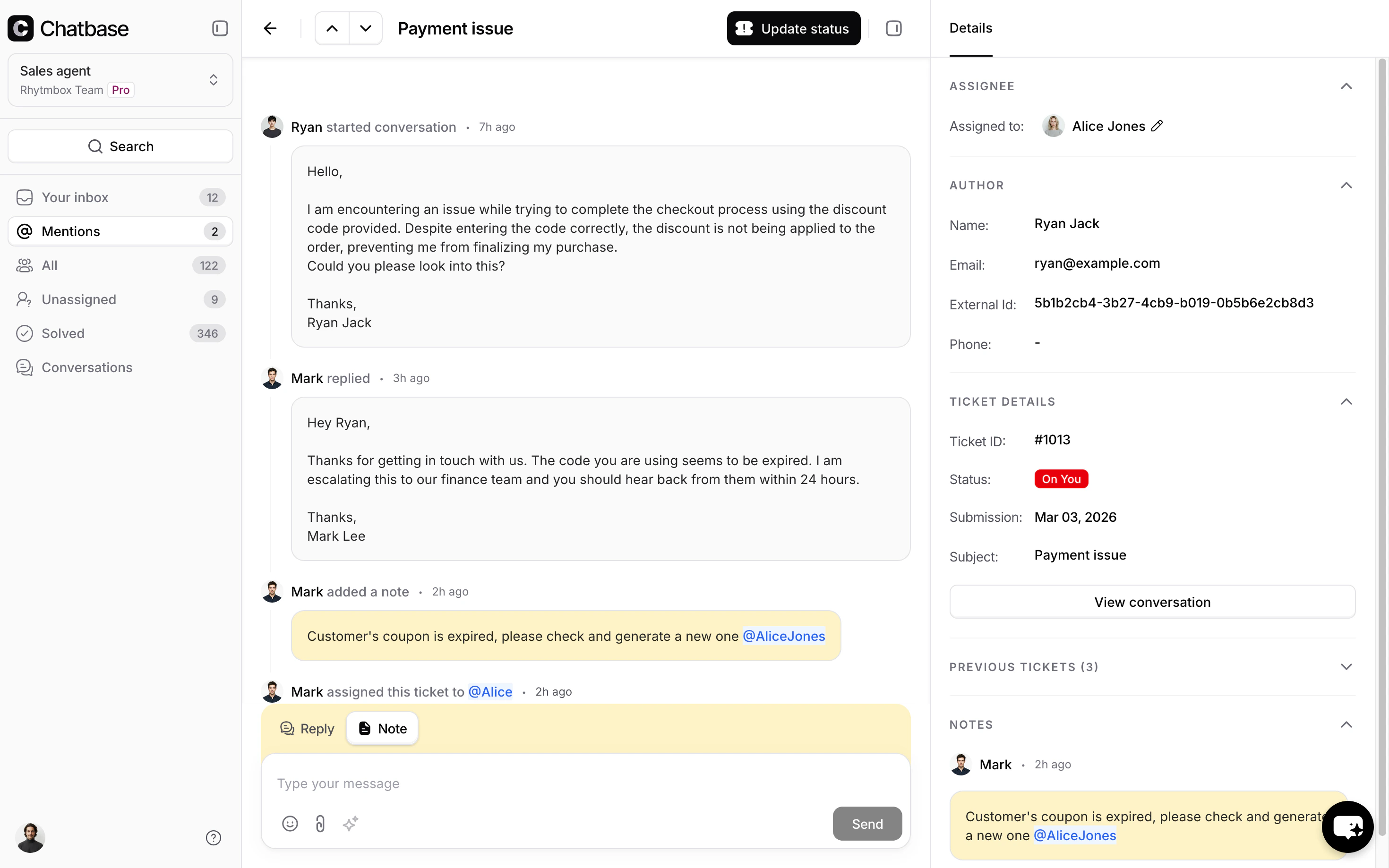
When you open a ticket, the view splits into a conversation thread on the left and a details panel on the right.Conversation Thread
The conversation thread displays three types of entries:- Replies - customer-visible messages from either the customer or an agent
- Notes - internal-only messages visible to your team (shown with an amber background)
- Events - changes to the ticket’s status, assignee, team, priority, tags, and custom fields, plus merges, credited to the agent who made them or to System. Changes made by triggers are grouped into one ⚡ entry per run.
Ticket Details Panel
The right sidebar contains the following collapsible sections:- Assignee - view or change the assigned agent. Click the edit icon to reassign to another agent or unassign the ticket entirely.
- Author - the requester’s information: name, email, external ID, and phone number.
- Ticket Details - ticket ID, status badge, priority, tags, submission date, subject, and a View conversation button that links to the original AI agent conversation that created the ticket.
- Customer History - a list of other tickets from the same customer, showing subject, ticket ID, time, and status badge. This gives agents quick context on the customer’s support history. The merge icon in its header combines duplicate tickets; see Merging tickets.
- Notes - a list of internal notes attached to the ticket, including any @mentions.
Replying to Tickets
Reply vs Note
The message composer at the bottom of the conversation thread has two tabs:- Reply - sends a public message to the customer through the same channel they used to contact you. The menu next to Send offers Send and close, which sends the reply and then closes the ticket.
- Note - saves an internal-only message (shown with an amber background) that only your team can see.
Send and close
To send your reply and close the ticket in one step, click the arrow next to Send and choose Send and close. You can also press Cmd + Shift + Enter (Ctrl + Shift + Enter on Windows and Linux). Send and close is only available on the Reply tab, not for notes.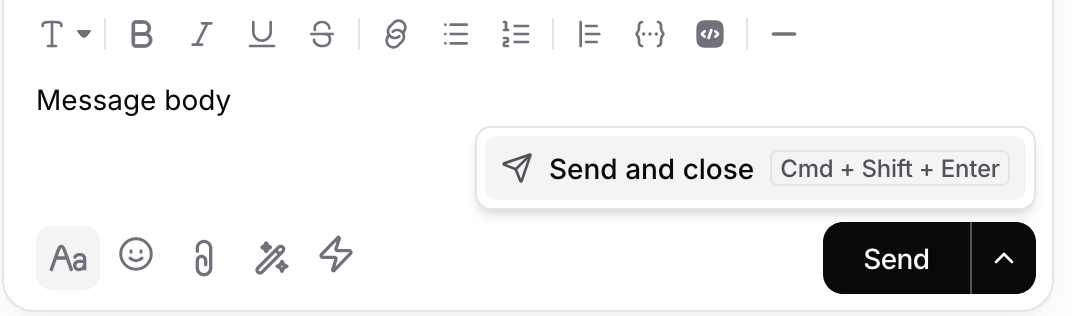
After closing a ticket
Choose what the Helpdesk does after you close a ticket, whether you use Send and close or change the status to Closed. Click your avatar at the bottom of the sidebar, hover over After closing a ticket, and pick one of:- Go to the next ticket (default): opens the next ticket in the view you came from.
- Go back to the view: returns you to the ticket list.
- Stay on the ticket: keeps the closed ticket open on your screen.
@Mentions
Type@ in the note composer to mention a team member. A dropdown appears listing available agents along with a colored dot indicating their current availability status. Select an agent to insert the mention into your note.
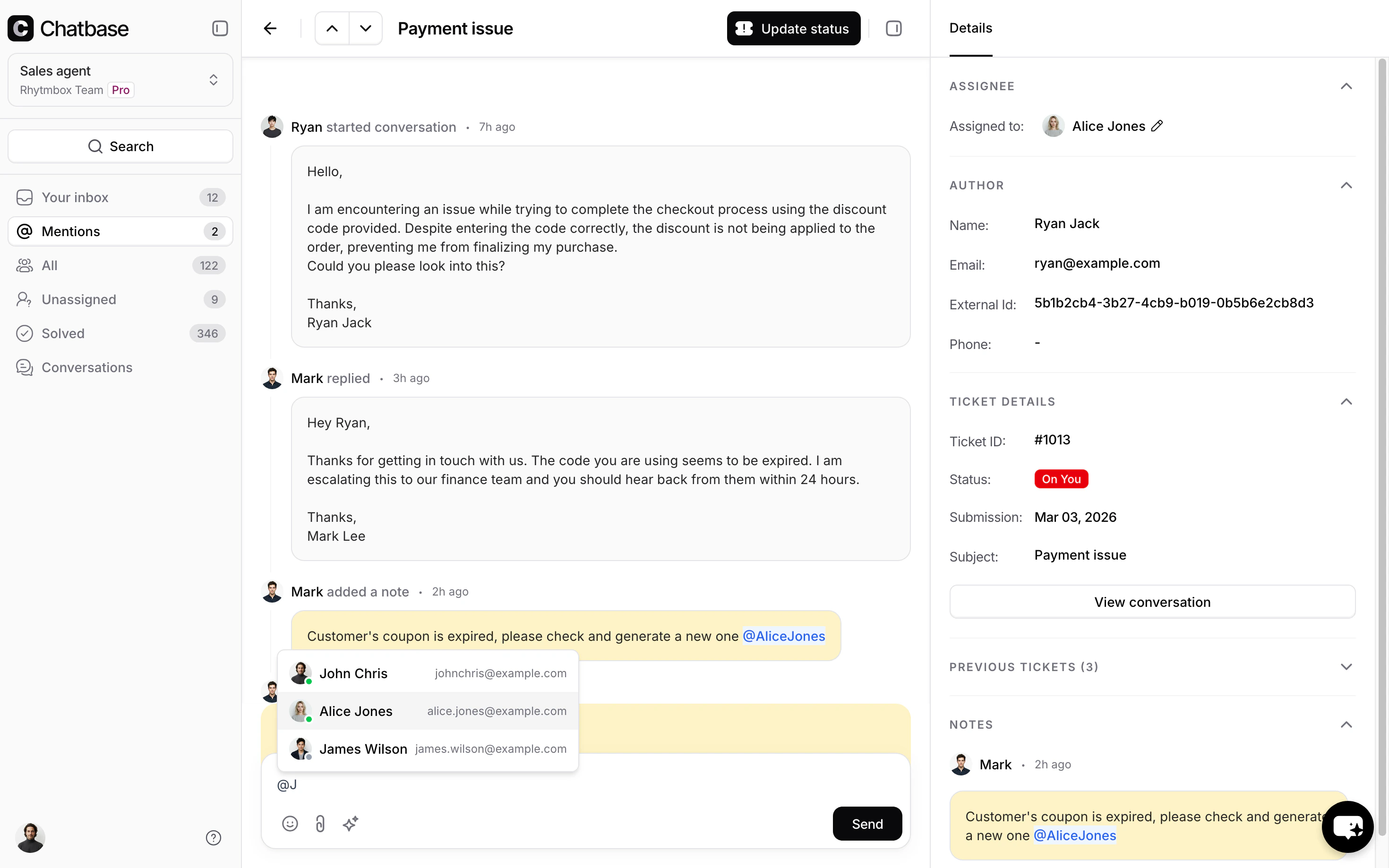
- The mentioned agent receives a notification
- The ticket appears in their Mentions sidebar view
- The mention is rendered as a clickable link in the note
Attachments
Click the paperclip icon to attach files to a reply or note. Any file type works, and you can remove an attachment before sending.Macros
Click the lightning bolt icon in the composer toolbar to insert a saved reply. Pick one from the list and it lands at your cursor as editable text, with its formatting. If the macro carries files, they are added to the reply as attachments, and you can remove them before sending. See Macros for writing macros and the variables and files they can carry.AI Compose
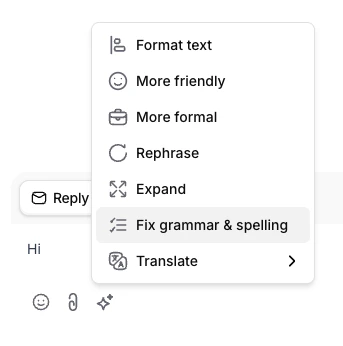
Click the magic wand icon in the composer toolbar to open the AI writing assistant. It offers the following options:
You need to have text in the editor for AI Compose to be available.
Recommended Ticket Workflow
A typical ticket moves through these steps. See Ticket lifecycle for more.- A customer submits a request → ticket is created as New
- An agent picks up the ticket → agent sets status to On You
- The agent sends a reply → agent sets status to On Customer
- The customer responds → status returns to On You
- An external blocker is identified → agent sets status to On Hold
- The issue is resolved → agent sets status to Closed
- The ticket is spam or a duplicate → agent sets status to Cancelled
Ticket Channels
Tickets can arrive from multiple channels. The channel is shown on each ticket so agents know where the conversation originated:- Email - received via email forwarding
- Helpdesk - created manually by an agent directly in the Helpdesk
- Using “Escalations” Action:
- Chat Bubble - submitted through the AI agent on your website
- WhatsApp - from a WhatsApp conversation
- API - created programmatically through the API
- Messenger - from Facebook Messenger direct message.
- Instagram - from Instagram direct message.
- Center Stage - submitted through the full-focus chat experience centered over your website
- Phone - from an inbound phone call handled by your AI agent
Frequently asked questions
How do conversations get from my AI agent to the Chatbase Helpdesk?
How do conversations get from my AI agent to the Chatbase Helpdesk?
Through the Escalations Action, which creates a ticket, the Chatbase Live Chat Action, which hands the conversation over in real time, or Takeover, where a teammate steps into an ongoing conversation. Emails sent to your Helpdesk addresses also become tickets.
What's the difference between Escalations and live chat?
What's the difference between Escalations and live chat?
Escalations open a ticket that your team works and follows up on. Live chat routes the customer to an available person in real time, and the customer stays in the chat while they wait. Use live chat for urgent or sensitive issues, and Escalations for anything that can be handled as a ticket.
Does the AI agent keep replying after it creates a ticket?
Does the AI agent keep replying after it creates a ticket?
Not on the Chat Bubble, Help Page, Center Stage, Email, WhatsApp, Messenger, or Instagram. There, the AI agent stops replying while the Helpdesk ticket is open, and your team answers. On API, Phone and mobile app (SDK) integrations, the AI agent keeps replying after it creates the ticket. See Ticket lifecycle.
How do I hand a conversation back to the AI agent?
How do I hand a conversation back to the AI agent?
Close or cancel the ticket, and any other open ticket on the same conversation. See Handing the conversation back to the AI agent.
Can I use Zendesk or another helpdesk instead of the Chatbase Helpdesk?
Can I use Zendesk or another helpdesk instead of the Chatbase Helpdesk?
Yes. The Escalations Action can create tickets in Zendesk, Salesforce, Intercom, Zoho Desk, Freshdesk, HubSpot, Help Scout, Gorgias, or Odoo once you connect it under Integrations. See Escalations.