

window.chatbase object with methods to control your chat bubble programmatically.
Methods
open(options?)
Opens the chat bubble. Optionally sends a message when it opens.string
A message to send automatically when the chat bubble opens.
boolean
default:"false"
When
true, the sent message is hidden and the chat bubble stays closed until the bot starts replying — so it looks like the assistant reached out proactively. Only applies when message is set.close()
Closes the chat bubble.resetChat()
Clears the current conversation and starts a new session.Your chat bubble configuration and custom initial messages are preserved after reset.
Runtime Options
Override a bounded set of your AI agent’s configured options for the current page load — the chat bubble’s display name, bubble text, footer, message placeholder, dismissible notice, initial messages, and suggested messages. Overrides are never persisted: reloading the page or callingresetOptions returns the chat bubble to its dashboard configuration.
In addition, set runtime-only options that have no dashboard equivalent — dictation-only mode and dictation silence timeout. These aren’t persisted either: reloading the page or calling resetOptions clears them.
setOptions(options)
string
Overrides the chat bubble header title. Also updates the launcher button’s accessibility labels so assistive technology announces the same name. Maximum 100 characters.
string
Overrides the text shown beside the icon in the floating chat bubble. Maximum 40 characters, and long labels clip on narrow screens. A non-empty value shows the text even when Show text in the chat bubble is off in the dashboard; an empty string hides it even when that setting is on. The dashboard’s icon alignment still decides which side the icon sits on, so runtime code cannot move it. Reading direction follows the text itself, so a right-to-left label reads correctly on a left-to-right page.
Overrides the footer text. Maximum 1000 characters.
string
Overrides the message input placeholder. Maximum 100 characters.
string
Overrides the dismissible notice shown above the message input. Maximum 500 characters.
string[]
Overrides the AI agent’s initial messages. Array of non-empty strings, limited to 1000 characters in total. Applies immediately if the conversation hasn’t started; otherwise it takes effect on the next fresh conversation (for example after
resetChat()). Writes the same setting as setInitialMessages — the last call wins, whichever method made it.string[]
Replaces the dashboard-configured suggested message chips. Up to 4 entries, each a non-empty string of at most 200 characters. Suggestions the AI generates during the conversation still take precedence over this override.
boolean
When
true, the message box keeps only the dictation button — the text area, send button, voice mode button and attachments button are all hidden, so the only way to compose a message is by speaking. If dictation is turned off for the agent, nothing is left to show and the whole message box disappears. Existing messages, suggested messages and the rest of the chat window are unaffected.number
Stops dictation automatically after the user has been silent for this many milliseconds, then transcribes what was recorded, just as if they had pressed stop. Silence is only counted after the user starts speaking, so a user who hasn’t said anything yet is never cut off. Must be a positive integer. When unset, dictation runs until the user stops it or the maximum recording length is reached.
Every change to the runtime overrides fires an
optionsChanged event once the agent has re-rendered with it. Use it when you need to wait until an override is actually on screen — for example keeping a plain <iframe> hidden until dictationOnly has taken effect.Invalid keys or values are skipped with a
console.error; valid keys in the same call still apply. setOptions never truncates — an oversize value is rejected. (The legacy setInitialMessages method instead truncates to 1000 characters, preserving its documented behavior.)resetOptions(fields?)
Clears runtime overrides, returning those options to the AI agent’s dashboard configuration.object
An object mapping option keys to
true for each override to clear. When omitted, every runtime override is cleared.Per-field methods
Each option also has a dedicated setter that behaves exactly likesetOptions with that single key:
Examples
Combine these methods with event listeners to build powerful, context-aware chat experiences.Custom Buttons
Trigger chat bubble actions from your own UI elements:Answer FAQ Questions
Turn static FAQ entries into live answers — open the chat bubble with the question pre-filled: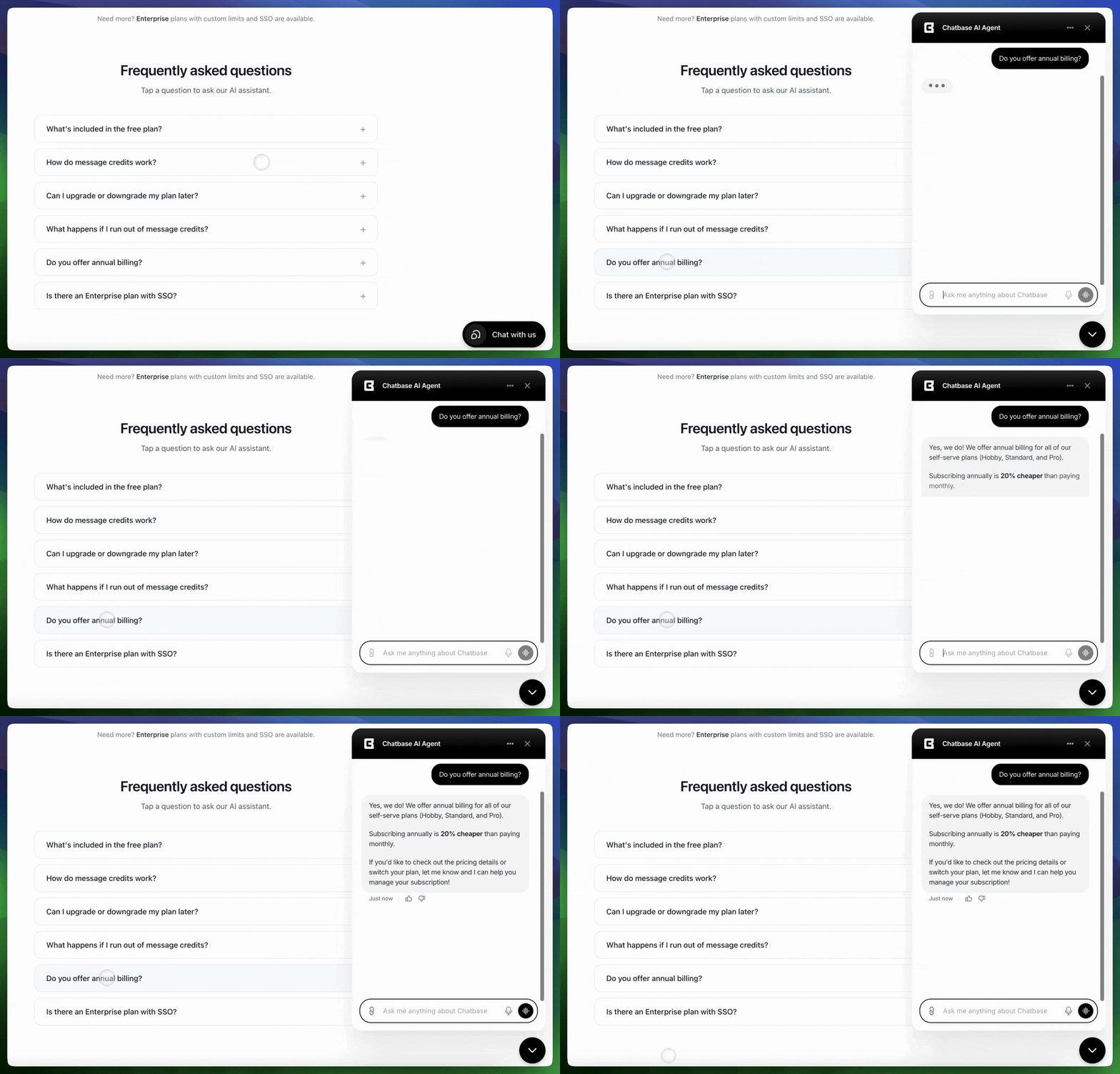
Proactive Message on Intent
Reach out automatically when a visitor lingers on a high-intent page. The message is hidden until the bot replies, so it feels like the assistant started the conversation.Time-Based Reset
The 24-hour example uses
localStorage to persist the last message time across page reloads.Reset After Tool Completion
Reset on Keywords
Reset on Navigation
Start fresh conversations when users enter specific sections of your site.Controlling Without the Embed Script
If you embed the AI Agent as a plain<iframe>, window.chatbase doesn’t exist. The iframe accepts the same actions as messages posted to it, so send them there:
"*" where you can.
Best Practices
- Debounce rapid calls — Avoid calling methods in quick succession
- Add delays before reset — Give users time to read the final response
- Respect dismissals — Don’t immediately reopen a closed chat bubble
- Use contextual triggers — Open chat at moments when help is most relevant
Next Steps
Event Listeners
Learn to listen for and respond to chat events in real-time
Custom Initial Messages
Create dynamic, personalized initial messages for users
Floating Initial Messages
Display floating messages over the chat bubble