> ## Documentation Index
> Fetch the complete documentation index at: https://chatbase.co/docs/llms.txt
> Use this file to discover all available pages before exploring further.
# Usage
> Track message credits and AI agent counts across your workspace, filtered by AI agent and time period
## Overview
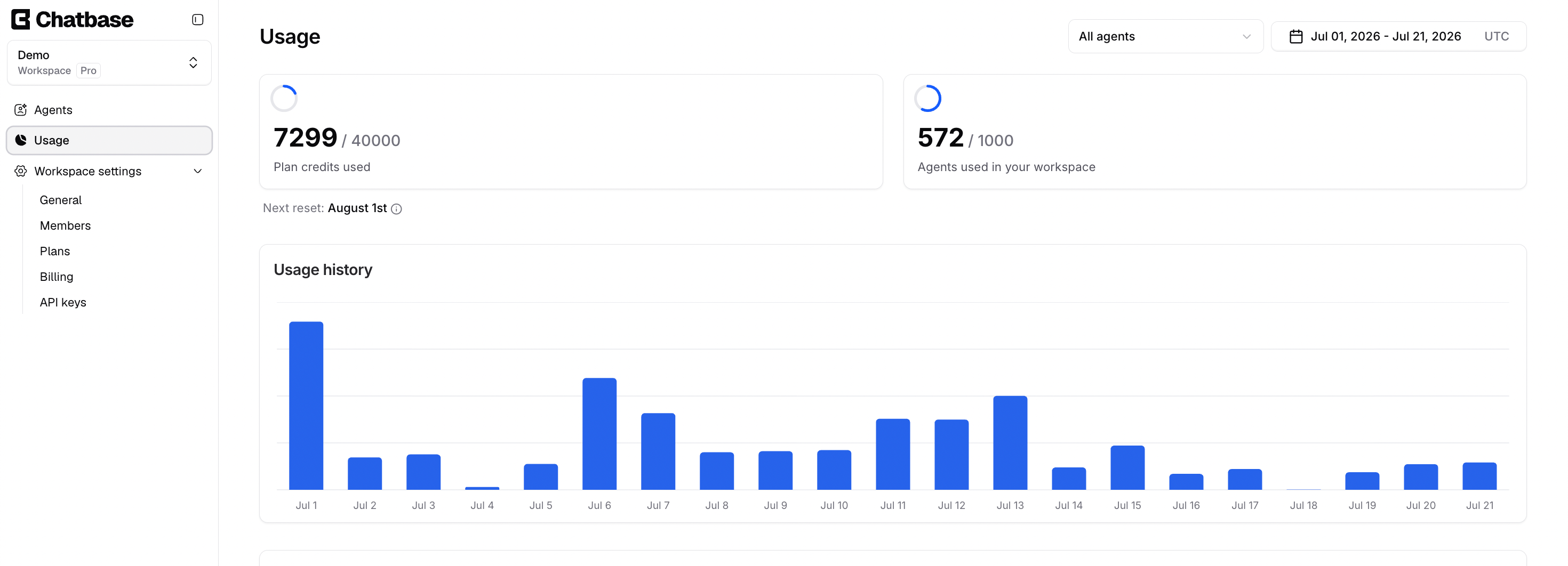
The **Usage** tab shows the usage details of all AI agents in the selected workspace, defaulting to the current month. You can narrow it to a single AI agent, or to a specific time period.
See where your message credits are going, which AI agent is consuming them, and how consumption is trending day by day.
 ## Configuration
### AI agents
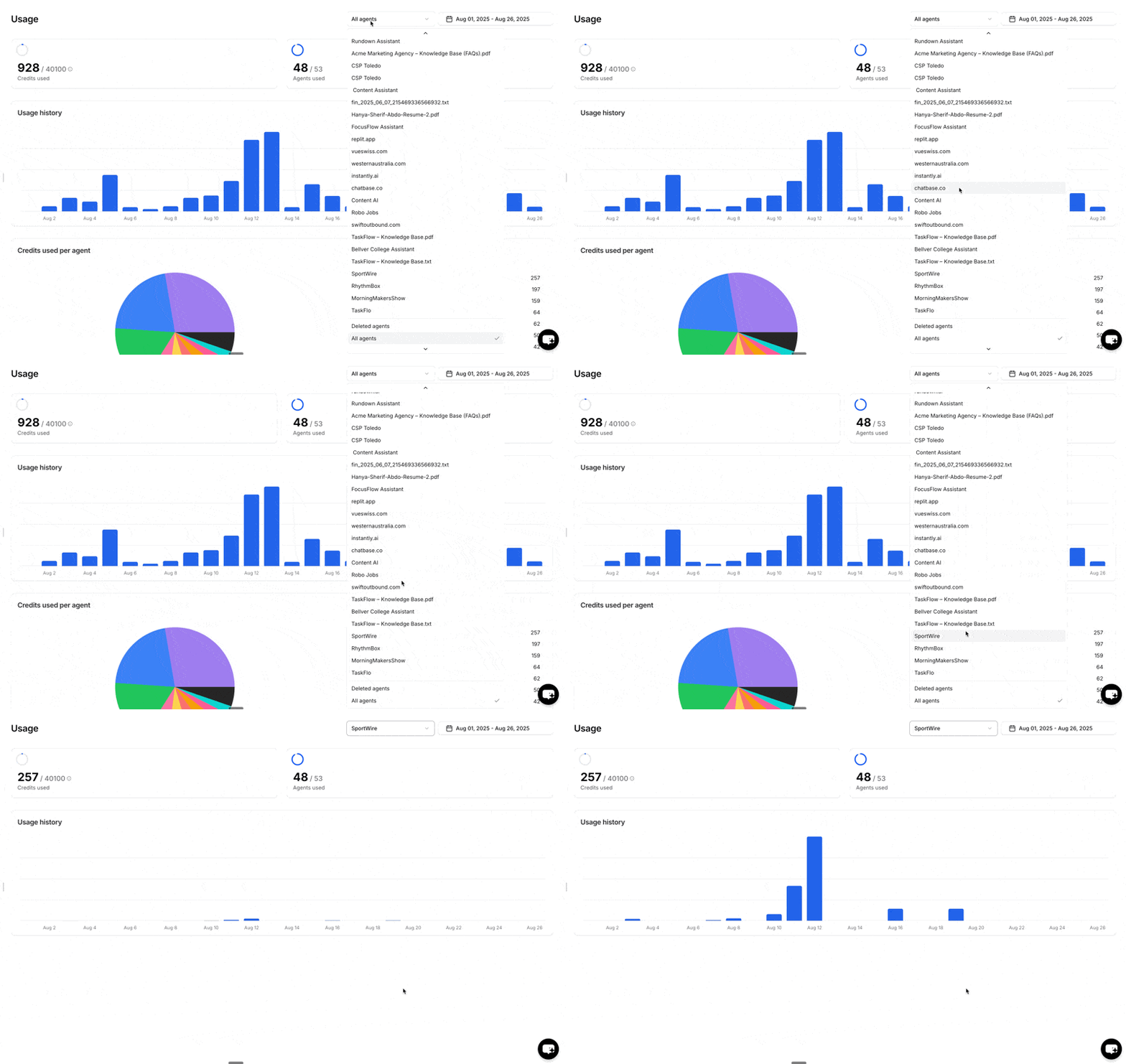
You can view usage for all your AI agents, a specific AI agent, or deleted AI agents, which lets you check the credits used by AI agents you've since removed. Use the **All agents** dropdown at the top of the page to switch between them.
## Configuration
### AI agents
You can view usage for all your AI agents, a specific AI agent, or deleted AI agents, which lets you check the credits used by AI agents you've since removed. Use the **All agents** dropdown at the top of the page to switch between them.
 ### Time interval
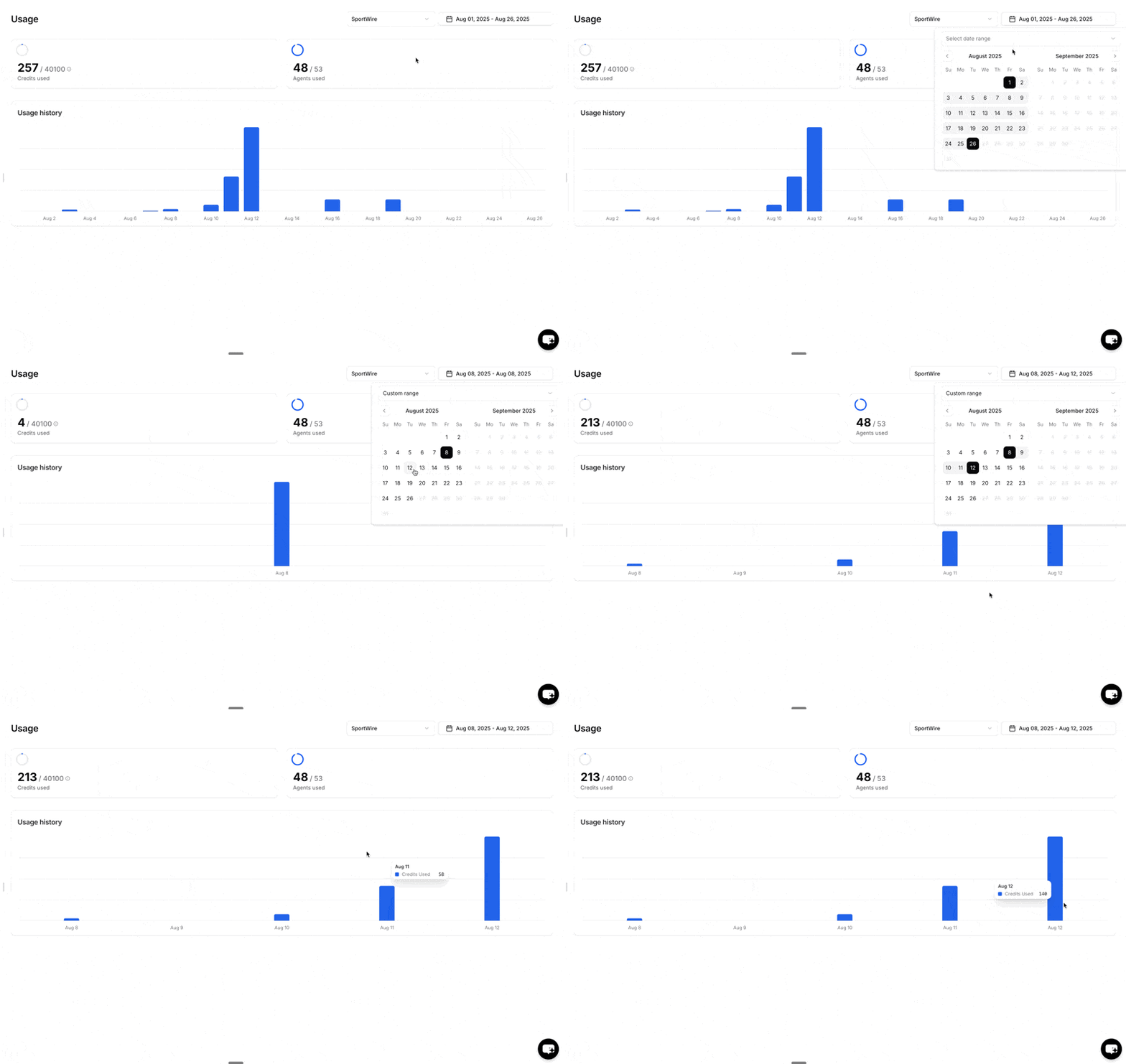
You can configure the time interval to view usage for a specific period, such as last week. The selected interval is highlighted in blue.
### Time interval
You can configure the time interval to view usage for a specific period, such as last week. The selected interval is highlighted in blue.
 ## Usage summary
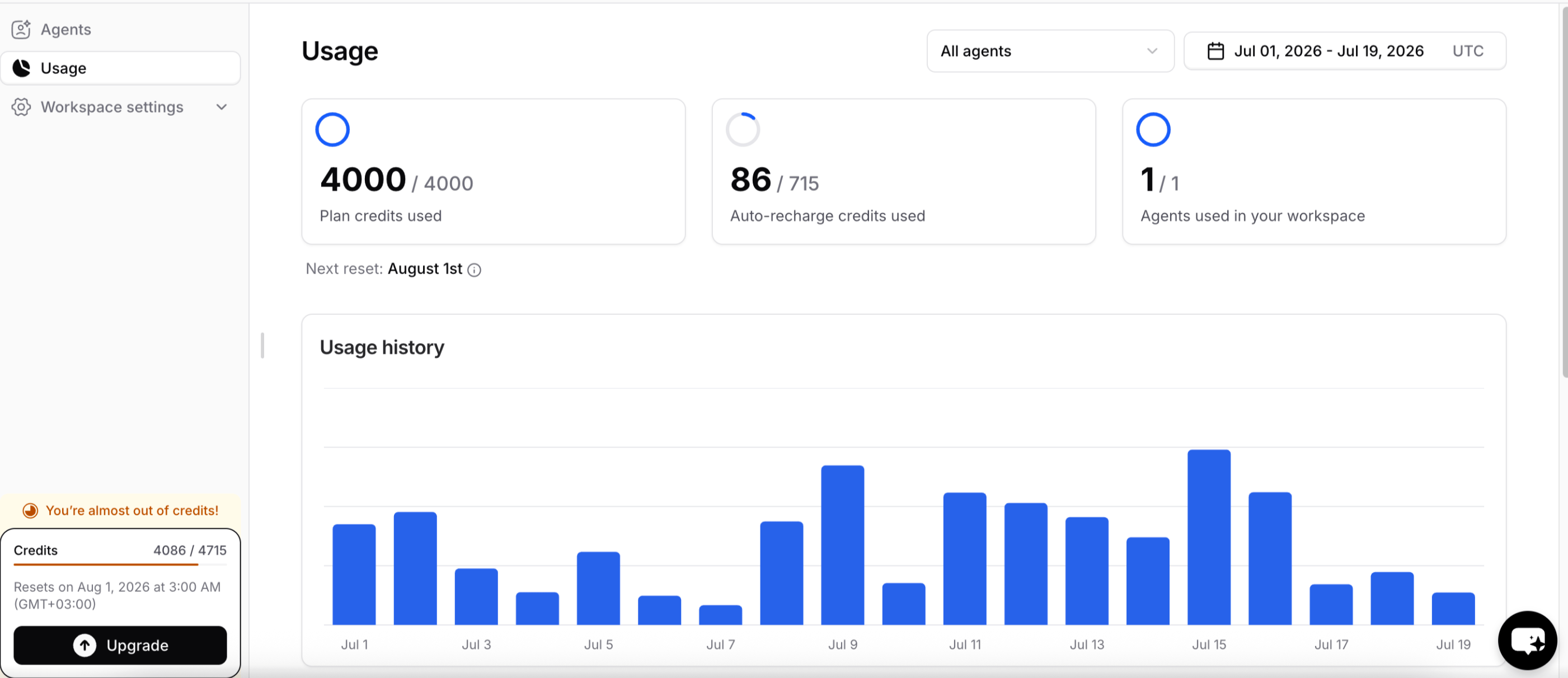
This section summarizes the credits used and the number of AI agents used within the time interval you specified.
### Credits used
The number of message credits consumed over the period.
## Usage summary
This section summarizes the credits used and the number of AI agents used within the time interval you specified.
### Credits used
The number of message credits consumed over the period.
 ### AI agents used
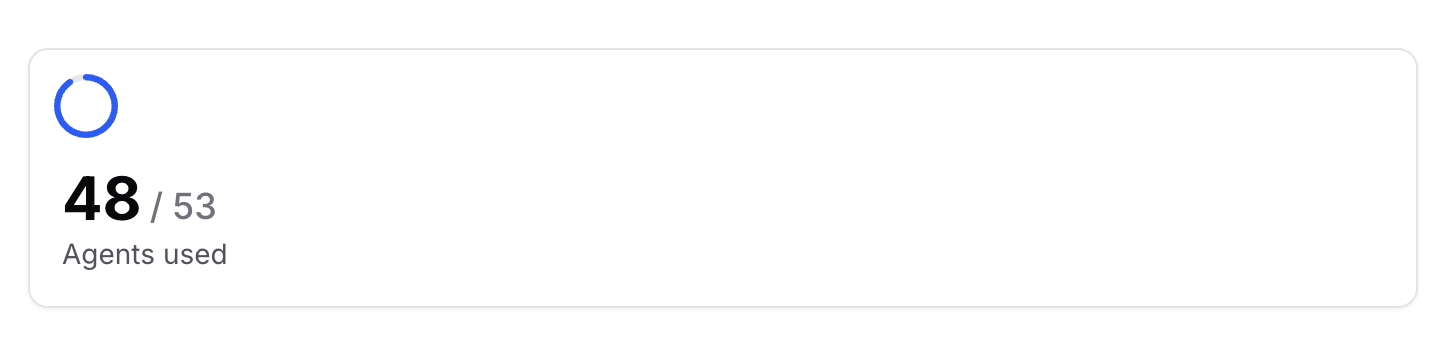
The number of AI agents in use compared to the total allowed. For example, a workspace might have 4 AI agents out of a maximum of 60.
### AI agents used
The number of AI agents in use compared to the total allowed. For example, a workspace might have 4 AI agents out of a maximum of 60.
 ### Usage history
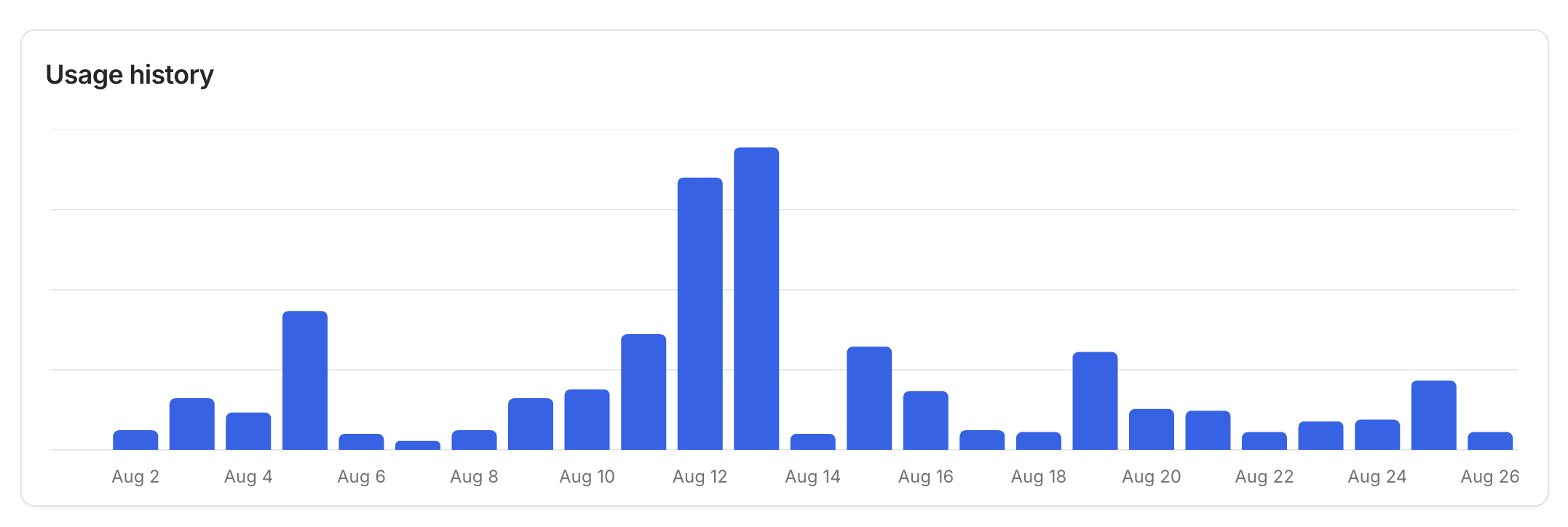
The number of message credits used per day for the selected time interval. Hover over a bar to see the exact credits used on that day.
### Usage history
The number of message credits used per day for the selected time interval. Hover over a bar to see the exact credits used on that day.
 ### Credits used per AI agent
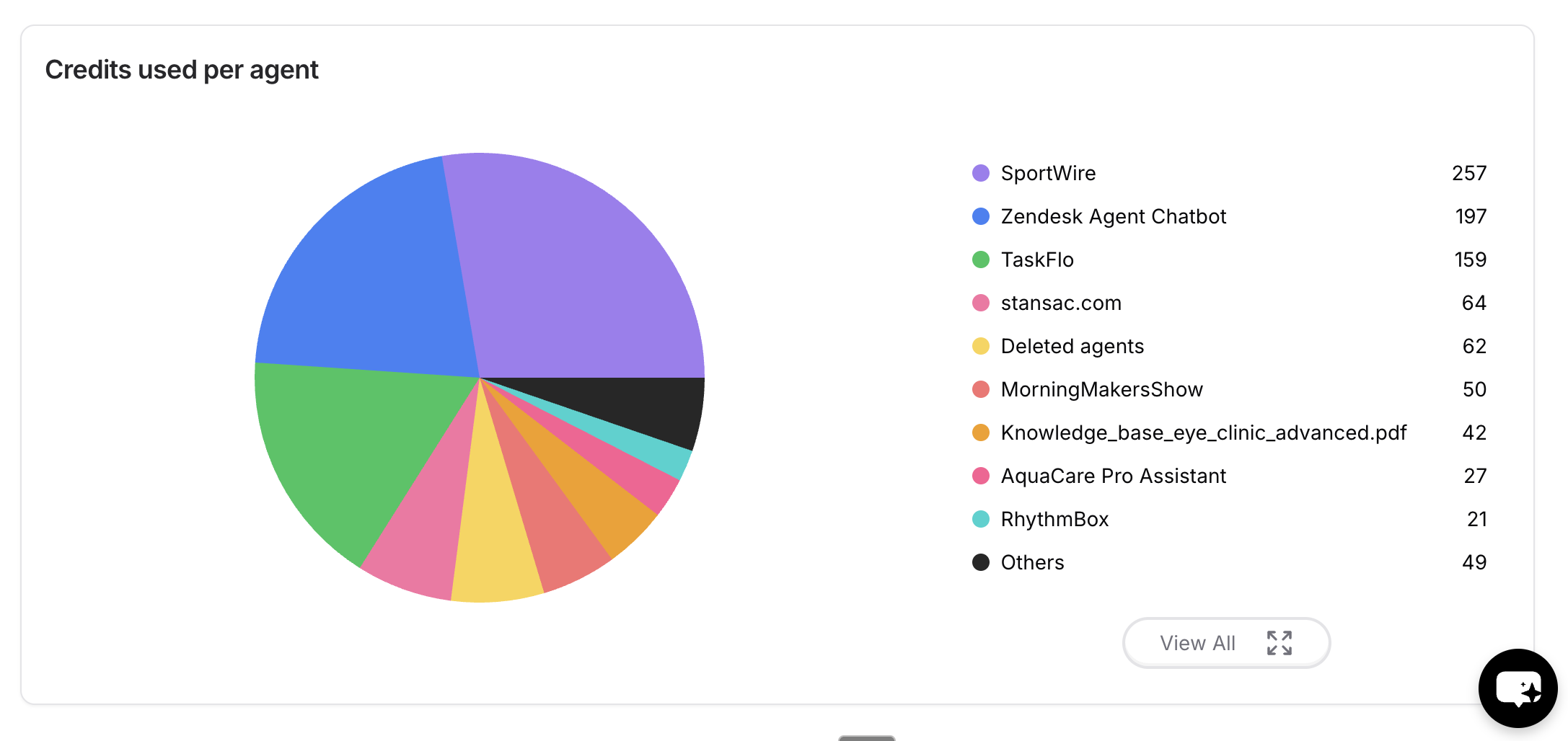
Compares credit usage across AI agents for the selected time interval. Hover over any segment of the pie chart to see the exact number of credits used by that AI agent.
### Credits used per AI agent
Compares credit usage across AI agents for the selected time interval. Hover over any segment of the pie chart to see the exact number of credits used by that AI agent.
 ## Next steps
Credit cost varies by model. See what each tier costs per message.
Manage your plan and buy add-on message credits.
See conversation volume behind the credits you're spending.
Create workspaces and control who can change what.
## Next steps
Credit cost varies by model. See what each tier costs per message.
Manage your plan and buy add-on message credits.
See conversation volume behind the credits you're spending.
Create workspaces and control who can change what.