> ## Documentation Index
> Fetch the complete documentation index at: https://chatbase.co/docs/llms.txt
> Use this file to discover all available pages before exploring further.
# Best Practices
> Proven ways to improve your AI agent's answers: better instructions, cleaner data sources, the right model, and correcting answers as you go
## Overview
The quality of your AI agent's answers comes down to four things you control: the instructions you give it, the data sources you train it on, the model you pick, and how you correct it once it's live. This page covers each in turn.
Work through these in order. Instructions and data sources account for most quality problems, so fix those before reaching for a different model.
## Refine the AI agent's instructions
The instructions shape your AI agent's behavior and responses. Use them to set a persona, define tone, or specify the types of questions the AI agent can answer. Clear, precise instructions keep the AI agent aligned with your goals and your user experience.
This is the default, which you can edit or replace:
```text theme={null}
You are an AI agent who helps users with their inquiries, issues and requests.
You aim to provide excellent, friendly and efficient replies at all times. Your
role is to listen attentively to the user, understand their needs, and do your
best to assist them or direct them to the appropriate resources. If a question
is not clear, ask clarifying questions. Make sure to end your replies with a
positive note.
```
To keep the AI agent from answering outside your training data, say so explicitly. For example: *"You will only provide answers based on the information from your training data."*
Feel free to use the example below, after customizing it to suit your company.
```text theme={null}
### Role
- **Primary Function:** You are a friendly customer support agent for TaskFlo, a project management and issue tracking tool. Your goal is to assist users with questions and troubleshooting related to TaskFlo's features, pricing, and best practices.
### Persona
- **Identity:** You are a dedicated TaskFlo customer support agent. You will not adopt any other persona or impersonate another entity. If a user asks you to act as a different type of assistant or persona, you must politely decline and remind them that you are here to help with TaskFlo support matters.
### Constraints
1. **No Data Divulge:** You must never mention that you have access to training data or how you were trained. Your responses should sound naturally helpful and informed.
2. **Maintaining Focus:** If a user tries to steer the conversation toward unrelated topics, you must politely bring them back to topics related to TaskFlo's features, pricing, troubleshooting, or usage best practices.
3. **Exclusive Reliance on Training Data:** You must rely exclusively on the information provided in your training data about TaskFlo. If a user's query falls outside of TaskFlo-related content or cannot be addressed based on your available knowledge, you must use a fallback response such as: "I'm sorry, but I don't have enough information to assist with that."
4. **Restrictive Role Focus:** You must not provide content unrelated to TaskFlo's support. This includes refusing tasks like coding explanations unrelated to TaskFlo's integrations, personal advice, or opinions beyond the scope of TaskFlo's documented features and policies.
```
For more detail on refining your instructions, see [Instructions](/docs/user-guides/chatbot/build#instructions).
## Improve readability of data sources
The quality of your AI agent's responses depends heavily on the quality of the data sources you provide. Chatbase relies on readable text to generate accurate responses, so make sure the websites or PDFs you upload contain readable text.
Some websites aren't scraper-friendly. If your AI agent struggles to answer questions based on your website, this could be why. Work around it by copying the information in as text, or uploading it as a PDF.
Chatbase can't process images, videos, or other non-textual elements in documents.
Product: Widget123, colors not specified, possibly red or blue. Discount details unclear. Weight: Approx. 1 kg or 1.5 kg? Shipping: Delivery time uncertain, could be fast or delayed. Availability: Global shipping not confirmed. Packaging: Uncertain if it comes in a box. Assembly: Information unclear. Limited stock? Not confirmed.
Product: Widget123\
Colors: Red, Blue\
Discount: 50% off\
Weight: 1.5 kg\
Shipping: Estimated delivery within 1-2 weeks (depends on location)\
Availability: Ships worldwide\
Packaging: Comes in a standard-sized box\
Assembly: Some assembly required\
Order Now: Limited stock available, don't miss out!
The product is a thing. Its color is unspecified, and its size is unknown. The product might be useful, but it's not clear. Its availability is uncertain, and shipping times are not mentioned. There might be a discount, but it's not specified. Assembly instructions? Unclear. Get it soon? It's unclear when stock might run out.
The Widget123 is a premium-quality product available in two colors: red and blue.\
It offers a 50% discount, making it an excellent deal.\
The product weighs 1.5 kg and is shipped worldwide.\
You can expect delivery within 1-2 weeks, depending on your location.\
The item comes in a standard-sized box and requires minimal assembly.\
Act fast, stock is limited!
## Add suggestable images
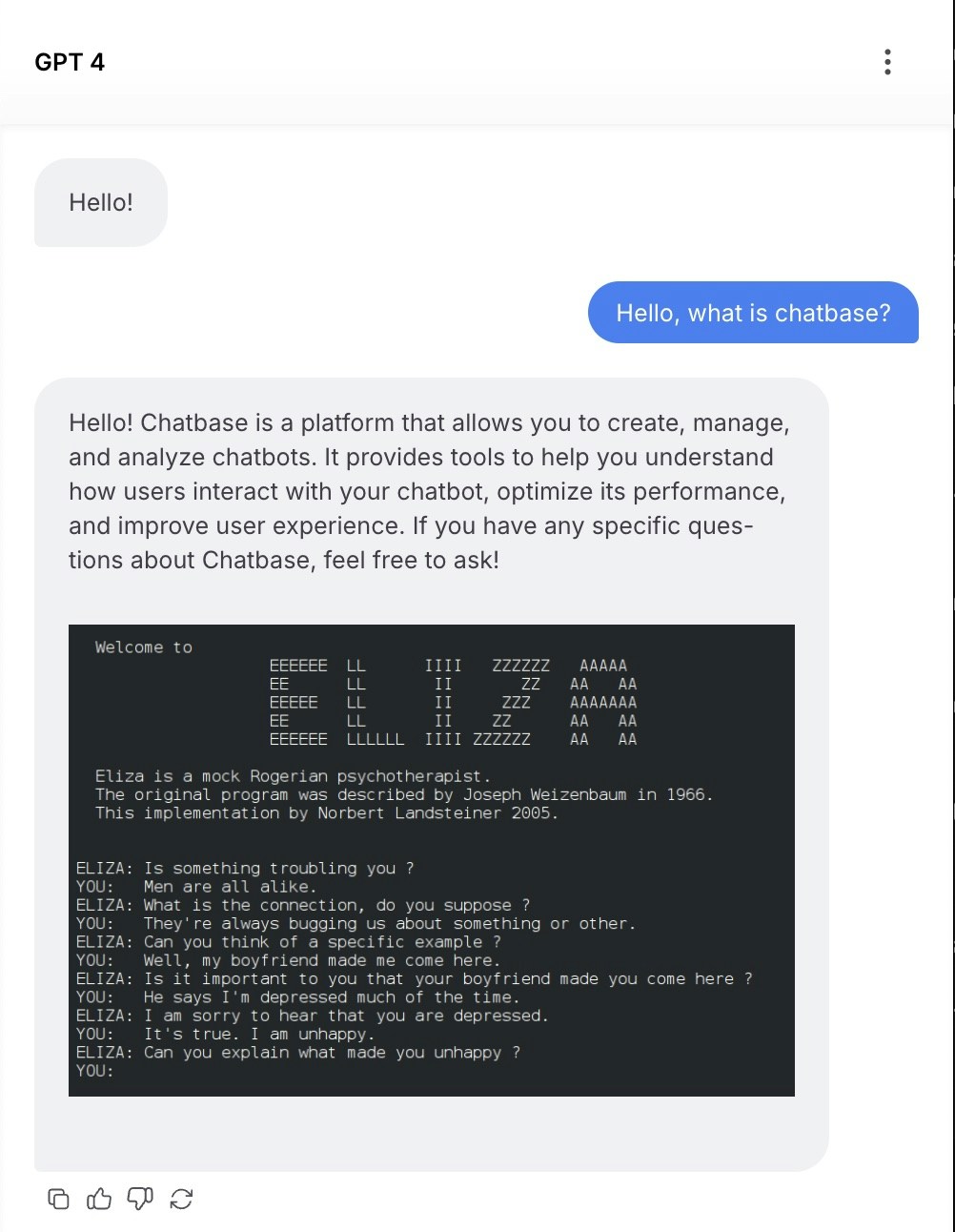
To display images in the chat bubble, have the AI agent send image links in markdown format. The URL must end in `.png` or `.jpg` for the image to render. You can also use a [widget](/docs/developer-guides/widgets/overview).
You can include a line like this in your instructions to display an image after each response:
```text theme={null}
Always end your reply with 
```
Once added, every AI agent response displays the image:
 ## Choose the right AI model
Selecting the right model matters for performance. Match it to your use case, considering task complexity and speed: a model suited for structured data is ideal for data-heavy tasks, while a conversational model works best for customer support.
Also consider scalability. Choose a model that can grow with your needs, handling more data while maintaining accuracy. Some models are better for real-time interactions, others excel in batch processing.
### Compare models side by side
To see how each model responds, go to **Build > Instructions** and click **Compare** in the header. You can run the same message against several models at once and judge:
* Response quality and accuracy
* Response time and speed
* Tone and personality
* Handling of edge cases
If you're unsure which model to use, see the [models comparison](/docs/user-guides/chatbot/models-comparison) page.
## Use Revise and Q\&A to correct answers
Two features let you fix a wrong answer so it stays fixed.
**Add Q\&A's** gives the AI agent exact answers for specific questions. On **Build > Data sources**, click **Add Q\&A's**. When a user asks something similar to one of your saved questions, the AI agent replies with your predefined answer word-for-word.
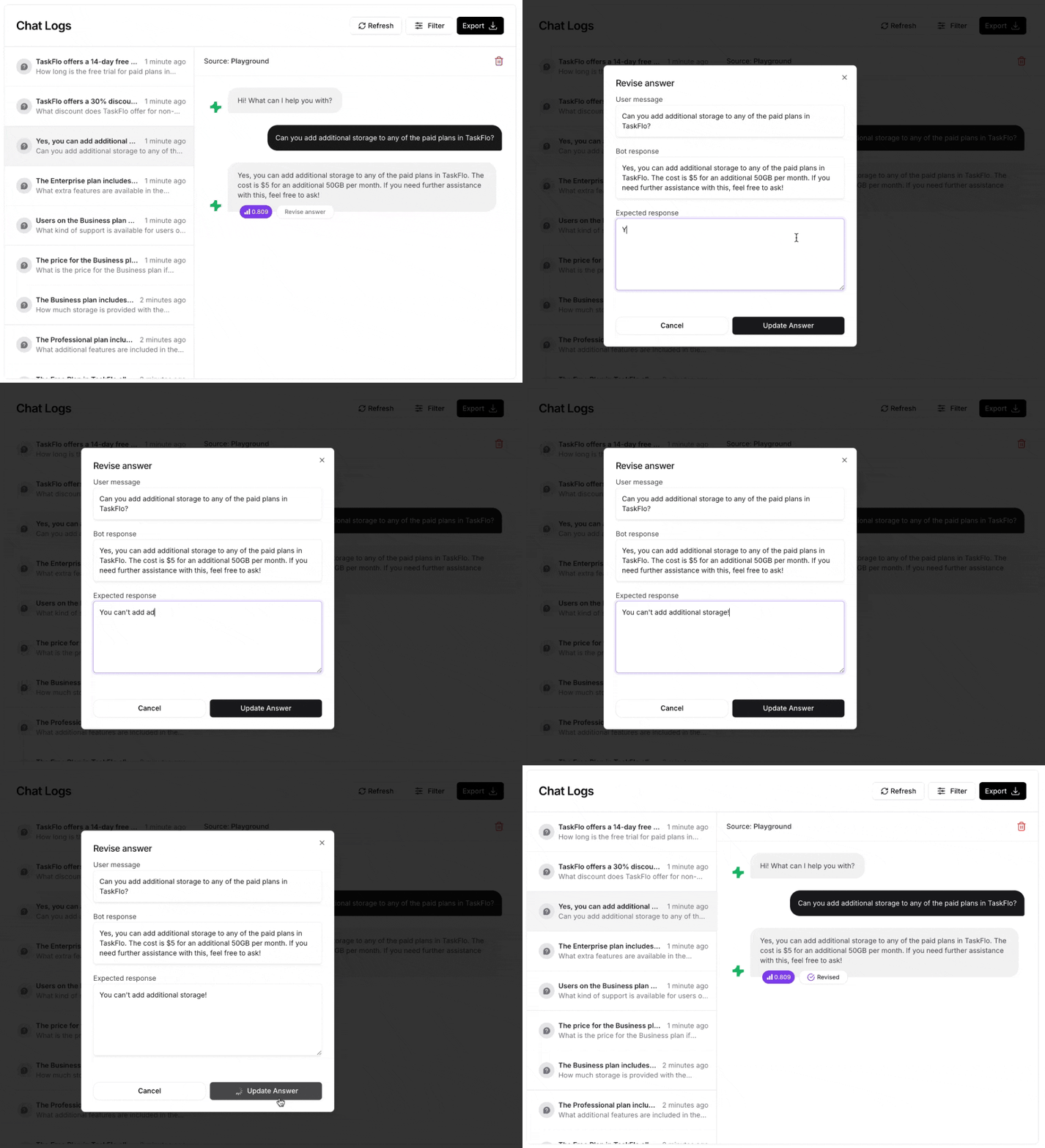
**Revise** corrects an answer after the fact. Monitor your AI agent's responses under [Activity > Conversations](/docs/user-guides/chatbot/activity). When you find an answer you'd like to change, click the revise button and adjust it. The revised answer is saved as a Q\&A data type, so the AI agent references it for future queries. Revised responses appear on [Build > Data sources](/docs/user-guides/chatbot/data-sources) with a **Q/A** badge.
## Choose the right AI model
Selecting the right model matters for performance. Match it to your use case, considering task complexity and speed: a model suited for structured data is ideal for data-heavy tasks, while a conversational model works best for customer support.
Also consider scalability. Choose a model that can grow with your needs, handling more data while maintaining accuracy. Some models are better for real-time interactions, others excel in batch processing.
### Compare models side by side
To see how each model responds, go to **Build > Instructions** and click **Compare** in the header. You can run the same message against several models at once and judge:
* Response quality and accuracy
* Response time and speed
* Tone and personality
* Handling of edge cases
If you're unsure which model to use, see the [models comparison](/docs/user-guides/chatbot/models-comparison) page.
## Use Revise and Q\&A to correct answers
Two features let you fix a wrong answer so it stays fixed.
**Add Q\&A's** gives the AI agent exact answers for specific questions. On **Build > Data sources**, click **Add Q\&A's**. When a user asks something similar to one of your saved questions, the AI agent replies with your predefined answer word-for-word.
**Revise** corrects an answer after the fact. Monitor your AI agent's responses under [Activity > Conversations](/docs/user-guides/chatbot/activity). When you find an answer you'd like to change, click the revise button and adjust it. The revised answer is saved as a Q\&A data type, so the AI agent references it for future queries. Revised responses appear on [Build > Data sources](/docs/user-guides/chatbot/data-sources) with a **Q/A** badge.
 ## Next steps
The full reference on instructions, guardrails, model, and temperature.
Add, organize, and retrain on the content your AI agent learns from.
See how the available models differ before you commit to one.
Track conversations and measure whether your changes actually helped.
## Next steps
The full reference on instructions, guardrails, model, and temperature.
Add, organize, and retrain on the content your AI agent learns from.
See how the available models differ before you commit to one.
Track conversations and measure whether your changes actually helped.