> ## Documentation Index
> Fetch the complete documentation index at: https://chatbase.co/docs/llms.txt
> Use this file to discover all available pages before exploring further.
# Playground
> Preview your AI agent across supported channels and customize its style and capabilities in real time
## Overview
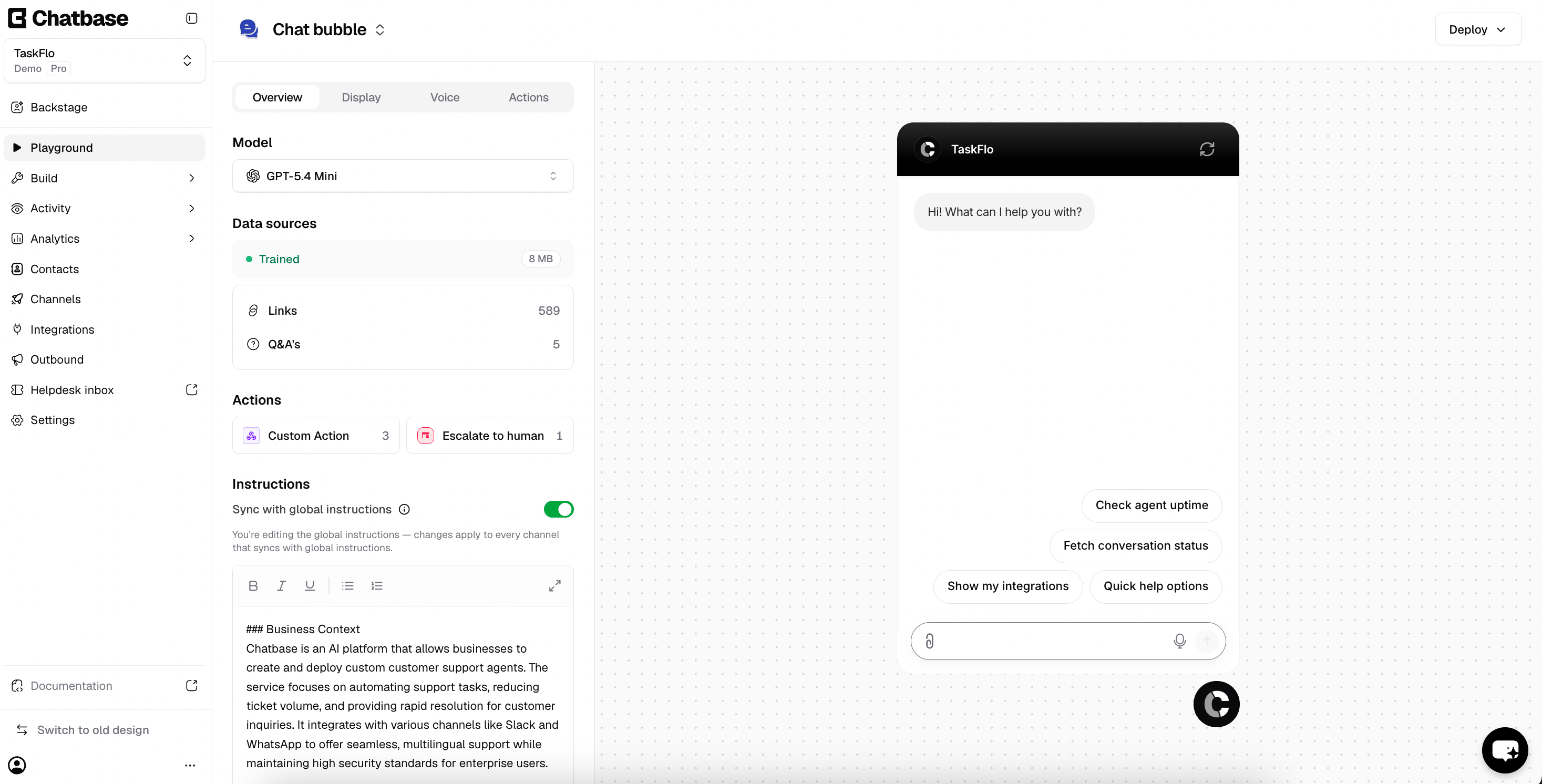
The **Playground** lets you preview and interact with your AI agent exactly as your end users would, and edit channel-specific settings while you watch the effect.
When you open the Playground, it automatically loads the last channel you were working on from the **Channels** page. For example, if you last viewed the **Chat bubble** or **Help page**, the Playground opens that same channel so you can continue testing without switching views.
See your AI agent the way a visitor will, change its style and capabilities in place, and share a live preview with your team before anything goes live.
Use the Playground to:
* Preview your AI agent's behavior in real time
* Test conversations and responses
* Edit channel-specific settings, such as your AI agent's **style** and **capabilities**, and immediately see how those changes affect the experience
To preview a different channel, click the channel name at the top of the page and pick one from the list, or choose **View all channels** to go to the [Channels](/docs/user-guides/chatbot/channels) page.
 ## Tabs
The tabs available depend on which channel you are previewing. A web channel such as **Chat bubble** shows:
| Tab | What it controls |
| ------------ | ---------------------------------------------------------------------------------------------------------------------------------------------------------------------------------------------------------------------------------------------------------------------------- |
| **Overview** | Your AI agent's **Model** and a read-only **Data sources** summary (training status, total size, and counts of Links, Texts, and Q\&A's), both of which apply to the whole AI agent. Below them, the **Actions** available in this channel and the **Instructions** it uses. |
| **Display** | Appearance and behavior for this channel, grouped into **Content**, **Capabilities**, **Colors**, **Floating bubble**, and **Localization**. See [Chat bubble display settings](/docs/user-guides/chatbot/channels#chat-bubble-display). |
| **Voice** | Your AI agent's voice conversation settings. See [Settings → Voice](/docs/user-guides/chatbot/settings#voice). |
| **Actions** | The actions this channel can run. |
Other channels expose a different set. **Messenger**, for example, replaces **Voice** with **Leads**, and the **Slack** channel uses **Overview**, **Connections**, **Actions**, and **Extra Settings**.
### Instructions and global instructions
On the **Overview** tab, **Sync with global instructions** controls whether this channel uses your AI agent's global instructions or its own. Leave it on to keep every channel consistent; turn it off to write instructions that apply only to this channel.
## Chat as user
**Chat as user** starts a Playground conversation as an identified user of your choice, so you can see what a signed-in customer would see and test actions that only run for an identified user.
Click **Chat as user** in the top right, then:
* **User ID:** the identifier the conversation runs under. A test ID is generated for you, and the refresh button beside the field generates a new one. Replace it with a real user ID to chat as that user.
* **Metadata:** a JSON object of details for that user. Edit the **name** and **email**, or add your own fields, then chat to see how your AI agent handles that user. Your AI agent reads these values, and actions receive them as `{contact.*}` variables.
## Tabs
The tabs available depend on which channel you are previewing. A web channel such as **Chat bubble** shows:
| Tab | What it controls |
| ------------ | ---------------------------------------------------------------------------------------------------------------------------------------------------------------------------------------------------------------------------------------------------------------------------- |
| **Overview** | Your AI agent's **Model** and a read-only **Data sources** summary (training status, total size, and counts of Links, Texts, and Q\&A's), both of which apply to the whole AI agent. Below them, the **Actions** available in this channel and the **Instructions** it uses. |
| **Display** | Appearance and behavior for this channel, grouped into **Content**, **Capabilities**, **Colors**, **Floating bubble**, and **Localization**. See [Chat bubble display settings](/docs/user-guides/chatbot/channels#chat-bubble-display). |
| **Voice** | Your AI agent's voice conversation settings. See [Settings → Voice](/docs/user-guides/chatbot/settings#voice). |
| **Actions** | The actions this channel can run. |
Other channels expose a different set. **Messenger**, for example, replaces **Voice** with **Leads**, and the **Slack** channel uses **Overview**, **Connections**, **Actions**, and **Extra Settings**.
### Instructions and global instructions
On the **Overview** tab, **Sync with global instructions** controls whether this channel uses your AI agent's global instructions or its own. Leave it on to keep every channel consistent; turn it off to write instructions that apply only to this channel.
## Chat as user
**Chat as user** starts a Playground conversation as an identified user of your choice, so you can see what a signed-in customer would see and test actions that only run for an identified user.
Click **Chat as user** in the top right, then:
* **User ID:** the identifier the conversation runs under. A test ID is generated for you, and the refresh button beside the field generates a new one. Replace it with a real user ID to chat as that user.
* **Metadata:** a JSON object of details for that user. Edit the **name** and **email**, or add your own fields, then chat to see how your AI agent handles that user. Your AI agent reads these values, and actions receive them as `{contact.*}` variables.
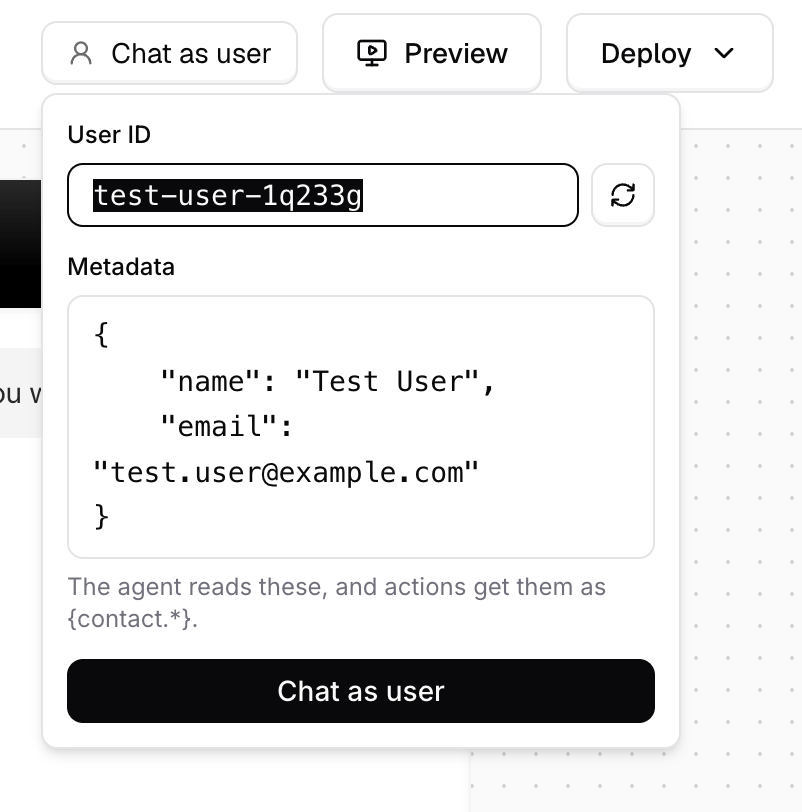 Click **Chat as user** to start the conversation. This is the Playground equivalent of the details your site passes with [identity verification](/docs/developer-guides/identity-verification), so it's the fastest way to check how your AI agent greets and handles a known customer.
## Preview
Click **Preview** in the top-right to open your AI agent on a page of its own. The preview opens in a new tab and renders the AI agent on an otherwise empty page, so you can see and use it the way a visitor would instead of inside the Playground's editing layout.
You can share the preview URL with anyone in your workspace, which makes it a convenient way to collect feedback on your AI agent before deploying it.
A toolbar at the top of the preview page controls how the page around your AI agent looks:
* **Light and dark**: switch the page background between light and dark to check your AI agent's colors against both.
* **Upload background**: upload an image, such as a screenshot of your own website, to sit behind the AI agent. This shows how your AI agent will look in place on your site before you deploy it anywhere.
Everything else behaves as it would once deployed, including initial messages, suggested questions, the floating bubble and its label, and the full conversation.
## Deploying
Click **Deploy** in the top-right to get the code or connection details for the current channel. For the chat bubble, the dropdown offers:
| Option | What it does |
| ------------------ | --------------------------------------------------------- |
| **Website widget** | A floating chat bubble on any website |
| **Website iframe** | The AI agent embedded as an inline element on any website |
| **Shopify** | Add the chat bubble to your Shopify storefront |
| **WordPress** | Add the chat bubble using the official Chatbase plugin |
Open **Preview**, send your AI agent a few questions a real visitor would ask, and confirm the answers and the styling both hold up before you deploy.
## Limitations
* **The Playground isn't a real store or site session.** Some actions behave differently there: cart updates don't work, and payment completion isn't reported back. Actions that need an identified customer, such as the Stripe actions, run only when you start the conversation with [Chat as user](#chat-as-user). See [Shopify Actions](/docs/user-guides/chatbot/actions/shopify-actions#limitations) and [Stripe Actions](/docs/user-guides/chatbot/actions/stripe-action#limitations).
## Next steps
Configure each channel your AI agent runs on, and its display settings.
Edit the instructions, model, and temperature behind every channel.
Give your AI agent things to do beyond answering questions.
Proven ways to improve the answers you're seeing in the preview.
Click **Chat as user** to start the conversation. This is the Playground equivalent of the details your site passes with [identity verification](/docs/developer-guides/identity-verification), so it's the fastest way to check how your AI agent greets and handles a known customer.
## Preview
Click **Preview** in the top-right to open your AI agent on a page of its own. The preview opens in a new tab and renders the AI agent on an otherwise empty page, so you can see and use it the way a visitor would instead of inside the Playground's editing layout.
You can share the preview URL with anyone in your workspace, which makes it a convenient way to collect feedback on your AI agent before deploying it.
A toolbar at the top of the preview page controls how the page around your AI agent looks:
* **Light and dark**: switch the page background between light and dark to check your AI agent's colors against both.
* **Upload background**: upload an image, such as a screenshot of your own website, to sit behind the AI agent. This shows how your AI agent will look in place on your site before you deploy it anywhere.
Everything else behaves as it would once deployed, including initial messages, suggested questions, the floating bubble and its label, and the full conversation.
## Deploying
Click **Deploy** in the top-right to get the code or connection details for the current channel. For the chat bubble, the dropdown offers:
| Option | What it does |
| ------------------ | --------------------------------------------------------- |
| **Website widget** | A floating chat bubble on any website |
| **Website iframe** | The AI agent embedded as an inline element on any website |
| **Shopify** | Add the chat bubble to your Shopify storefront |
| **WordPress** | Add the chat bubble using the official Chatbase plugin |
Open **Preview**, send your AI agent a few questions a real visitor would ask, and confirm the answers and the styling both hold up before you deploy.
## Limitations
* **The Playground isn't a real store or site session.** Some actions behave differently there: cart updates don't work, and payment completion isn't reported back. Actions that need an identified customer, such as the Stripe actions, run only when you start the conversation with [Chat as user](#chat-as-user). See [Shopify Actions](/docs/user-guides/chatbot/actions/shopify-actions#limitations) and [Stripe Actions](/docs/user-guides/chatbot/actions/stripe-action#limitations).
## Next steps
Configure each channel your AI agent runs on, and its display settings.
Edit the instructions, model, and temperature behind every channel.
Give your AI agent things to do beyond answering questions.
Proven ways to improve the answers you're seeing in the preview.