> ## Documentation Index
> Fetch the complete documentation index at: https://chatbase.co/docs/llms.txt
> Use this file to discover all available pages before exploring further.
# Data sources
> Add files, websites, text, Q&A, Notion pages, and support tickets to train your AI agent, and keep them in sync.
**Build > Data sources** is where you manage the content your AI agent learns from. Add a source and the AI agent picks it up within seconds. There is no retrain button.
## The Data sources page
The buttons across the top add content: **Add files**, **Add website**, **Add text snippet**, **Add Q\&A's**, **Add Notion Pages**, and **Add Tickets**.
Everything you add appears in one list below, tagged with its type. Use these controls to work with the list:
* **Search** and the **All sources** filter narrow the list by name or type.
* **Bulk select** lets you act on several sources at once.
* **Sources per page** controls how many rows you see.
* The counter on the right tracks usage against your plan's total size limit in MB.
* The header shows when the AI agent was last synced, next to the **Auto-resync** dropdown.
## How training works
Every change takes effect on its own. Add, edit, or delete a source and the AI agent learns it within seconds. Each row shows its own status:
* **Syncing** while the source is being processed.
* **Synced** once it is live.
* **Failed** with the reason, so you can fix the source and try again.
**Standard** and **Pro** plans include [Auto-resync](#auto-resync), which re-reads your websites, Notion pages, and tickets every week to pick up changes made outside Chatbase.
## Adding sources
### Files
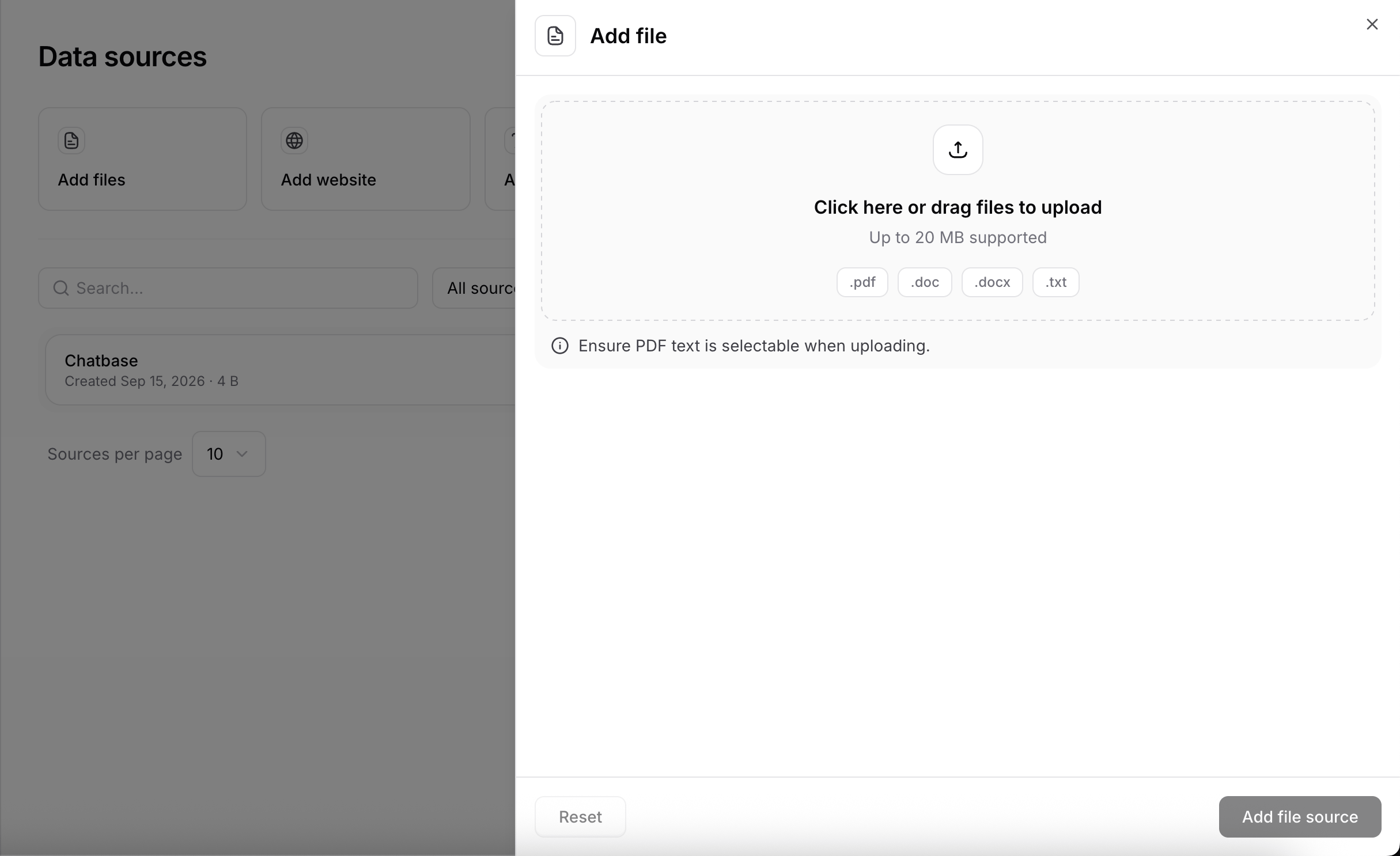
Click **Add files** to upload documents. Chatbase accepts `.pdf`, `.txt`, `.doc`, and `.docx` files up to 20 MB each. The text in a file must be selectable. Scanned PDFs with no text layer cannot be trained on.
Click **Add files**, then click the upload area or drag documents into it. Click **Add file source** to start the upload.
Files enter a queue and upload one by one.
Each file trains as soon as its upload finishes. Its row shows **Syncing**, then **Synced**. If extraction fails, the row shows **Failed** with the reason. Fix the file and upload it again.
 ### Text
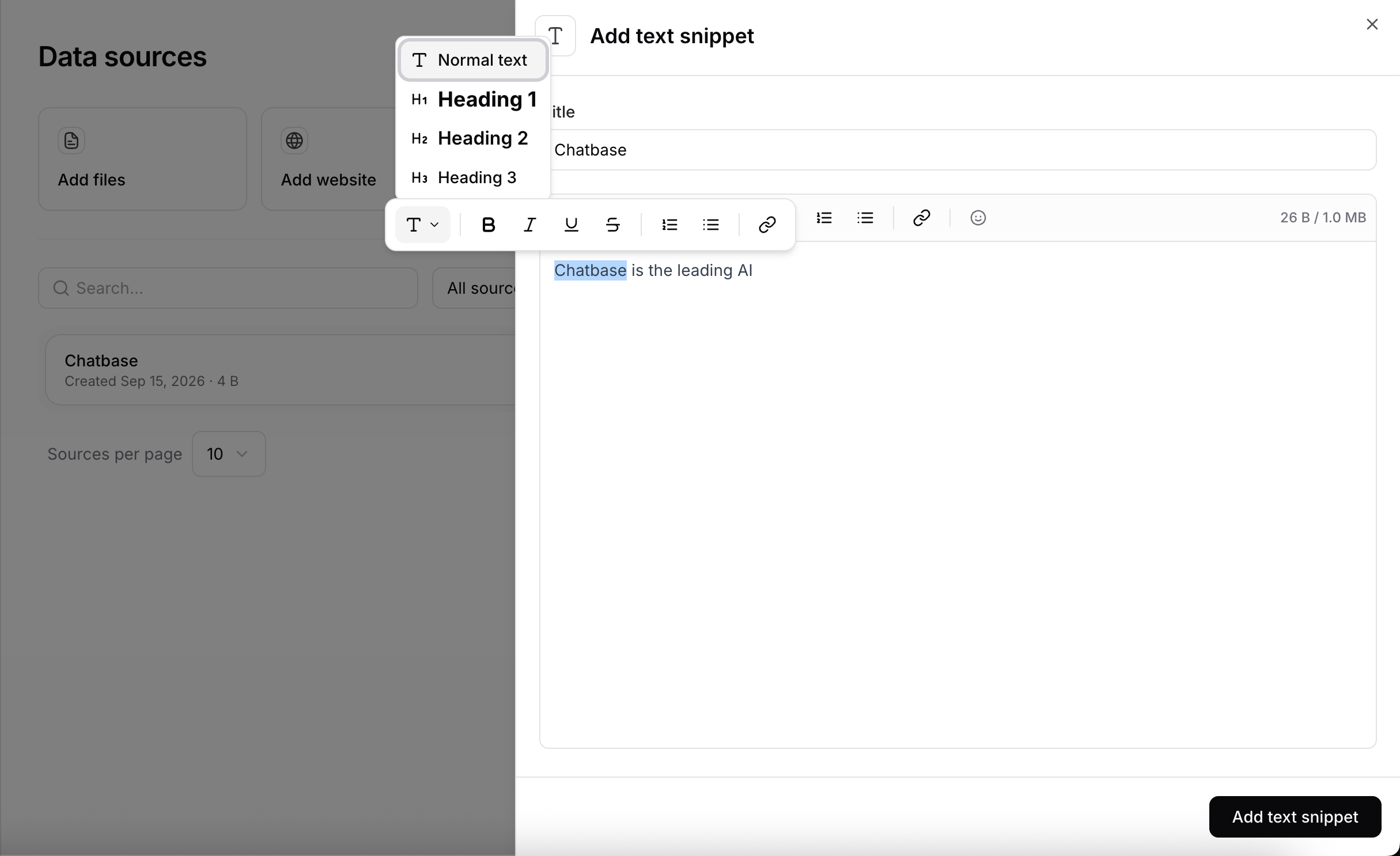
Click **Add text snippet** to add short pieces of content that don't belong in a document, such as a policy, a product note, or an internal FAQ. Give each snippet a title so you can find it at a glance.
Snippets support rich text formatting:
* Headings
* Bold, italic, underline, and strikethrough
* Ordered and bulleted lists
* Hyperlinks
* Emojis
Plain text with Markdown-style structure works best for the AI agent.
### Text
Click **Add text snippet** to add short pieces of content that don't belong in a document, such as a policy, a product note, or an internal FAQ. Give each snippet a title so you can find it at a glance.
Snippets support rich text formatting:
* Headings
* Bold, italic, underline, and strikethrough
* Ordered and bulleted lists
* Hyperlinks
* Emojis
Plain text with Markdown-style structure works best for the AI agent.
 ### Website
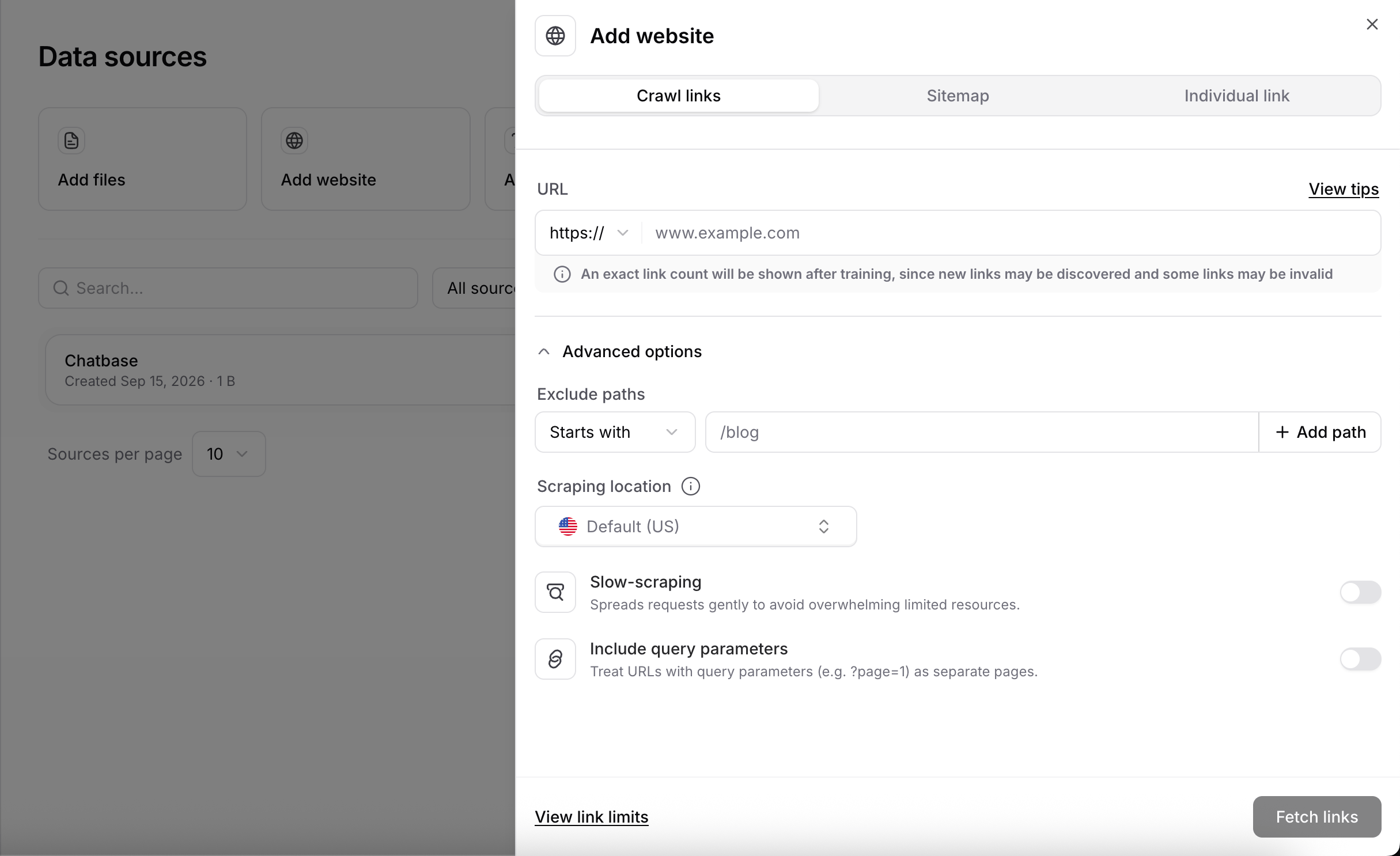
Click **Add website** to train the AI agent on web content. The panel has three tabs:
1. **Crawl links.** Enter the homepage URL and Chatbase discovers every public page.
2. **Sitemap.** Point to an XML sitemap for a structured list of URLs.
3. **Individual link.** Enter the specific URLs you want.
Enter the URL and click **Fetch links**. Chatbase shows the exact link count after training, since a crawl can discover new links and some may be invalid.
For crawls and sitemaps, expand **Advanced options** to set **Exclude paths** for URLs you don't want, such as a blog or a careers section. The same options are available later from the [Advanced options](#advanced-options) tab when editing the source.
Multiple websites can be crawled at the same time.
If you use Shopify, add your sitemap at `/sitemap.xml` instead of crawling the whole store. This uses less of your size limit and avoids duplicate product and collection pages.
### Website
Click **Add website** to train the AI agent on web content. The panel has three tabs:
1. **Crawl links.** Enter the homepage URL and Chatbase discovers every public page.
2. **Sitemap.** Point to an XML sitemap for a structured list of URLs.
3. **Individual link.** Enter the specific URLs you want.
Enter the URL and click **Fetch links**. Chatbase shows the exact link count after training, since a crawl can discover new links and some may be invalid.
For crawls and sitemaps, expand **Advanced options** to set **Exclude paths** for URLs you don't want, such as a blog or a careers section. The same options are available later from the [Advanced options](#advanced-options) tab when editing the source.
Multiple websites can be crawled at the same time.
If you use Shopify, add your sitemap at `/sitemap.xml` instead of crawling the whole store. This uses less of your size limit and avoids duplicate product and collection pages.
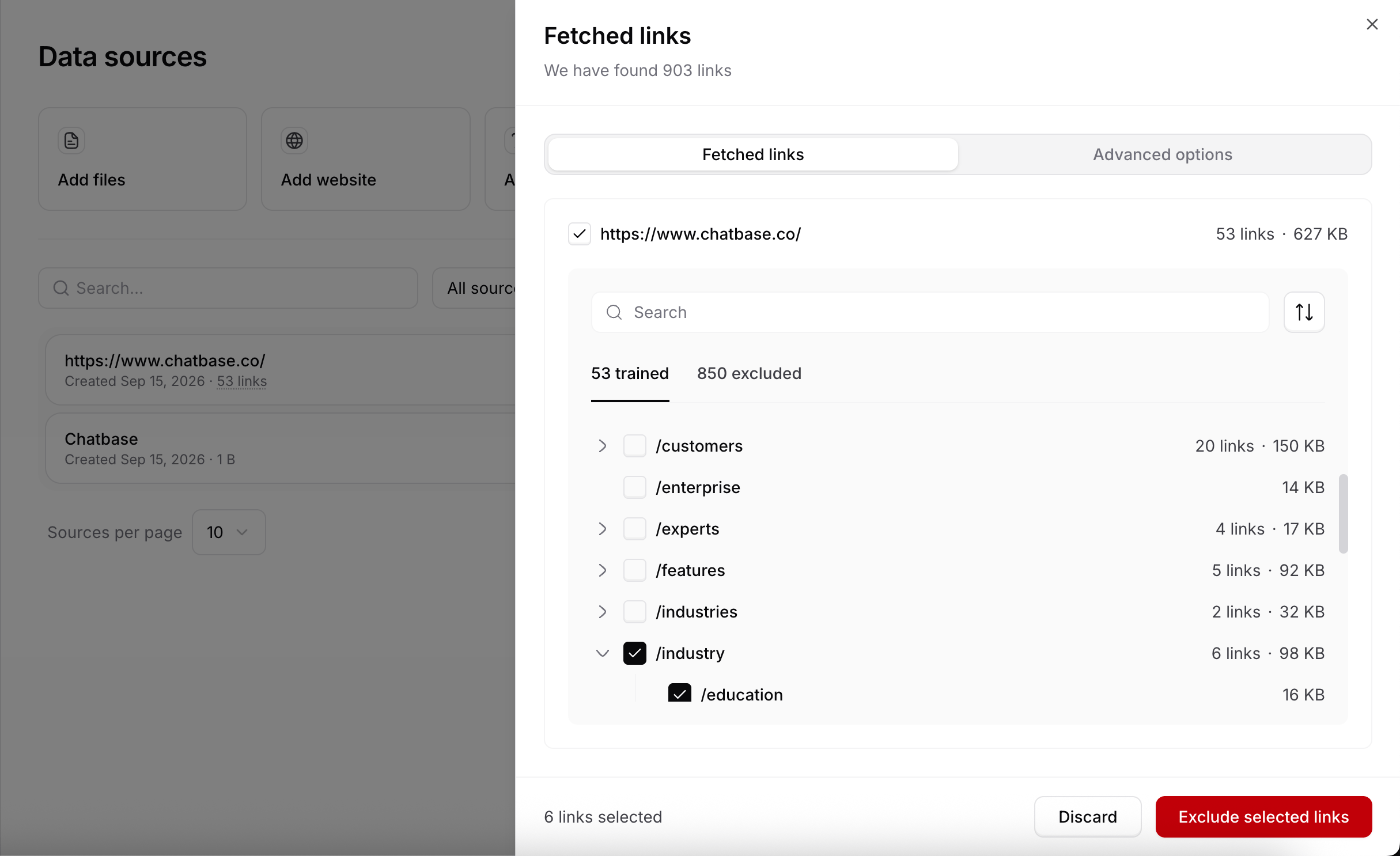
 #### Reviewing fetched links
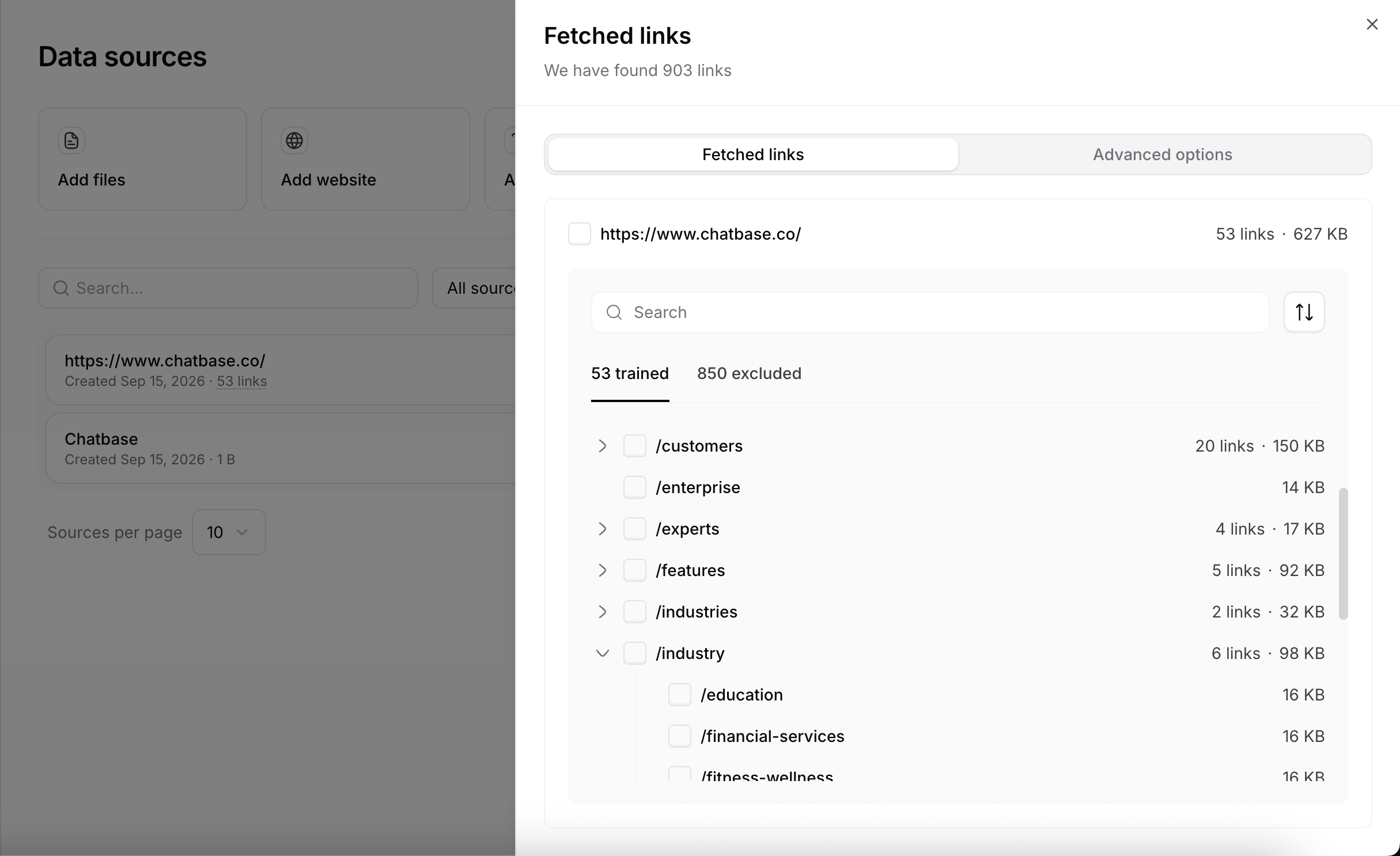
Click a website source to open the **Edit link** panel. The **Fetched links** tab lists every link Chatbase found, grouped by path. Expand a folder such as `/docs` to see the pages inside it. Each row shows how many links it holds and how much of your size limit they use. Use the search box or the sort button to find a page.
Links are split into tabs:
* **Trained.** Pages that were crawled successfully and the AI agent learns from, such as product pages, blog posts, and documentation.
* **Not found.** Pages that could not be accessed, usually because they don't exist or returned an error. This tab only appears when a crawl hit such pages.
* **Excluded.** Pages the AI agent does not use, either because Chatbase skipped them, such as login, signup, and duplicate pages, or because you excluded them.
#### Reviewing fetched links
Click a website source to open the **Edit link** panel. The **Fetched links** tab lists every link Chatbase found, grouped by path. Expand a folder such as `/docs` to see the pages inside it. Each row shows how many links it holds and how much of your size limit they use. Use the search box or the sort button to find a page.
Links are split into tabs:
* **Trained.** Pages that were crawled successfully and the AI agent learns from, such as product pages, blog posts, and documentation.
* **Not found.** Pages that could not be accessed, usually because they don't exist or returned an error. This tab only appears when a crawl hit such pages.
* **Excluded.** Pages the AI agent does not use, either because Chatbase skipped them, such as login, signup, and duplicate pages, or because you excluded them.
 #### Excluding and including links
Tick the checkbox next to a page or a folder to select it. Selecting a folder selects every page inside it, and the footer shows how many links are selected. Then:
* In **Trained**, click **Exclude selected links** to stop the AI agent from using those pages. They leave the AI agent's knowledge right away.
* In **Excluded**, click **Include selected links** to bring those pages back into training.
**Discard** clears the selection without changing anything.
To skip a whole section of a site, such as `/blog`, tick its parent folder and exclude it, or add it to **Exclude paths** on the [Advanced options](#advanced-options) tab so it is skipped on every crawl.
#### Excluding and including links
Tick the checkbox next to a page or a folder to select it. Selecting a folder selects every page inside it, and the footer shows how many links are selected. Then:
* In **Trained**, click **Exclude selected links** to stop the AI agent from using those pages. They leave the AI agent's knowledge right away.
* In **Excluded**, click **Include selected links** to bring those pages back into training.
**Discard** clears the selection without changing anything.
To skip a whole section of a site, such as `/blog`, tick its parent folder and exclude it, or add it to **Exclude paths** on the [Advanced options](#advanced-options) tab so it is skipped on every crawl.
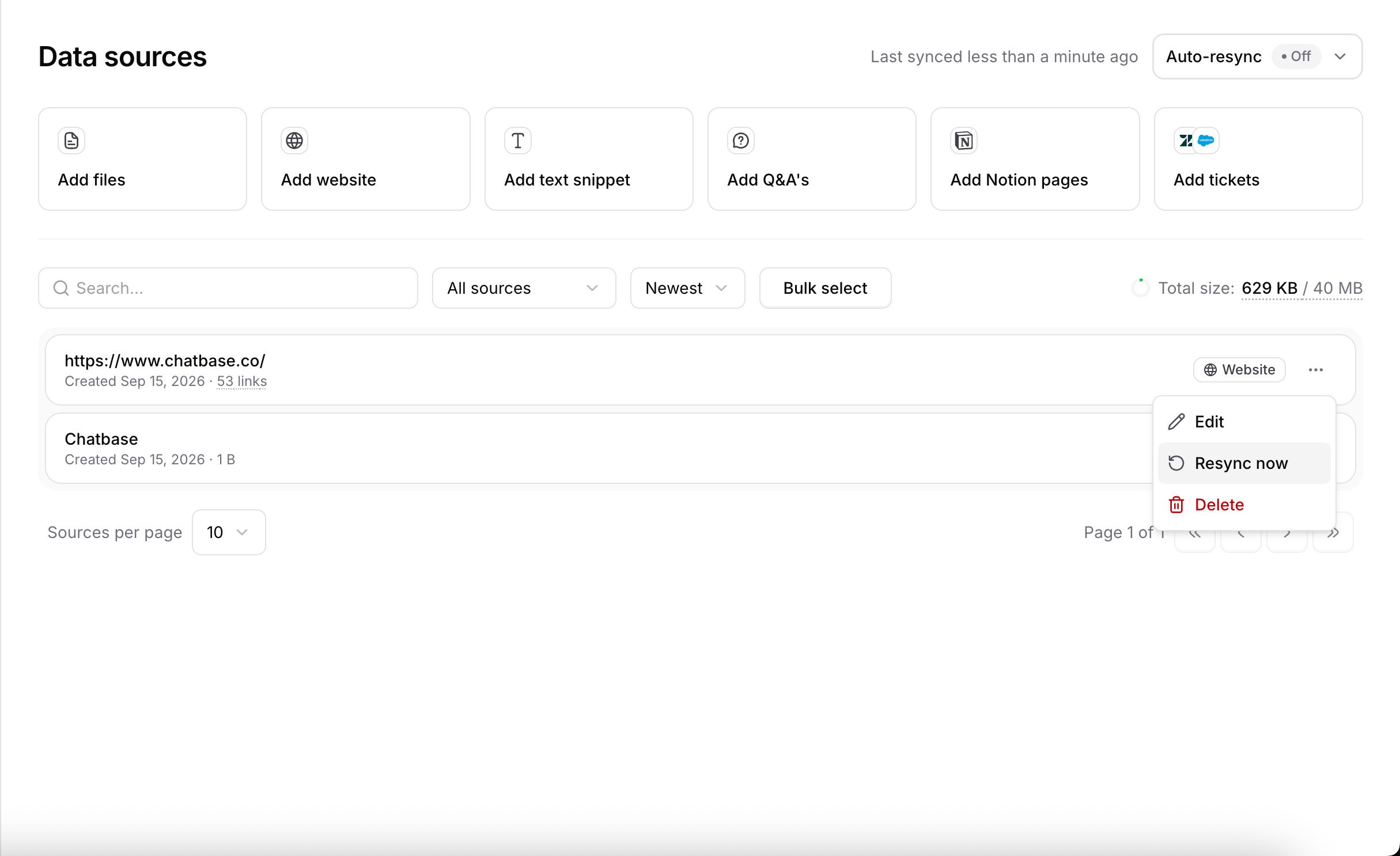
 #### Resyncing a website
To re-read a website when its content has changed, click the three dots on its row, then **Resync now**. The same menu has **Edit**, which opens the Edit link panel, and **Delete**. Sitemaps are also re-read on the [Auto-resync](#auto-resync) schedule.
#### Resyncing a website
To re-read a website when its content has changed, click the three dots on its row, then **Resync now**. The same menu has **Edit**, which opens the Edit link panel, and **Delete**. Sitemaps are also re-read on the [Auto-resync](#auto-resync) schedule.
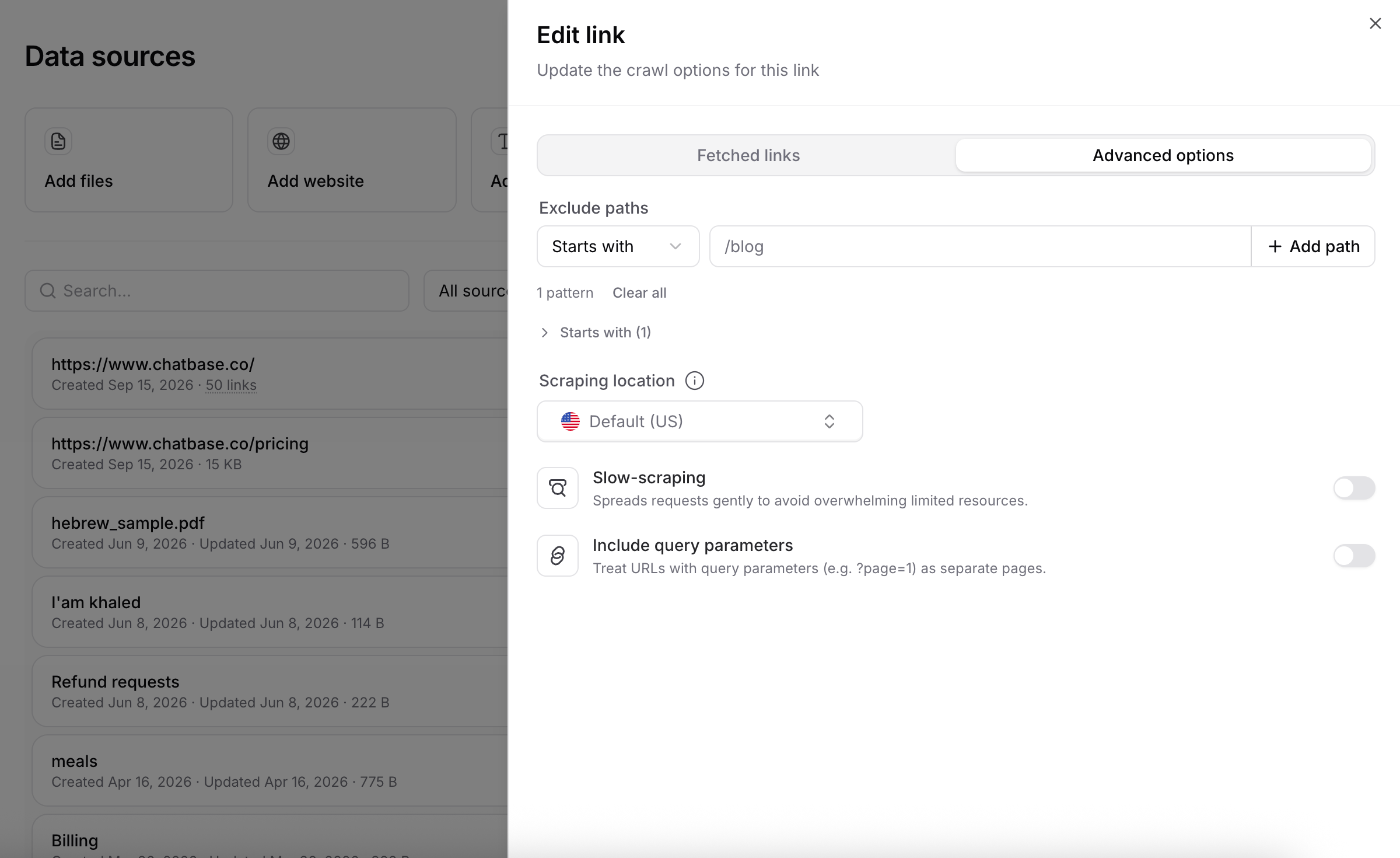
 #### Advanced options
The **Advanced options** tab of the **Edit link** panel controls how Chatbase crawls the website. Saving a change starts a resync of that website.
**Exclude paths.** Add patterns for URLs to skip. Pick a match type, enter the path, and click **Add path**. Patterns are grouped by match type, and **Clear all** removes them. Match types:
| Match type | Skips URLs that |
| --------------- | ------------------------------------- |
| **Starts with** | begin with the path, such as `/blog` |
| **Ends with** | end with the path |
| **Contains** | include the path anywhere |
| **Exact match** | equal the path exactly |
| **Wildcard** | match a pattern with `*` placeholders |
**Scraping location.** Runs scraping from the selected country. Useful for geo-restricted or localized sites. The default is the US.
**Slow-scraping.** Spreads requests out to avoid overwhelming a site with limited resources. Turn it on if crawls fail or your server struggles under load.
**Include query parameters.** Treats URLs that differ only by query parameters, such as `?page=1`, as separate pages. Leave it off unless those parameters change the page content.
#### Advanced options
The **Advanced options** tab of the **Edit link** panel controls how Chatbase crawls the website. Saving a change starts a resync of that website.
**Exclude paths.** Add patterns for URLs to skip. Pick a match type, enter the path, and click **Add path**. Patterns are grouped by match type, and **Clear all** removes them. Match types:
| Match type | Skips URLs that |
| --------------- | ------------------------------------- |
| **Starts with** | begin with the path, such as `/blog` |
| **Ends with** | end with the path |
| **Contains** | include the path anywhere |
| **Exact match** | equal the path exactly |
| **Wildcard** | match a pattern with `*` placeholders |
**Scraping location.** Runs scraping from the selected country. Useful for geo-restricted or localized sites. The default is the US.
**Slow-scraping.** Spreads requests out to avoid overwhelming a site with limited resources. Turn it on if crawls fail or your server struggles under load.
**Include query parameters.** Treats URLs that differ only by query parameters, such as `?page=1`, as separate pages. Leave it off unless those parameters change the page content.
 If Chatbase cannot crawl your website, you may need to allow our crawler in your `robots.txt` file. **Contact our Support team first** so we can whitelist your website on our side, then add this user agent:
```text theme={null}
User-agent: ChatbaseCrawler/1.0
```
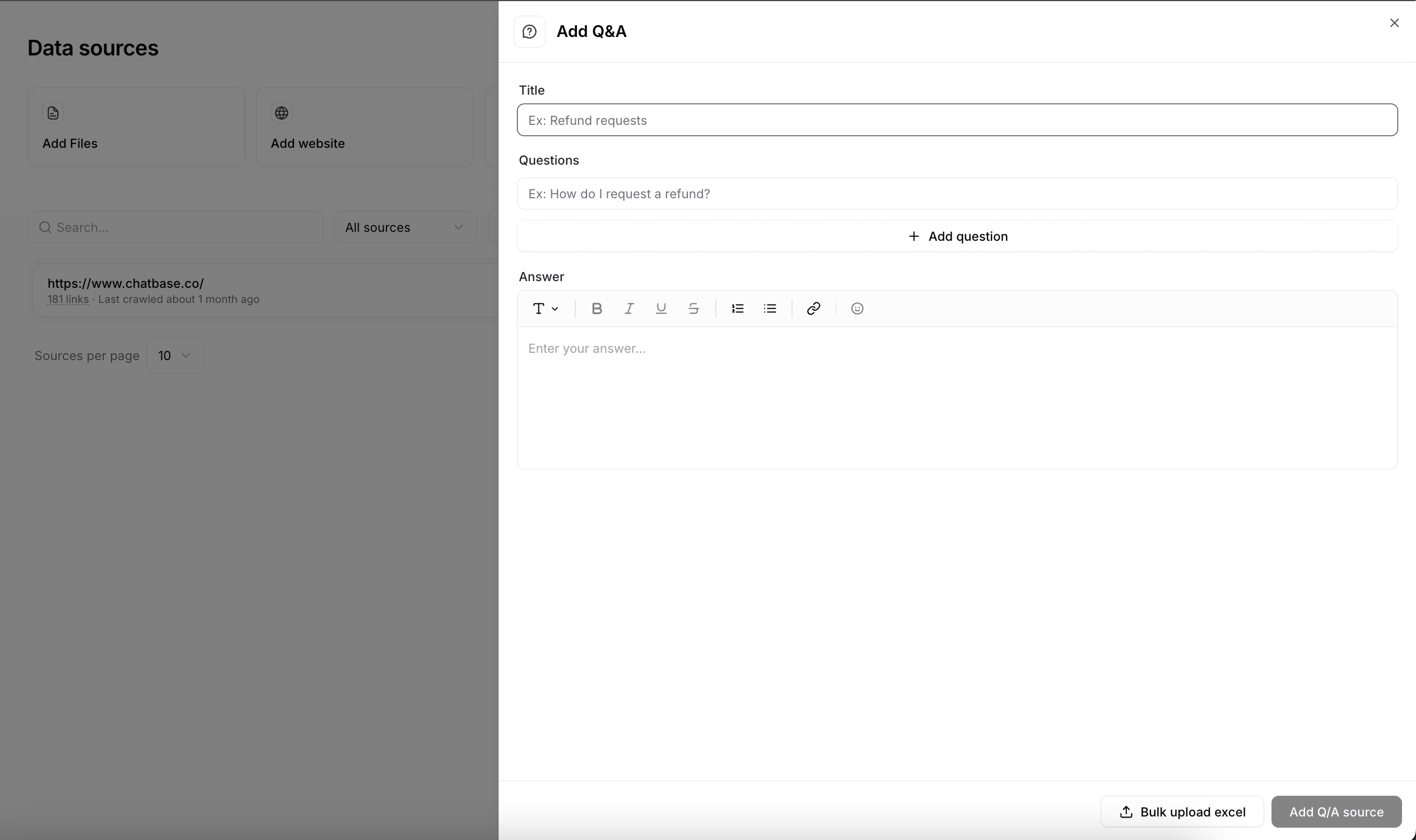
### Q\&A
Click **Add Q\&A's** to train the AI agent with question-and-answer pairs. Use them for questions that need a precise, consistent answer, such as pricing, policies, or business-specific details.
* Each entry has a title so you can find it quickly.
* Add several variations of the question to one answer to improve recognition.
* Answers support the same rich text formatting as text snippets.
* **Bulk upload** accepts an `.xlsx` file with up to 100 rows and a maximum size of 1 MB.
If Chatbase cannot crawl your website, you may need to allow our crawler in your `robots.txt` file. **Contact our Support team first** so we can whitelist your website on our side, then add this user agent:
```text theme={null}
User-agent: ChatbaseCrawler/1.0
```
### Q\&A
Click **Add Q\&A's** to train the AI agent with question-and-answer pairs. Use them for questions that need a precise, consistent answer, such as pricing, policies, or business-specific details.
* Each entry has a title so you can find it quickly.
* Add several variations of the question to one answer to improve recognition.
* Answers support the same rich text formatting as text snippets.
* **Bulk upload** accepts an `.xlsx` file with up to 100 rows and a maximum size of 1 MB.
 #### Usage insights
Click any Q\&A to open its detail view, which shows how often users ask it:
* Number of times the question has been asked, updated instantly.
* When it was last asked.
* When the Q\&A was added.
* A chart of how often the question comes up over time.
Use these insights to see which topics matter most to your users and keep those answers up to date.
### Notion
Click **Add Notion Pages** to connect your Notion workspace and choose which pages to import. The AI agent can then answer from the content of those pages.
If your Notion workspace is on a paid plan, make sure you have admin access so you can grant all the permissions the integration needs.
### Tickets
Click **Add tickets** to train the AI agent on closed support tickets from [Salesforce](/docs/user-guides/integrations/salesforce) or [Zendesk](/docs/user-guides/integrations/zendesk). You need an active integration first. If none is connected, Chatbase prompts you to set one up.
You can train on tickets from one platform at a time. To switch, change your selection and import again.
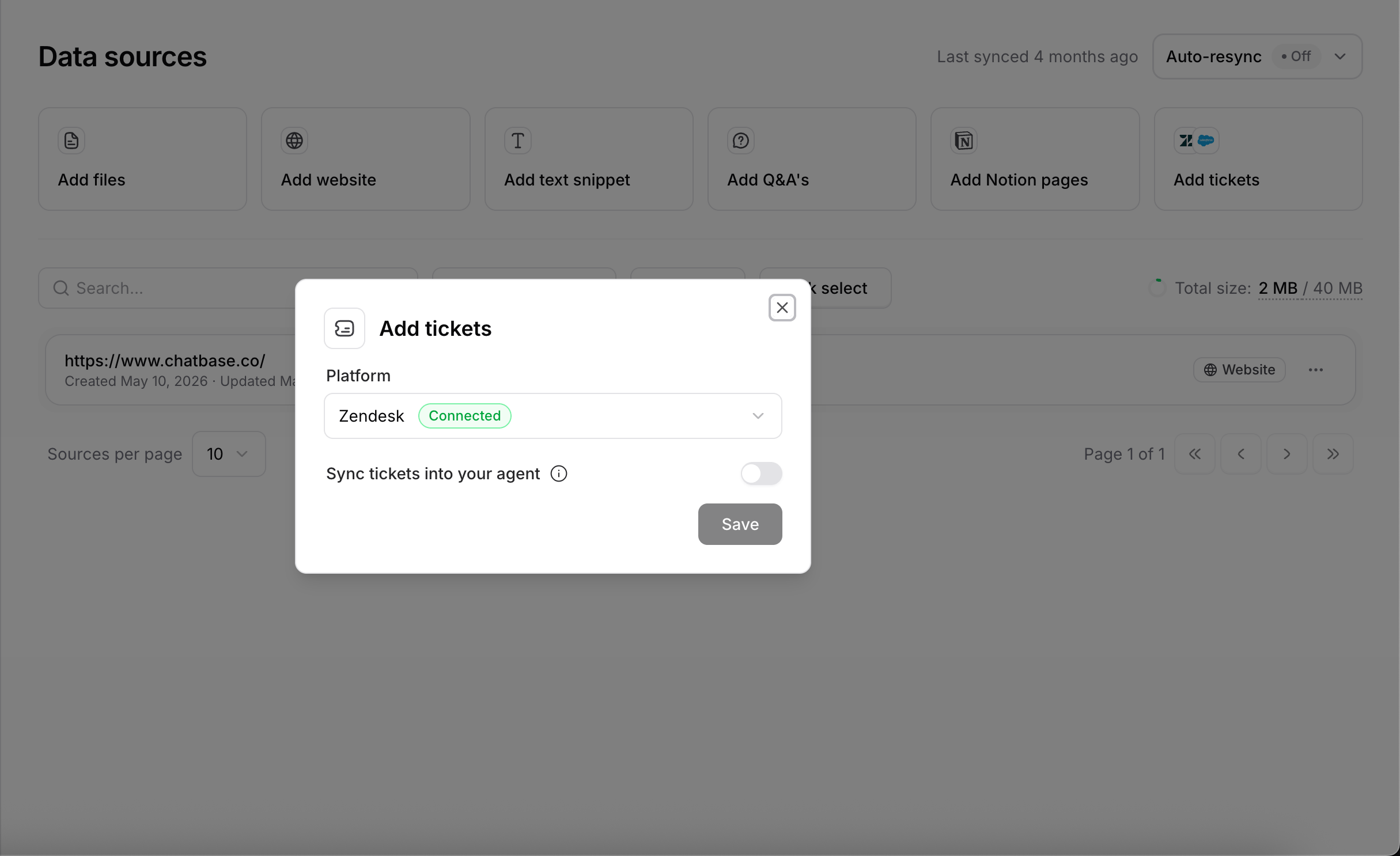
Under **Platform**, choose **Salesforce** or **Zendesk**. A **Connected** badge confirms the integration is active.
Switch on **Sync tickets into your AI agent**.
Click **Save**. The sync starts on its own. The Tickets row shows **Syncing tickets…** while tickets are fetched and summarized, then **Synced**. New closed tickets are picked up by [Auto-resync](#auto-resync).
#### Usage insights
Click any Q\&A to open its detail view, which shows how often users ask it:
* Number of times the question has been asked, updated instantly.
* When it was last asked.
* When the Q\&A was added.
* A chart of how often the question comes up over time.
Use these insights to see which topics matter most to your users and keep those answers up to date.
### Notion
Click **Add Notion Pages** to connect your Notion workspace and choose which pages to import. The AI agent can then answer from the content of those pages.
If your Notion workspace is on a paid plan, make sure you have admin access so you can grant all the permissions the integration needs.
### Tickets
Click **Add tickets** to train the AI agent on closed support tickets from [Salesforce](/docs/user-guides/integrations/salesforce) or [Zendesk](/docs/user-guides/integrations/zendesk). You need an active integration first. If none is connected, Chatbase prompts you to set one up.
You can train on tickets from one platform at a time. To switch, change your selection and import again.
Under **Platform**, choose **Salesforce** or **Zendesk**. A **Connected** badge confirms the integration is active.
Switch on **Sync tickets into your AI agent**.
Click **Save**. The sync starts on its own. The Tickets row shows **Syncing tickets…** while tickets are fetched and summarized, then **Synced**. New closed tickets are picked up by [Auto-resync](#auto-resync).
 Tickets have a few limitations:
* Tickets cannot be filtered by status or date. All eligible tickets from the selected integration are imported.
* Ticket sources cannot be previewed, edited, or deleted one by one.
* Your integration needs permission to read ticket data.
* Turning off **Sync tickets into your AI agent** removes the ticket knowledge from the AI agent right away.
## Managing sources
### Preview and metadata
Click any file, text snippet, or Q\&A to preview its content in the dashboard and edit it from the same view. Save your changes and the AI agent learns the updated version. Each source shows when it was added and last updated, so you can track your training data over time.
### Deleting sources
* **One source.** Click the three dots on its row, then **Delete**.
* **Several at once.** Click **Bulk select**, tick the sources you want or **Select all**, then click **Delete** in the bar at the bottom.
* **Websites.** Exclude a single link, delete a whole group of pages from one domain, or delete the entire website from its three-dots menu.
### Exporting sources
Select the sources you want and click **Export**. Formats depend on the source type:
| Source | Export format | Notes |
| ------- | ------------- | ---------------------------------------------------------------------------------------------------------------------------------------------------------------------------------------- |
| Files | `.txt` | Contains the text extracted from the file, not the original document. |
| Text | `.md` | One Markdown file per snippet. |
| Q\&A | `.xlsx` | All Q\&As in one Excel file that you can bulk edit and re-import with **Bulk upload**. With the Q\&A filter active, **Export all** exports every Q\&A matching your search, up to 5,000. |
| Website | Not available | |
| Notion | Not available | |
| Tickets | Not available | |
Exporting several sources bundles them into a `.zip` file. When you export selected sources, you can pick up to 50 at a time, since selection is limited to one page, and the export can be at most 200 MB.
## Auto-resync
Files, text, and Q\&A only change when you edit them in Chatbase, so they never need a schedule. Websites, Notion pages, and tickets change outside Chatbase. Auto-resync re-reads them every week so the AI agent stays current.
To turn it on, click the **Auto-resync** dropdown in the **Data sources** header, next to **Last synced**, and flip the toggle.
Auto-resync is available on **Standard** and **Pro** plans only. On other plans, use **Resync now** on a website or Notion source when its content has changed.
What it re-syncs:
* **Website.** Re-scrapes existing pages and picks up new ones. Sitemap sources drop pages that left the sitemap. Crawled pages that no longer load are marked **Failed** and kept so you can review them.
* **Notion.** Syncs changes from your connected workspace.
* **Tickets.** Imports new closed tickets from Zendesk or Salesforce.
How it runs:
* Once a week in the background.
* Only changed pages are re-embedded. Unchanged pages are skipped.
* Each source shows **Syncing** while its resync runs and **Synced** when done.
Tickets have a few limitations:
* Tickets cannot be filtered by status or date. All eligible tickets from the selected integration are imported.
* Ticket sources cannot be previewed, edited, or deleted one by one.
* Your integration needs permission to read ticket data.
* Turning off **Sync tickets into your AI agent** removes the ticket knowledge from the AI agent right away.
## Managing sources
### Preview and metadata
Click any file, text snippet, or Q\&A to preview its content in the dashboard and edit it from the same view. Save your changes and the AI agent learns the updated version. Each source shows when it was added and last updated, so you can track your training data over time.
### Deleting sources
* **One source.** Click the three dots on its row, then **Delete**.
* **Several at once.** Click **Bulk select**, tick the sources you want or **Select all**, then click **Delete** in the bar at the bottom.
* **Websites.** Exclude a single link, delete a whole group of pages from one domain, or delete the entire website from its three-dots menu.
### Exporting sources
Select the sources you want and click **Export**. Formats depend on the source type:
| Source | Export format | Notes |
| ------- | ------------- | ---------------------------------------------------------------------------------------------------------------------------------------------------------------------------------------- |
| Files | `.txt` | Contains the text extracted from the file, not the original document. |
| Text | `.md` | One Markdown file per snippet. |
| Q\&A | `.xlsx` | All Q\&As in one Excel file that you can bulk edit and re-import with **Bulk upload**. With the Q\&A filter active, **Export all** exports every Q\&A matching your search, up to 5,000. |
| Website | Not available | |
| Notion | Not available | |
| Tickets | Not available | |
Exporting several sources bundles them into a `.zip` file. When you export selected sources, you can pick up to 50 at a time, since selection is limited to one page, and the export can be at most 200 MB.
## Auto-resync
Files, text, and Q\&A only change when you edit them in Chatbase, so they never need a schedule. Websites, Notion pages, and tickets change outside Chatbase. Auto-resync re-reads them every week so the AI agent stays current.
To turn it on, click the **Auto-resync** dropdown in the **Data sources** header, next to **Last synced**, and flip the toggle.
Auto-resync is available on **Standard** and **Pro** plans only. On other plans, use **Resync now** on a website or Notion source when its content has changed.
What it re-syncs:
* **Website.** Re-scrapes existing pages and picks up new ones. Sitemap sources drop pages that left the sitemap. Crawled pages that no longer load are marked **Failed** and kept so you can review them.
* **Notion.** Syncs changes from your connected workspace.
* **Tickets.** Imports new closed tickets from Zendesk or Salesforce.
How it runs:
* Once a week in the background.
* Only changed pages are re-embedded. Unchanged pages are skipped.
* Each source shows **Syncing** while its resync runs and **Synced** when done.