> ## Documentation Index
> Fetch the complete documentation index at: https://chatbase.co/docs/llms.txt
> Use this file to discover all available pages before exploring further.
# Stripe Actions
> Let customers check their subscription, review invoices, change plans, and update billing details from the chat
## Overview
Stripe Actions enable your AI agent to handle customer billing inquiries, subscription management, and account updates directly within the chat interface. These actions provide secure, real-time access to customer payment information, streamlining support operations and improving the customer experience.
**Prerequisites:** Before using Stripe Actions, you must:
1. [Set up the Stripe integration](/docs/user-guides/integrations/stripe) with your Chatbase account
2. Configure [identity verification](/docs/developer-guides/identity-verification) for secure customer authentication
3. Set up [contacts](/docs/user-guides/chatbot/contacts/contacts-overview) with valid `stripe_account` fields for each customer
## Available Stripe Actions
| Action | What it does |
| --------------------------------------------------------------- | -------------------------------------------------------------------- |
| [Get subscription information](#1-get-subscription-information) | Show the customer's current plan, status, billing cycle, and pricing |
| [Get invoice history](#2-get-invoice-history) | Show the customer's invoices, payment details, and billing records |
| [Manage subscriptions](#3-manage-subscriptions) | Change plans, upgrade, downgrade, add payment methods, and cancel |
| [Change billing information](#4-change-billing-information) | Update the customer's billing address and other account details |
## How Stripe Actions work
Stripe Actions use Chatbase's identity verification system to securely access customer-specific data:
1. **User authentication**: Customers are identified using `window.chatbase("identify", {...})` with their unique user ID
2. **Contact matching**: The system matches the authenticated user ID to a contact record containing their Stripe account ID
3. **Secure data access**: Actions retrieve only the data associated with the authenticated customer's Stripe account
4. **Real-time responses**: The AI agent answers immediately using live Stripe data
Stripe Actions need an identified customer, so they don't run in **Action Preview** or **Compare**. To test them in the Playground, start the conversation with [Chat as user](/docs/user-guides/chatbot/playground#chat-as-user) and set the **User ID** to a customer whose contact record has a valid `stripe_account`. To test the real thing end to end, embed the [JavaScript script](/docs/developer-guides/javascript-embed) on your site and run the action there.
## How to create a Stripe action
Every Stripe action is created the same way. The [action sections](#1-get-subscription-information) below list only what differs: which action to pick and any extra configuration it needs.
Go to your [Chatbase dashboard](https://www.chatbase.co/dashboard/) and select your AI agent. Click **Build > Actions** in the left sidebar.
Click **Create action**, then on the **Stripe** card select the action named in its section below.
**Action Name:** A unique, descriptive name for the action.
**When to use:** Detailed instructions for when the AI agent should use this action.
To restrict the action to [procedure](/docs/user-guides/chatbot/procedures/procedures-overview) steps only, turn on [**Only use in procedures**](/docs/user-guides/chatbot/actions/actions-overview#only-use-in-procedures). When it's on, the **When to use** field is hidden, because the AI agent no longer decides when to call the action.
[Manage subscriptions](#3-manage-subscriptions) adds a step for defining the available plans and cancellation policy. Every other action skips straight to channels.
Use **Channels** to control where the action is available. Toggle the action on or off for each configured channel, then click **Save**. Some channels may be incompatible with the action and won't be available for selection.
Ensure the action is toggled to **Enabled**, then test it in the embedded widget on your site.
## Actions
### 1. Get subscription information
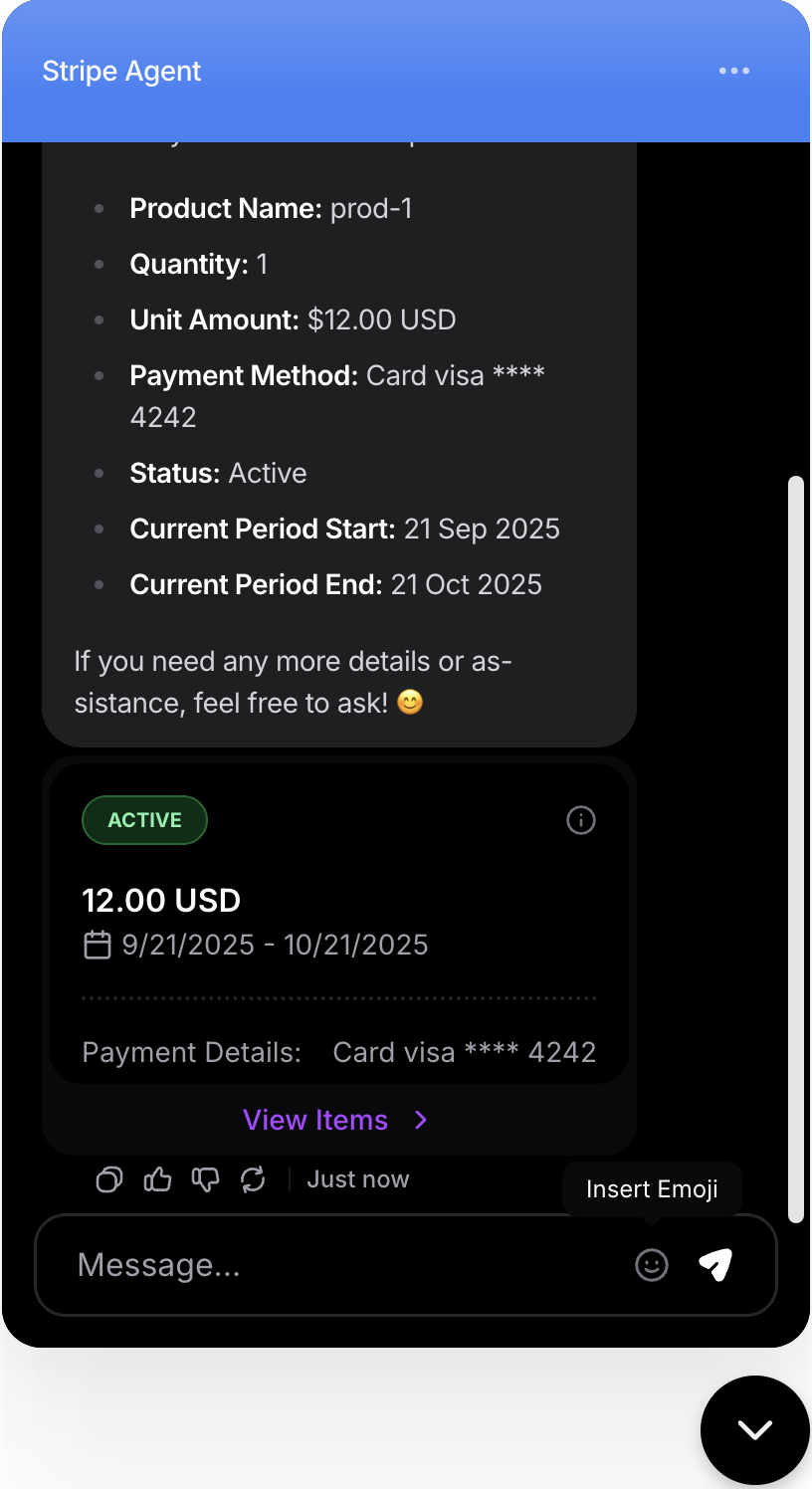
Retrieve and display customer subscription details, including current plan, status, billing cycle, and pricing information.
Answering questions about current subscription status, plan details, renewal dates, and subscription history.
**Common Use Cases:**
* "What's my current plan?"
* "When does my subscription renew?"
* "How much am I paying monthly?"
* "Is my subscription active?"
#### Settings
**Action:** **Stripe Get Subscription Info**.
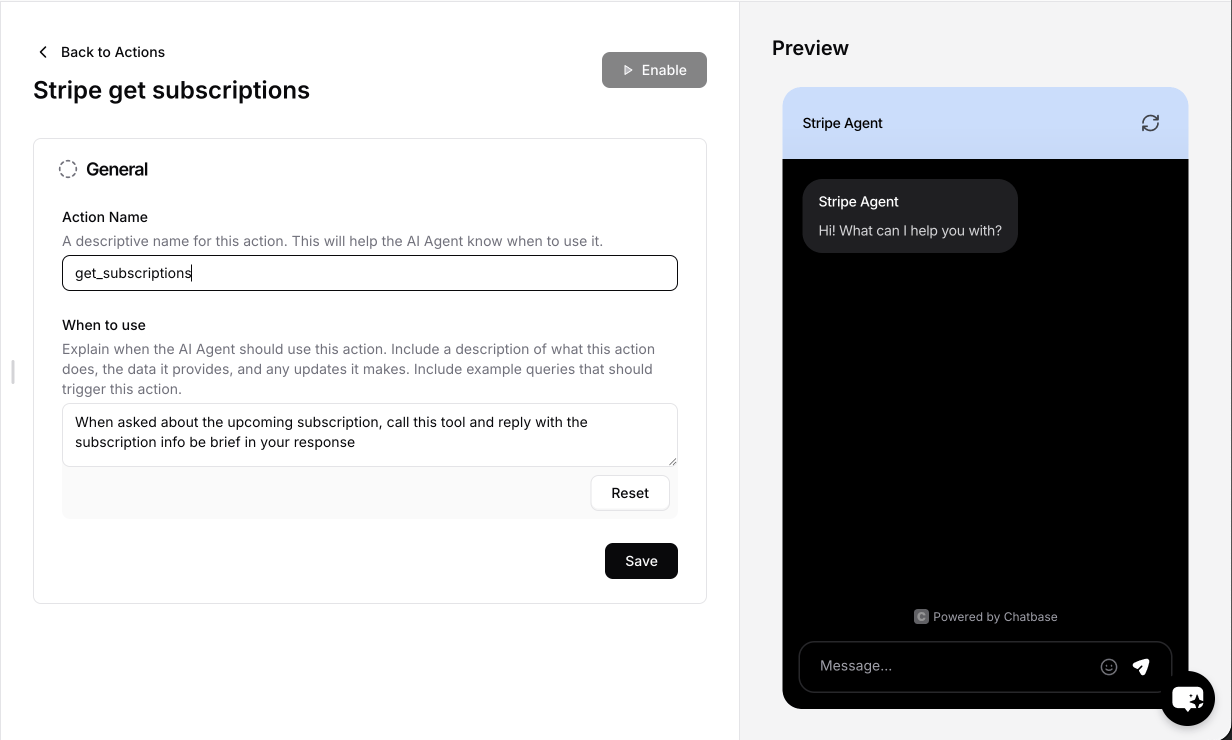 Test the action in the embedded widget to ensure it correctly retrieves subscription data for authenticated customers.
 ***
### 2. Get invoice history
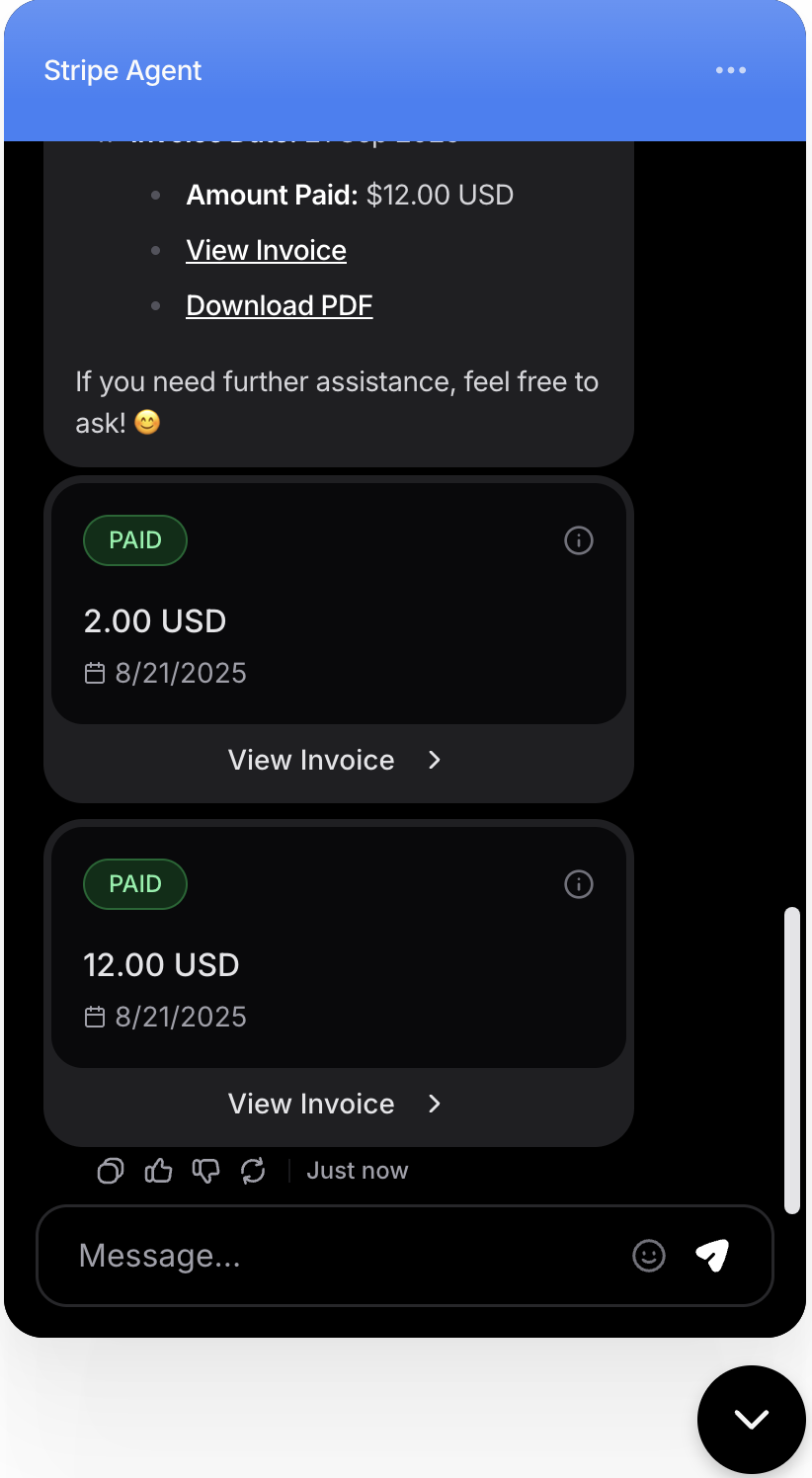
Retrieve and display customer invoice history, payment details, and billing records.
Providing access to billing history, payment confirmations, invoice downloads, and payment troubleshooting.
**Common Use Cases:**
* "Show me my recent invoices"
* "Was my payment processed?"
* "Can you provide my billing history?"
#### Settings
**Action:** **Stripe Get Invoices**.
***
### 2. Get invoice history
Retrieve and display customer invoice history, payment details, and billing records.
Providing access to billing history, payment confirmations, invoice downloads, and payment troubleshooting.
**Common Use Cases:**
* "Show me my recent invoices"
* "Was my payment processed?"
* "Can you provide my billing history?"
#### Settings
**Action:** **Stripe Get Invoices**.
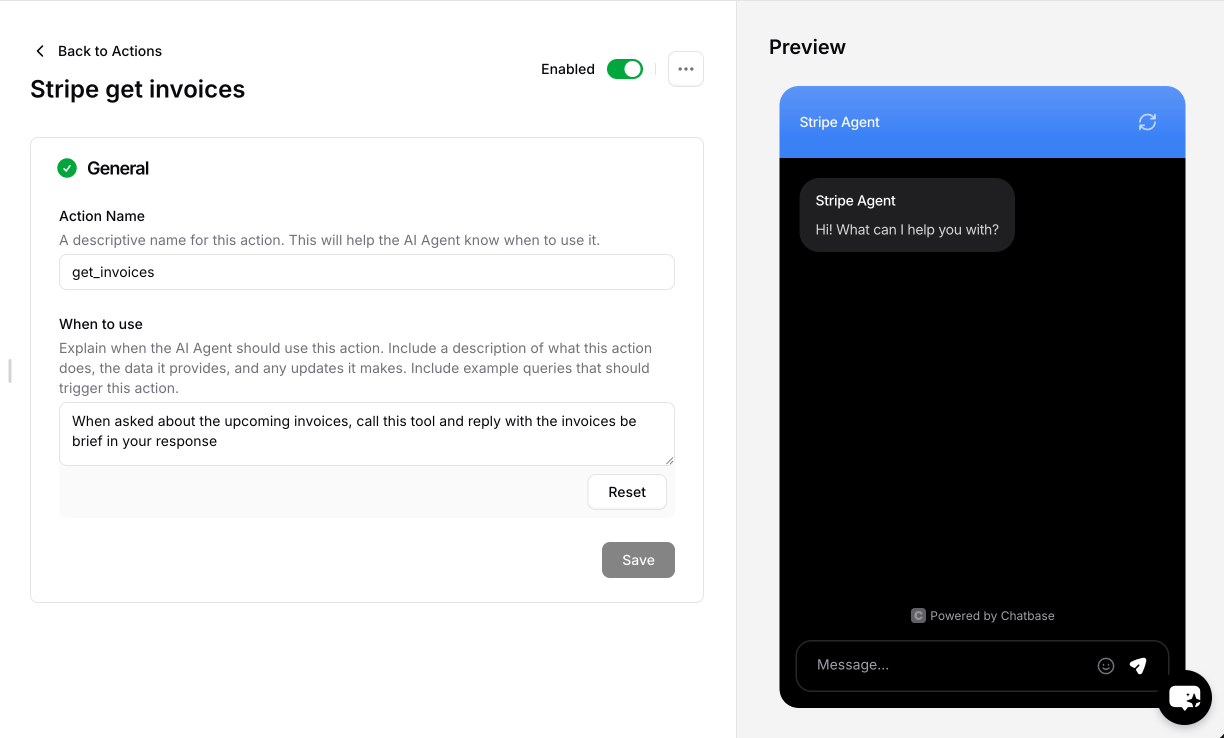 Test the action with a sample customer request in the embedded widget.
 ***
### 3. Manage subscriptions
Comprehensive subscription management, including plan changes, upgrades, downgrades, and cancellations.
Complete subscription lifecycle management: plan changes, adding payment methods, and cancellation handling.
**Common Use Cases:**
* "I want to upgrade my plan"
* "Upgrade my plan to the pro"
* "I need to cancel my subscription"
* "What plans are available?"
#### Settings
**Action:** **Stripe** → **Manage Subscriptions**.
***
### 3. Manage subscriptions
Comprehensive subscription management, including plan changes, upgrades, downgrades, and cancellations.
Complete subscription lifecycle management: plan changes, adding payment methods, and cancellation handling.
**Common Use Cases:**
* "I want to upgrade my plan"
* "Upgrade my plan to the pro"
* "I need to cancel my subscription"
* "What plans are available?"
#### Settings
**Action:** **Stripe** → **Manage Subscriptions**.
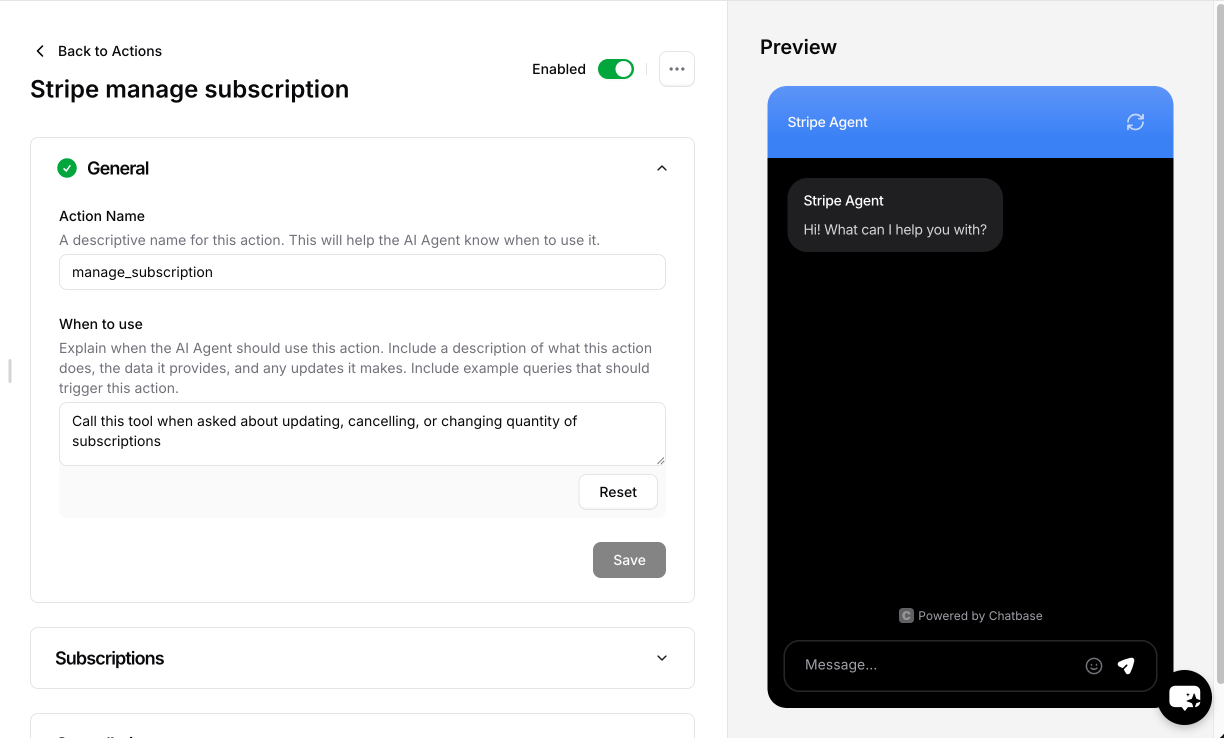 #### Define available plans
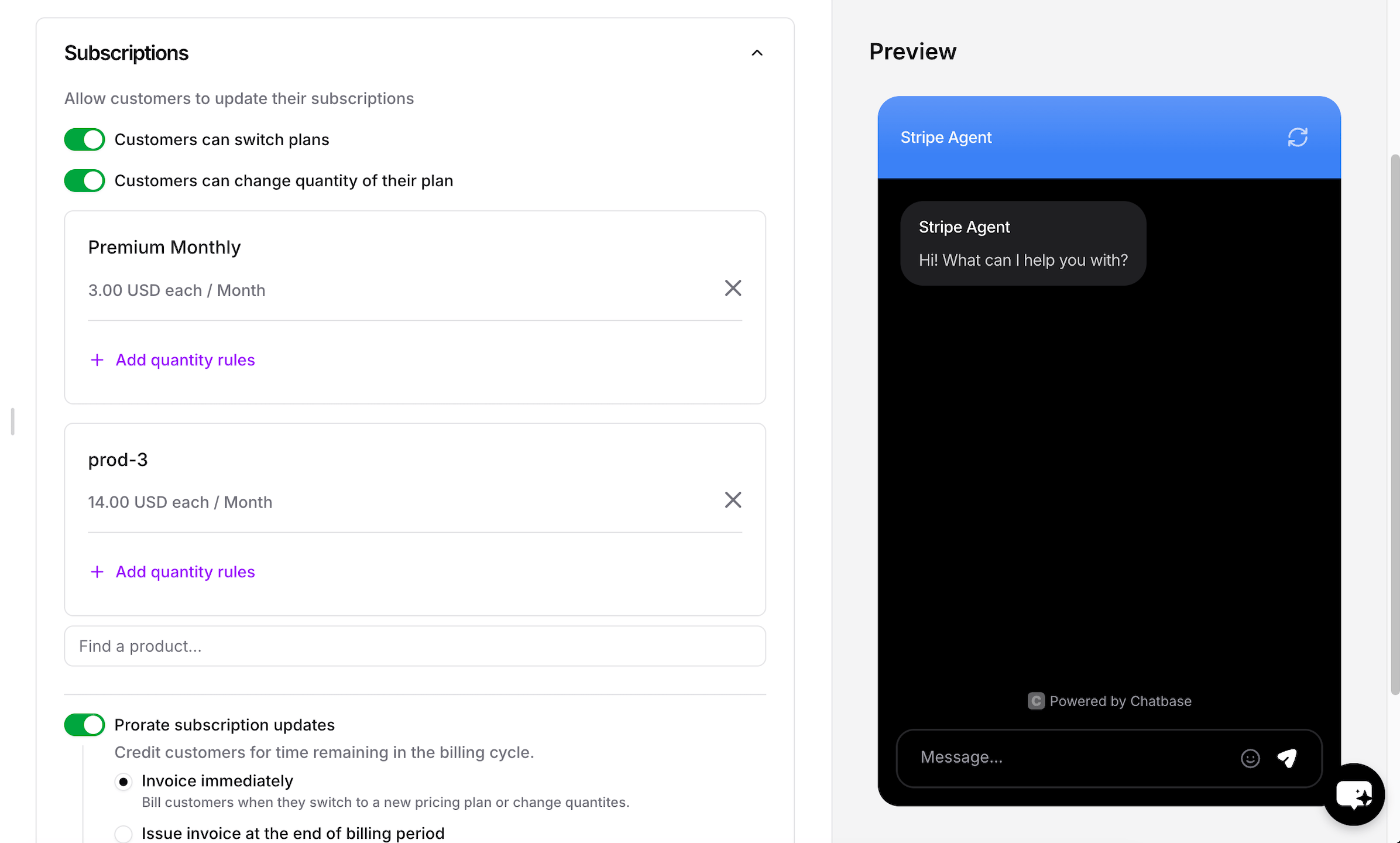
Configure which subscription plans and options are available for customers to choose from.
Set up available plans with their behavior.
#### Define available plans
Configure which subscription plans and options are available for customers to choose from.
Set up available plans with their behavior.
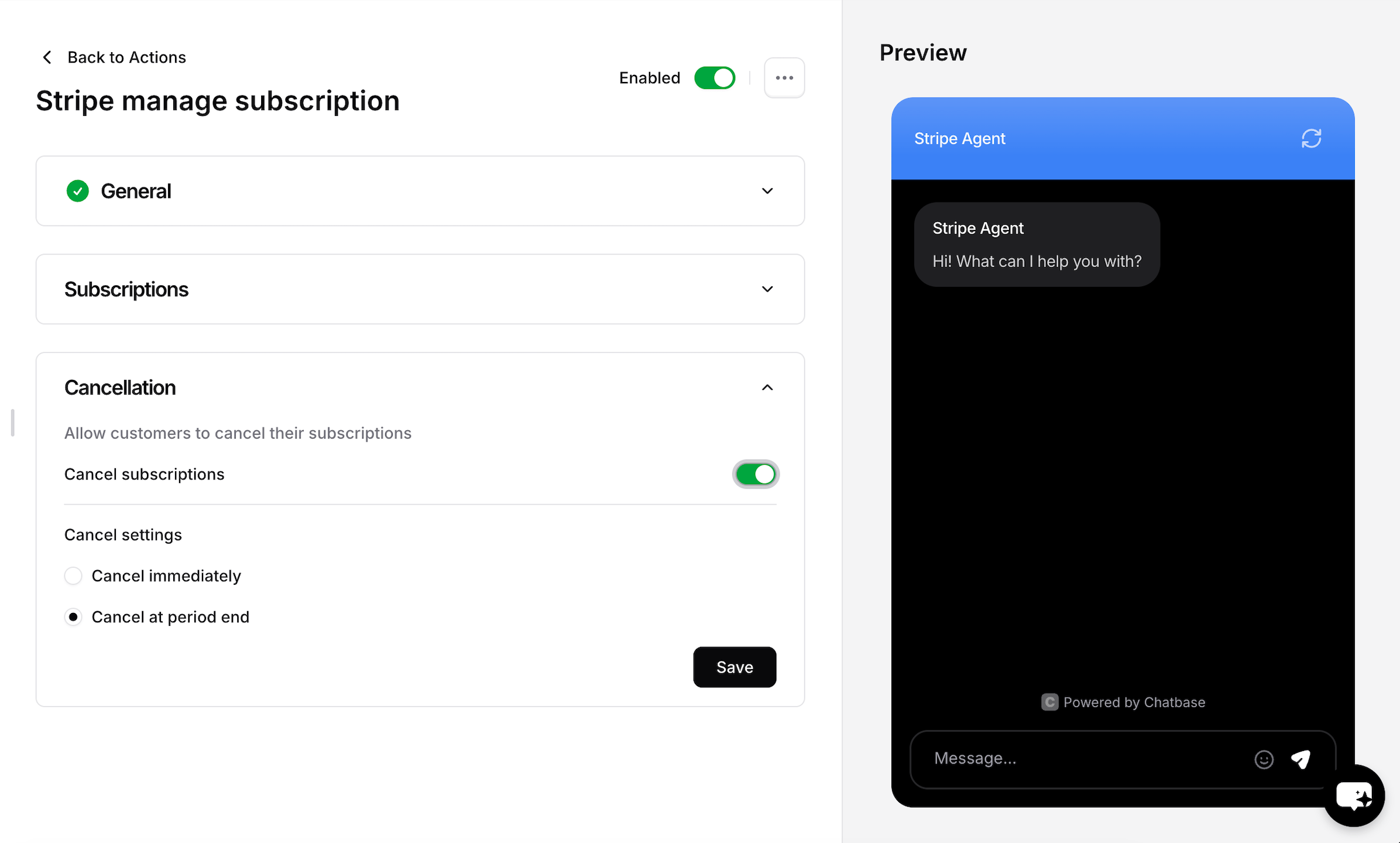
 Configure cancellation policies and refund handling.
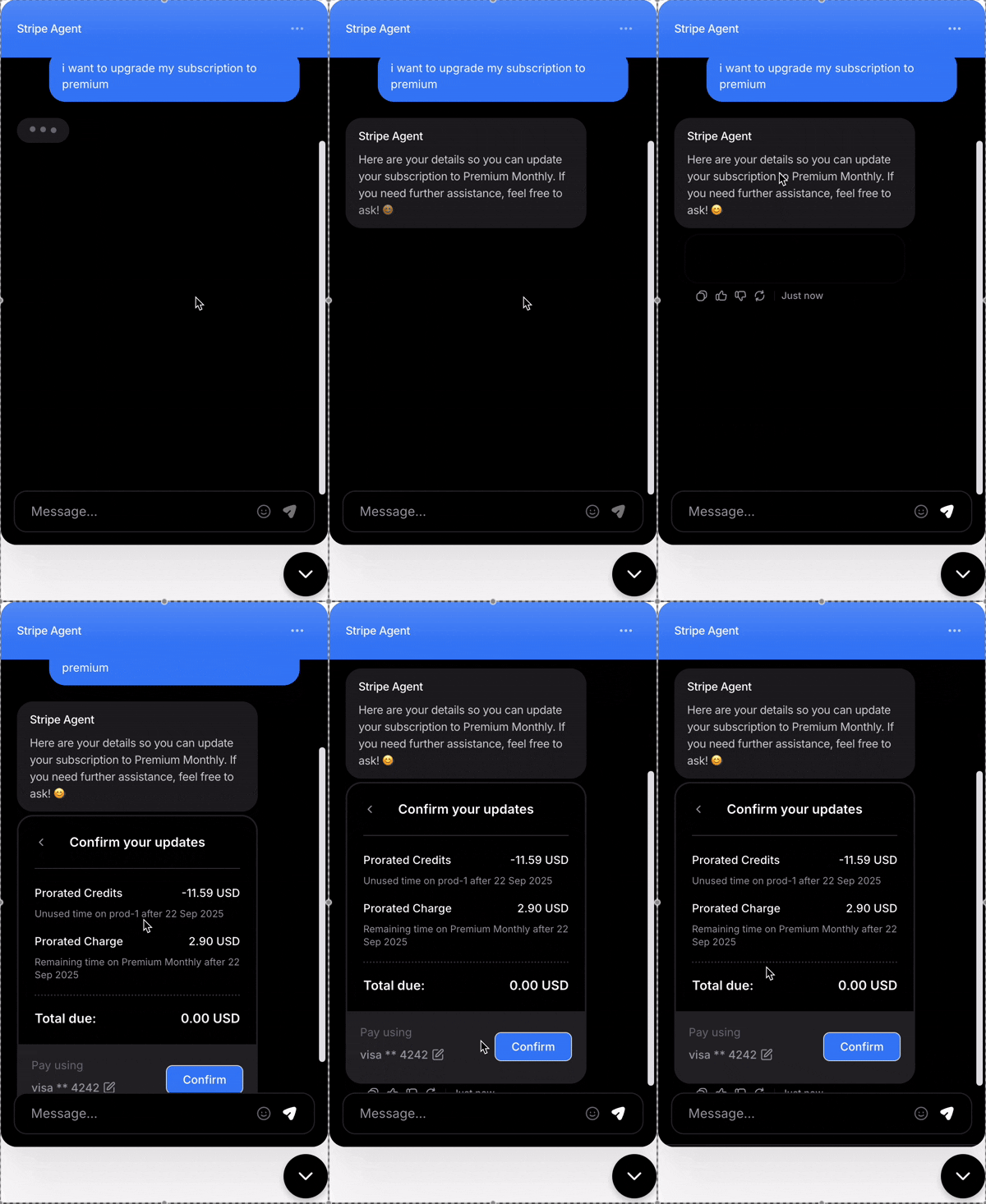
 Test every scenario before going live: upgrading from basic to premium with proper proration, downgrading with the right billing adjustments, and the complete cancellation flow. All subscription changes should be immediately reflected in both Stripe and the customer experience.
 Manage subscriptions changes what a customer pays. Consider turning on [**Only use in procedures**](/docs/user-guides/chatbot/actions/actions-overview#only-use-in-procedures) and putting your eligibility checks in a [procedure](/docs/user-guides/chatbot/procedures/procedures-overview) ahead of the step that calls it, so plan changes and cancellations happen at a point you control.
***
### 4. Change billing information
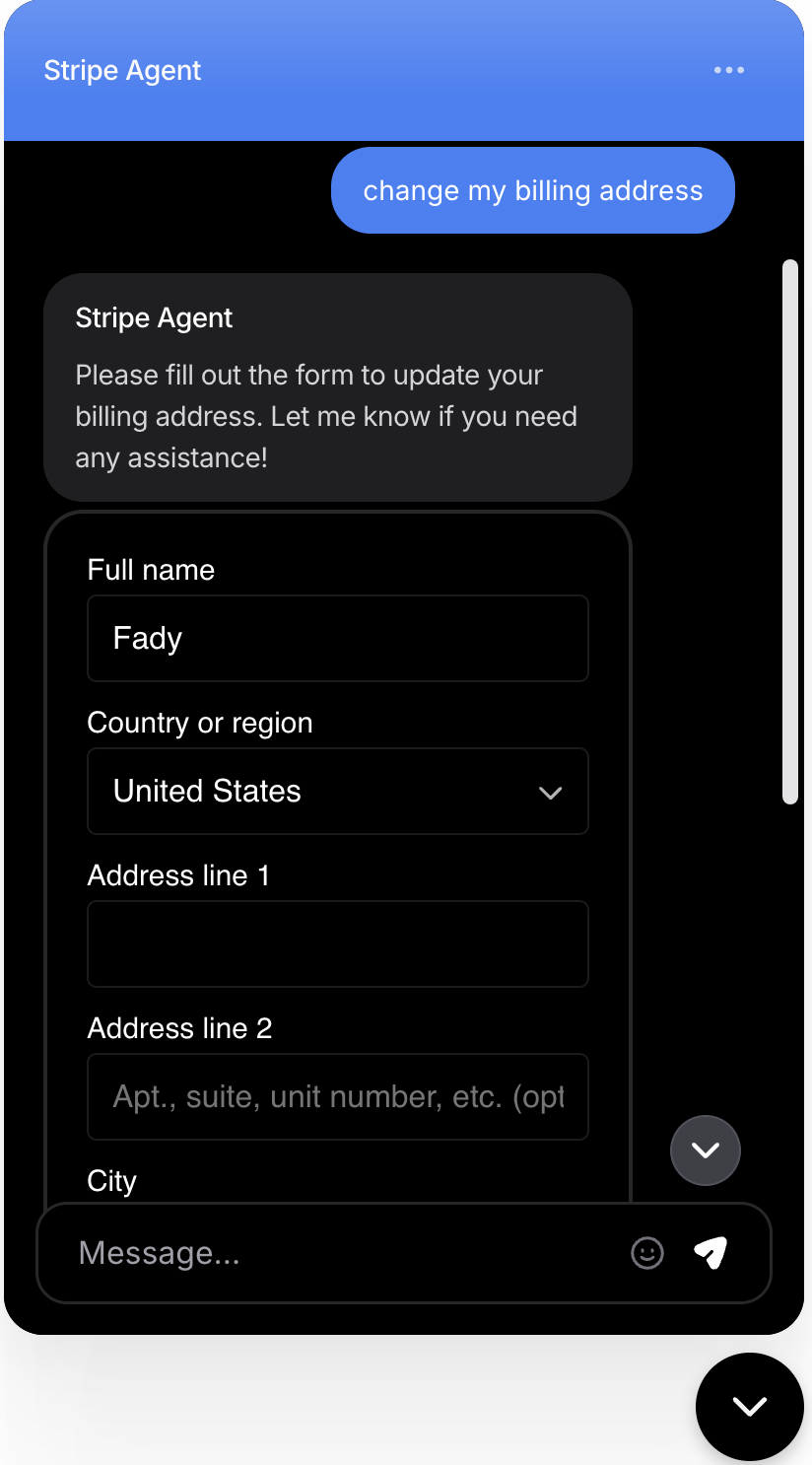
Allow customers to update their billing address and other account information.
Self-service billing updates, address changes, and other account information updates.
**Common Use Cases:**
* "I need to update my billing address"
* "Update my billing email address"
* "Update my billing phone number"
#### Settings
**Action:** **Stripe** → **Change customer information**.
Manage subscriptions changes what a customer pays. Consider turning on [**Only use in procedures**](/docs/user-guides/chatbot/actions/actions-overview#only-use-in-procedures) and putting your eligibility checks in a [procedure](/docs/user-guides/chatbot/procedures/procedures-overview) ahead of the step that calls it, so plan changes and cancellations happen at a point you control.
***
### 4. Change billing information
Allow customers to update their billing address and other account information.
Self-service billing updates, address changes, and other account information updates.
**Common Use Cases:**
* "I need to update my billing address"
* "Update my billing email address"
* "Update my billing phone number"
#### Settings
**Action:** **Stripe** → **Change customer information**.
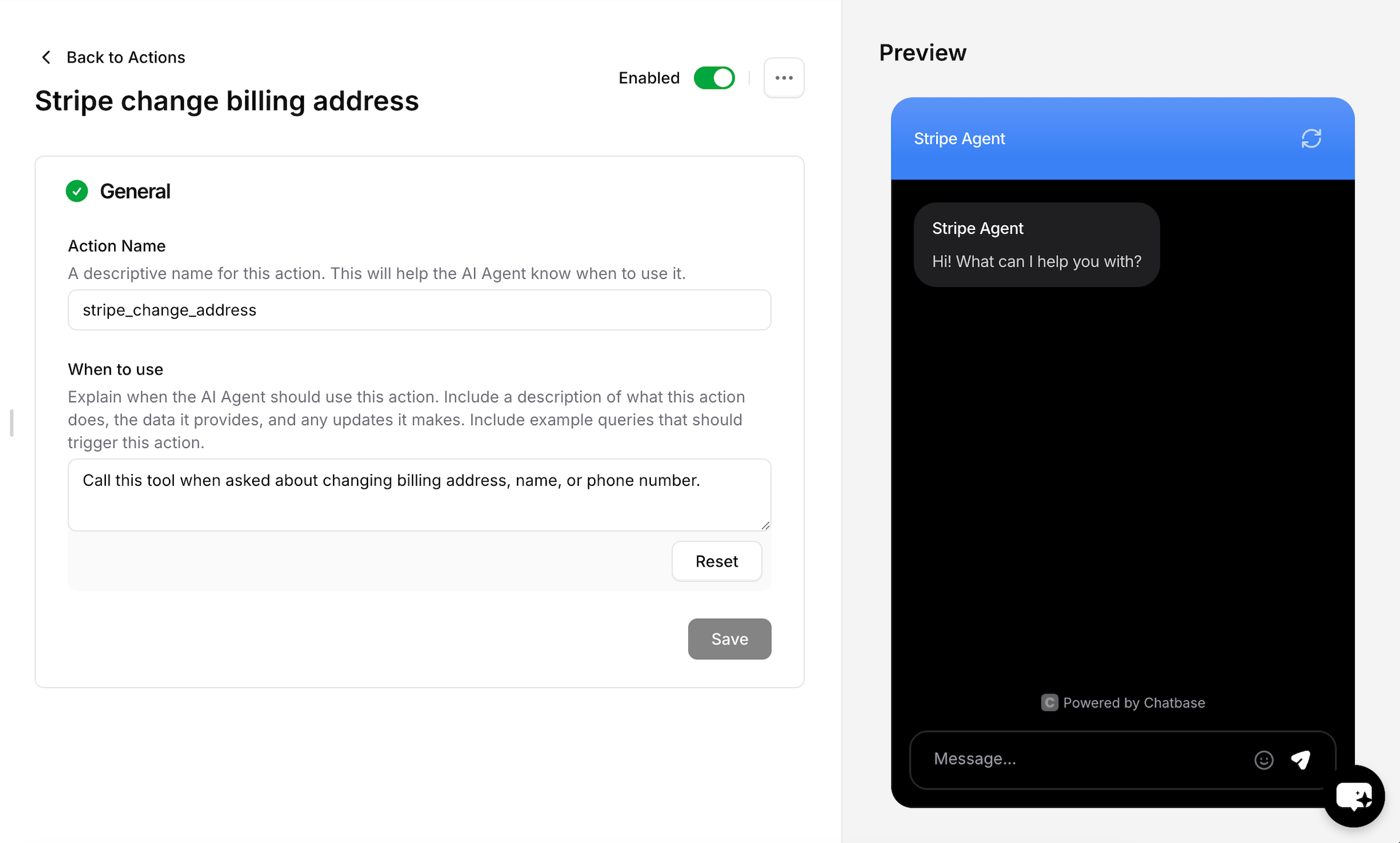 Test the action with various scenarios to ensure only authenticated customers can make changes, and verify that billing updates are reflected in both Stripe and the customer's account.
 ***
## Limitations
* **Stripe Actions require an authenticated customer.** Every action reads or writes the signed-in customer's own Stripe record, so identity verification must be configured and the customer must be identified.
* **Each customer needs a contact record with a valid `stripe_account`.** Without it, the action has no Stripe customer to act on.
* **In the Playground, they only run through Chat as user.** Start the conversation with [Chat as user](/docs/user-guides/chatbot/playground#chat-as-user) and a **User ID** that matches a contact with a valid `stripe_account`. **Action Preview** and **Compare** can't identify a customer, so the actions don't run there.
## Troubleshooting
**Possible causes:**
* The action is disabled in the dashboard, or turned off for the channel
* The customer is not properly authenticated
* The contact record is missing or has an invalid `stripe_account`
* The **When to use** description is too vague to match what the customer asked
**Solutions:**
* Enable the action and check its **Channels** step
* Check your identity verification implementation
* Validate that the contact record has the correct `stripe_account` field
* Rewrite **When to use** with the phrases customers actually type
**Possible causes:**
* Invalid Stripe customer ID in the contact record
* The Stripe account has no subscription or invoice data
* Stripe API permissions are insufficient
* Network connectivity issues
**Solutions:**
* Verify the Stripe customer ID exists and is active
* Check that the Stripe account has relevant data
* Review the Stripe integration permissions
* Test Stripe API connectivity directly
**Possible causes:**
* User hash validation is failing
* `external_id` doesn't match `user_id`
* The contact record is not found
* Identity verification was never called
**Solutions:**
* Verify hash generation matches the expected format
* Ensure `external_id` exactly matches the authenticated `user_id`
* Create a contact record for the customer
* Implement the identity verification flow properly
## Best Practices
Always validate customer identity before processing any billing-related request. Never allow unauthenticated access to financial data.
Test all actions with various scenarios, edge cases, and error conditions before going live: in the Playground through **Chat as user**, then from your real site with the embed in place.
Put plan changes and cancellations behind a [procedure](/docs/user-guides/chatbot/procedures/procedures-overview) with eligibility checks, so the AI agent doesn't decide on its own when a customer qualifies.
Write specific **When to use** descriptions so the AI agent distinguishes a question about a plan from a request to change it.
***
## Limitations
* **Stripe Actions require an authenticated customer.** Every action reads or writes the signed-in customer's own Stripe record, so identity verification must be configured and the customer must be identified.
* **Each customer needs a contact record with a valid `stripe_account`.** Without it, the action has no Stripe customer to act on.
* **In the Playground, they only run through Chat as user.** Start the conversation with [Chat as user](/docs/user-guides/chatbot/playground#chat-as-user) and a **User ID** that matches a contact with a valid `stripe_account`. **Action Preview** and **Compare** can't identify a customer, so the actions don't run there.
## Troubleshooting
**Possible causes:**
* The action is disabled in the dashboard, or turned off for the channel
* The customer is not properly authenticated
* The contact record is missing or has an invalid `stripe_account`
* The **When to use** description is too vague to match what the customer asked
**Solutions:**
* Enable the action and check its **Channels** step
* Check your identity verification implementation
* Validate that the contact record has the correct `stripe_account` field
* Rewrite **When to use** with the phrases customers actually type
**Possible causes:**
* Invalid Stripe customer ID in the contact record
* The Stripe account has no subscription or invoice data
* Stripe API permissions are insufficient
* Network connectivity issues
**Solutions:**
* Verify the Stripe customer ID exists and is active
* Check that the Stripe account has relevant data
* Review the Stripe integration permissions
* Test Stripe API connectivity directly
**Possible causes:**
* User hash validation is failing
* `external_id` doesn't match `user_id`
* The contact record is not found
* Identity verification was never called
**Solutions:**
* Verify hash generation matches the expected format
* Ensure `external_id` exactly matches the authenticated `user_id`
* Create a contact record for the customer
* Implement the identity verification flow properly
## Best Practices
Always validate customer identity before processing any billing-related request. Never allow unauthenticated access to financial data.
Test all actions with various scenarios, edge cases, and error conditions before going live: in the Playground through **Chat as user**, then from your real site with the embed in place.
Put plan changes and cancellations behind a [procedure](/docs/user-guides/chatbot/procedures/procedures-overview) with eligibility checks, so the AI agent doesn't decide on its own when a customer qualifies.
Write specific **When to use** descriptions so the AI agent distinguishes a question about a plan from a request to change it.