> ## Documentation Index
> Fetch the complete documentation index at: https://chatbase.co/docs/llms.txt
> Use this file to discover all available pages before exploring further.
# Slack
> Notify a Slack channel whenever a conversation touches a topic your team needs to know about
## Overview
The Slack action lets your AI agent post a message to a Slack channel you choose whenever a customer mentions a topic you want to be notified about. The notification includes a direct link to the conversation, so your team can open it straight from Slack.
Alerting your team to issues worth a human's attention (late orders, churn risk, bug reports) without escalating the conversation itself.
**Common Use Cases:**
* Flagging a complaint or a late order to the support channel
* Notifying sales when a customer asks about enterprise pricing
* Telling your team about a reported bug as soon as it comes up
**Prerequisite:** Before using the Slack action, [connect Slack to Chatbase](/docs/user-guides/integrations/slack).
## How to create the action
Go to your [Chatbase dashboard](https://www.chatbase.co/dashboard/) and select your AI agent. Click **Build > Actions** in the left sidebar.
Click **Create action**, select **Slack**, then click **Start customizing**.
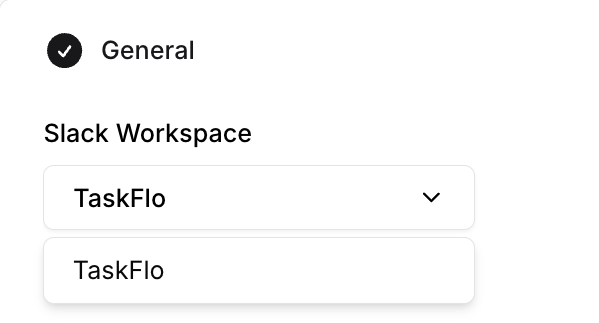
Select the Slack workspace you want connected to this action.
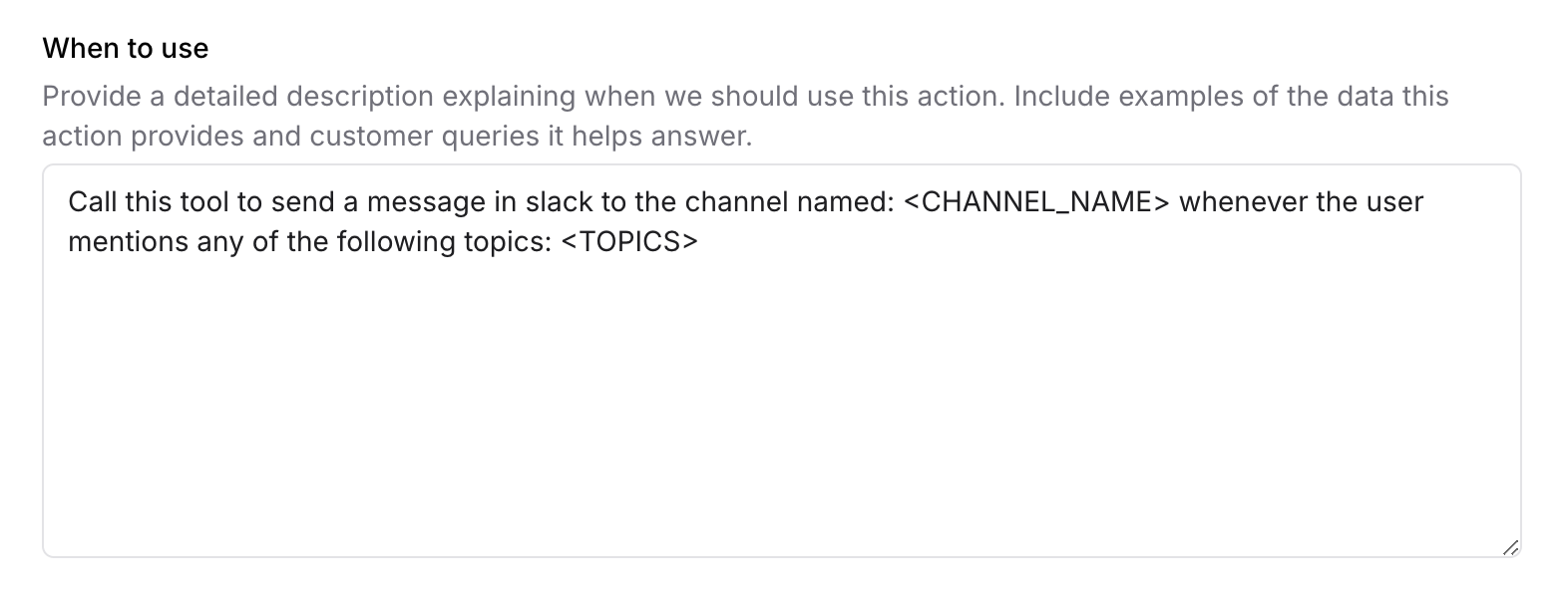
 **When to use:** Provide a detailed description explaining when the AI agent should use this action, including the channel to post to and the topics that should trigger it. See [Examples](#examples) below.
To restrict the action to [procedure](/docs/user-guides/chatbot/procedures/procedures-overview) steps only, turn on [**Only use in procedures**](/docs/user-guides/chatbot/actions/actions-overview#only-use-in-procedures). When it's on, the **When to use** field is hidden, because the AI agent no longer decides when to call the action.
**When to use:** Provide a detailed description explaining when the AI agent should use this action, including the channel to post to and the topics that should trigger it. See [Examples](#examples) below.
To restrict the action to [procedure](/docs/user-guides/chatbot/procedures/procedures-overview) steps only, turn on [**Only use in procedures**](/docs/user-guides/chatbot/actions/actions-overview#only-use-in-procedures). When it's on, the **When to use** field is hidden, because the AI agent no longer decides when to call the action.
 Use **Channels** to control where the action is available. Toggle the action on or off for each configured channel, then click **Save**. Some channels may be incompatible with the action and won't be available for selection.
Click **Save**, then ensure the action is toggled to **Enabled** so the AI agent can post to your Slack channel.
Use **Channels** to control where the action is available. Toggle the action on or off for each configured channel, then click **Save**. Some channels may be incompatible with the action and won't be available for selection.
Click **Save**, then ensure the action is toggled to **Enabled** so the AI agent can post to your Slack channel.
 Test the action in the Action Preview before enabling it, to confirm the AI agent posts to your Slack channel when your instructions are met.
## Examples
A **When to use** description that names both the channel and the trigger topics:
```text theme={null}
Call this tool to send a message in slack to the channel named: ai-actions-slack
whenever the user mentions any of the following topics: late order
```
Test the action in the Action Preview before enabling it, to confirm the AI agent posts to your Slack channel when your instructions are met.
## Examples
A **When to use** description that names both the channel and the trigger topics:
```text theme={null}
Call this tool to send a message in slack to the channel named: ai-actions-slack
whenever the user mentions any of the following topics: late order
```
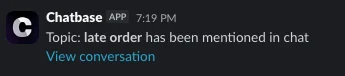
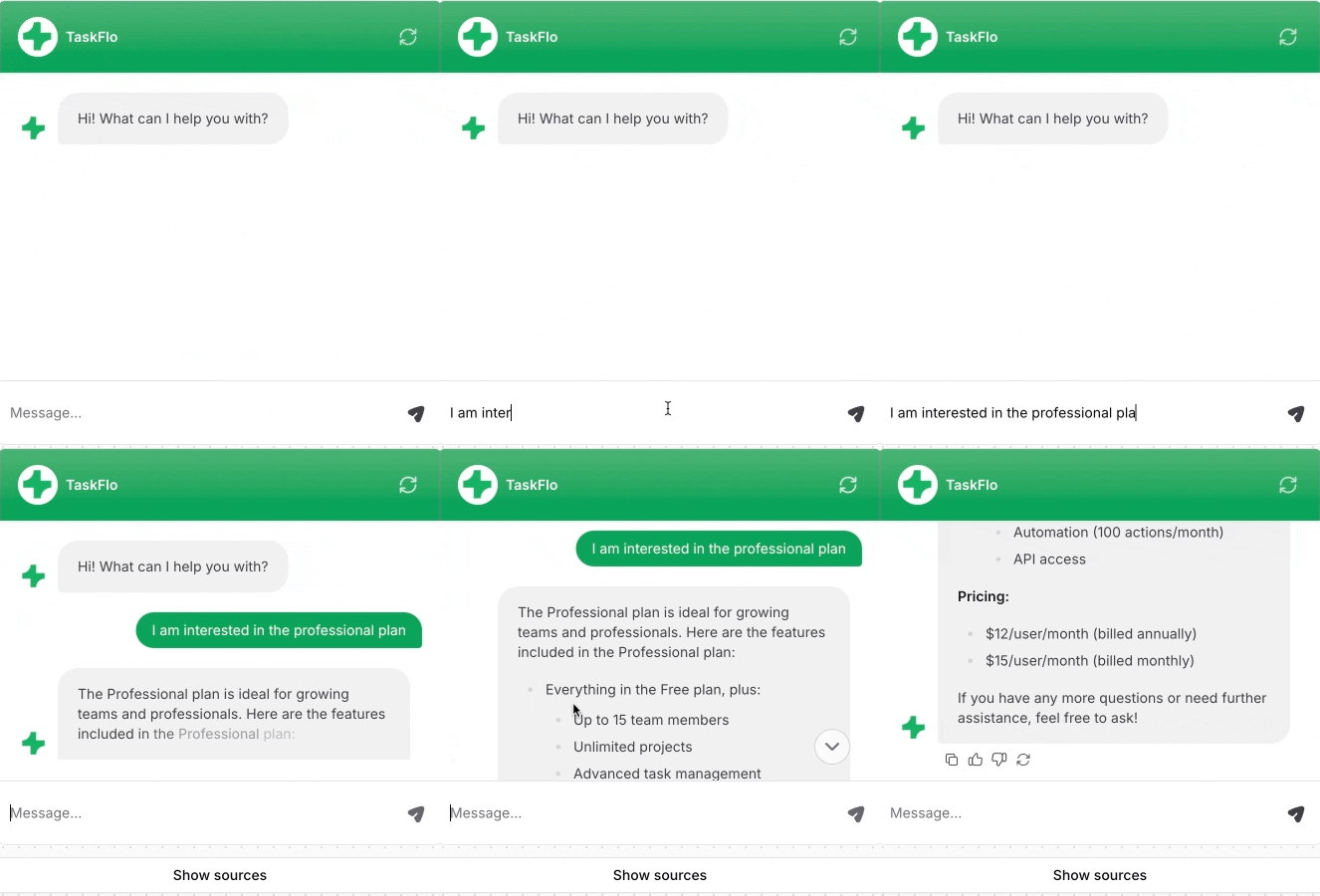 Once the customer mentions an issue with a late order, a Slack notification is sent to the connected channel, with a direct link to that conversation:
 ## Best Practices
Include the destination channel in your **When to use** description so notifications land where the right people are watching.
Spell out the topics that should fire a notification. Vague instructions produce either noise or silence.
Slack tells your team something happened, but it doesn't hand over the conversation. For that, use [Escalations](/docs/user-guides/chatbot/actions/escalate-to-human) or [Chatbase live chat](/docs/user-guides/chatbot/actions/chatbase-live-chat).
Send a test message from the Action Preview and confirm it arrives in the right channel before you turn the action on.
## Best Practices
Include the destination channel in your **When to use** description so notifications land where the right people are watching.
Spell out the topics that should fire a notification. Vague instructions produce either noise or silence.
Slack tells your team something happened, but it doesn't hand over the conversation. For that, use [Escalations](/docs/user-guides/chatbot/actions/escalate-to-human) or [Chatbase live chat](/docs/user-guides/chatbot/actions/chatbase-live-chat).
Send a test message from the Action Preview and confirm it arrives in the right channel before you turn the action on.